Two USB-C ports on the side of a laptop can look identical while doing different jobs. One may send a picture to an external display, and the one next to it may only charge and move data. The small icon printed beside each port is often the quickest clue.
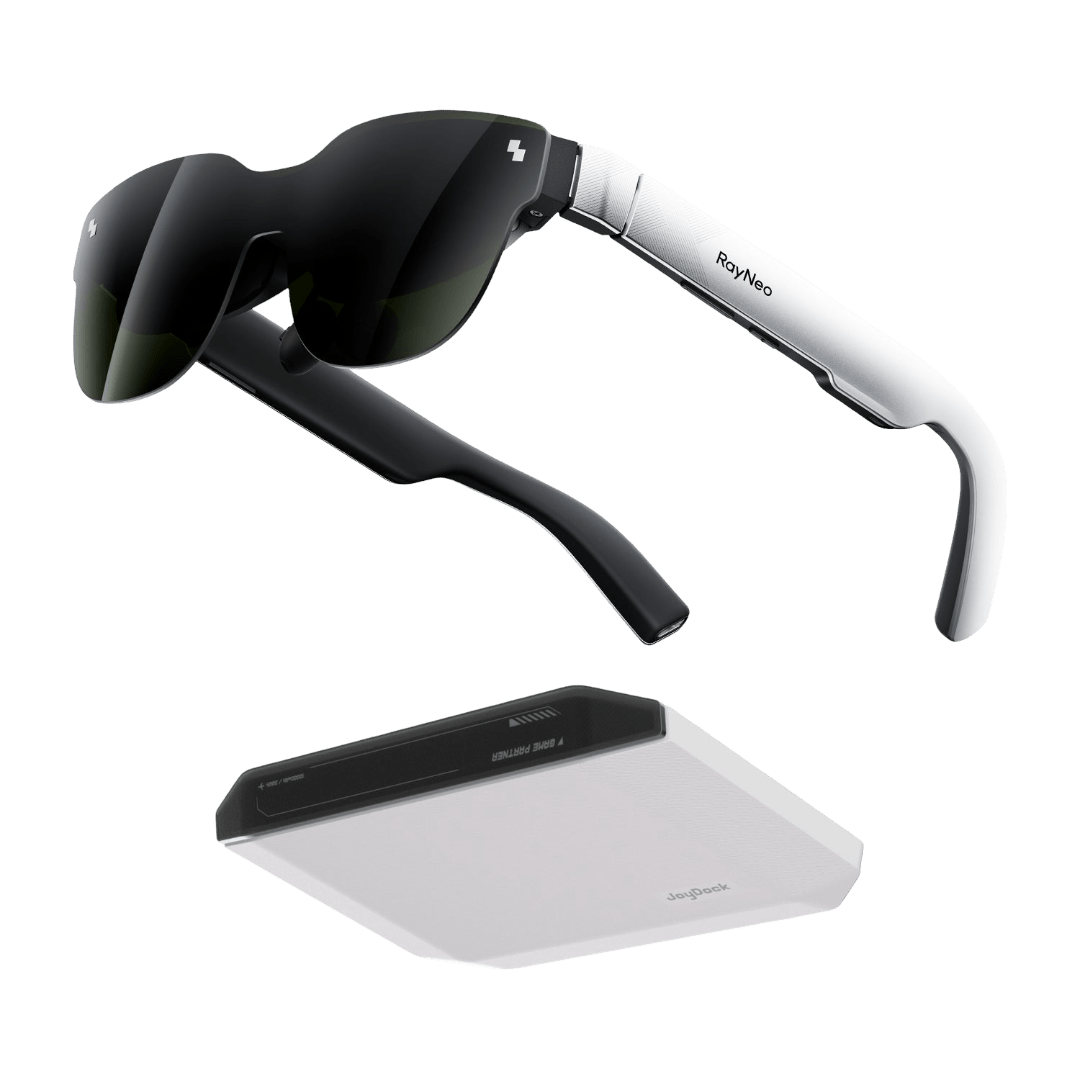
RayNeo GT, RayNeo GT Max and RayNeo Air 4 Pro work with computers in two ways. A USB-C port with DisplayPort video connects to the glasses with the single cable in the box. A computer that sends video through HDMI connects through the RayNeo HDMI Adapter. Either way, the computer sees the glasses as a Full HD external display.

Two USB-C ports that look the same but carry different signals
USB-C describes the connector, not what flows through it. DisplayPort Alternate Mode, usually shortened to DP Alt Mode, lets a USB-C port carry a DisplayPort video signal alongside power and data. The computer maker decides which ports get that wiring, and some laptops give it to one port and not the other.

Three labels point to a video-capable port:
- A small DisplayPort symbol (a D-shaped outline) printed next to the port.
- A lightning-bolt Thunderbolt symbol. Thunderbolt 4 ports carry DisplayPort video as part of the standard.
- Spec sheet wording such as "DP Alt Mode," "DisplayPort over USB-C" or "Thunderbolt 4" against that port.
A port listed as charging or data only does not send video. On a laptop with both kinds, the glasses belong in the port with the display or Thunderbolt marking.
One cable for laptops with DisplayPort Alt Mode
On a laptop with a video-capable USB-C port, the whole setup is the cable that ships with the glasses. GT and GT Max come with a DP-compatible USB-C to USB-C cable, and Air 4 Pro ships with its own cable in the box as well. That one cable carries the picture and sound from the laptop to the frame. GT and GT Max have no power button; they switch on when they detect a compatible signal and switch off when the cable comes out, and Air 4 Pro is plug-and-play as well.
Apple MacBook models from 2015 onward with USB-C connect this way, as do Windows laptops and PCs whose USB-C ports support video output. Once connected, the computer treats the glasses like any other monitor: it can mirror its own screen onto them or extend the desktop across both, depending on what the computer offers. No app is needed on the computer for basic display use.
A laptop whose only video-capable USB-C port is also its charging port can keep charging while it drives the glasses through the RayNeo USB-C Charging Adapter, a USB-C pass-through rated for 4K@60Hz video that lets a USB-C PD charger keep feeding the laptop.
Setup steps for Windows and macOS are covered in the guides to a Windows external display and to extending a MacBook.
HDMI-only desktops through the RayNeo HDMI Adapter
Desktops, mini PCs and laptops that send video through HDMI connect through the RayNeo HDMI Adapter, which converts the HDMI signal into the USB-C video signal the glasses take. The connection runs in one line: the adapter plugs straight into the computer's HDMI output, the USB-C cable from the glasses box runs from the adapter to the glasses, and the computer is switched on. The glasses power up and show the computer's output.

The adapter supports 1080P@120Hz output, matching the Full HD display in the glasses, and also handles 2K@30Hz and 4K@30Hz. Since the glasses run at 1920 x 1080, setting the computer's output for that display to 1080p keeps the signal matched to the panel. The same adapter covers game consoles with HDMI, so one accessory can serve a desk PC and a console in the same room.
Laptops with both HDMI and a video-capable USB-C port
Some laptops offer both routes. The USB-C port gives a single-cable connection with nothing in between, which suits a laptop on the move. The HDMI port, through the RayNeo HDMI Adapter, leaves the USB-C port free for charging or a drive at a fixed desk. Either way the glasses show the same Full HD desktop.
Desktop graphics cards and where the glasses plug in
A tower PC with a dedicated graphics card usually has two sets of video ports: one on the motherboard at the back panel, and one on the card itself lower down. When a card is installed, the picture typically comes from the card, and the motherboard ports often stay dark. The RayNeo HDMI Adapter belongs in an HDMI port on the graphics card.
Some graphics cards and workstation boards add a USB-C output with DisplayPort; on those, the direct cable works the same way it does on a laptop.
Docks, hubs and adapters between the computer and the glasses
Many desks already have a USB-C hub or a docking station in the chain, and the same rule applies to every port on it: the glasses need a DisplayPort signal on USB-C, or an HDMI signal converted by the RayNeo HDMI Adapter.
- A hub or dock whose HDMI port carries the computer's video connects through the RayNeo HDMI Adapter, the same way as an HDMI port on the computer itself.
- A downstream USB-C port on a hub or dock connects the glasses directly only when the dock passes DisplayPort video through that port. Thunderbolt docks commonly do this on their Thunderbolt ports, and many hubs keep their extra USB-C ports for data and charging.
- A direct connection to a video-capable port on the laptop itself is the simplest arrangement, with the hub left for keyboards, drives and chargers.
GT, GT Max or Air 4 Pro on the same computer
All three connect the same two ways, so the choice turns on the kind of work the computer is doing.
GT Max gives the widest view for long desk sessions where the screen should feel as large as a wall monitor: a 59° field of view and a single virtual screen that can be set to 227, 267 or 307 inches, with the same Full HD desktop spread across a larger canvas. Its optical module comes in S, M and L sizes, picked by interpupillary distance when ordering.
A laptop that travels between desks pairs well with GT, which keeps the frame light at 68g, with a 46° field of view and a virtual screen that can be set to 136, 201 or 231 inches. Both GT models add native 3DoF tracking, so the virtual monitor can hold its place above the keyboard while the head turns toward a notebook or a colleague.
For a computer that doubles as a games machine in the evening, Air 4 Pro pairs a 201-inch screen with Full HD up to 120Hz in a 76g frame, and it uses the same laptop ports and the same HDMI Adapter. For a model-by-model device list, see the GT and GT Max device compatibility guide.
PC connection FAQ
Is a Thunderbolt port the same as DP Alt Mode for these glasses?
Thunderbolt 4 ports carry DisplayPort video, and GT, GT Max and Air 4 Pro connect to compatible Thunderbolt video output directly, the same way they connect to a DP Alt Mode port. Many laptops with Thunderbolt 3 ports carry DisplayPort video through them as well.
Can one desktop drive the glasses and a regular monitor together?
Most graphics cards drive several displays at once, so a monitor on one output and the glasses on another can run side by side as two screens. On a card with one HDMI port and several DisplayPort ports, a desk monitor with a DisplayPort input can move to a DisplayPort cable, leaving the HDMI port free for the RayNeo HDMI Adapter.




Two USB-C ports on the side of a laptop can look identical while doing different jobs. One may send a picture to an external display, and the one next to it may only charge and move data. The small icon printed beside each port is often the quickest clue.
RayNeo GT, RayNeo GT Max and RayNeo Air 4 Pro work with computers in two ways. A USB-C port with DisplayPort video connects to the glasses with the single cable in the box. A computer that sends video through HDMI connects through the RayNeo HDMI Adapter. Either way, the computer sees the glasses as a Full HD external display.
Two USB-C ports that look the same but carry different signals
USB-C describes the connector, not what flows through it. DisplayPort Alternate Mode, usually shortened to DP Alt Mode, lets a USB-C port carry a DisplayPort video signal alongside power and data. The computer maker decides which ports get that wiring, and some laptops give it to one port and not the other.
Three labels point to a video-capable port:
A port listed as charging or data only does not send video. On a laptop with both kinds, the glasses belong in the port with the display or Thunderbolt marking.
One cable for laptops with DisplayPort Alt Mode
On a laptop with a video-capable USB-C port, the whole setup is the cable that ships with the glasses. GT and GT Max come with a DP-compatible USB-C to USB-C cable, and Air 4 Pro ships with its own cable in the box as well. That one cable carries the picture and sound from the laptop to the frame. GT and GT Max have no power button; they switch on when they detect a compatible signal and switch off when the cable comes out, and Air 4 Pro is plug-and-play as well.
Apple MacBook models from 2015 onward with USB-C connect this way, as do Windows laptops and PCs whose USB-C ports support video output. Once connected, the computer treats the glasses like any other monitor: it can mirror its own screen onto them or extend the desktop across both, depending on what the computer offers. No app is needed on the computer for basic display use.
A laptop whose only video-capable USB-C port is also its charging port can keep charging while it drives the glasses through the RayNeo USB-C Charging Adapter, a USB-C pass-through rated for 4K@60Hz video that lets a USB-C PD charger keep feeding the laptop.
Setup steps for Windows and macOS are covered in the guides to a Windows external display and to extending a MacBook.
HDMI-only desktops through the RayNeo HDMI Adapter
Desktops, mini PCs and laptops that send video through HDMI connect through the RayNeo HDMI Adapter, which converts the HDMI signal into the USB-C video signal the glasses take. The connection runs in one line: the adapter plugs straight into the computer's HDMI output, the USB-C cable from the glasses box runs from the adapter to the glasses, and the computer is switched on. The glasses power up and show the computer's output.
The adapter supports 1080P@120Hz output, matching the Full HD display in the glasses, and also handles 2K@30Hz and 4K@30Hz. Since the glasses run at 1920 x 1080, setting the computer's output for that display to 1080p keeps the signal matched to the panel. The same adapter covers game consoles with HDMI, so one accessory can serve a desk PC and a console in the same room.
Laptops with both HDMI and a video-capable USB-C port
Some laptops offer both routes. The USB-C port gives a single-cable connection with nothing in between, which suits a laptop on the move. The HDMI port, through the RayNeo HDMI Adapter, leaves the USB-C port free for charging or a drive at a fixed desk. Either way the glasses show the same Full HD desktop.
Desktop graphics cards and where the glasses plug in
A tower PC with a dedicated graphics card usually has two sets of video ports: one on the motherboard at the back panel, and one on the card itself lower down. When a card is installed, the picture typically comes from the card, and the motherboard ports often stay dark. The RayNeo HDMI Adapter belongs in an HDMI port on the graphics card.
Some graphics cards and workstation boards add a USB-C output with DisplayPort; on those, the direct cable works the same way it does on a laptop.
Docks, hubs and adapters between the computer and the glasses
Many desks already have a USB-C hub or a docking station in the chain, and the same rule applies to every port on it: the glasses need a DisplayPort signal on USB-C, or an HDMI signal converted by the RayNeo HDMI Adapter.
GT, GT Max or Air 4 Pro on the same computer
All three connect the same two ways, so the choice turns on the kind of work the computer is doing.
GT Max gives the widest view for long desk sessions where the screen should feel as large as a wall monitor: a 59° field of view and a single virtual screen that can be set to 227, 267 or 307 inches, with the same Full HD desktop spread across a larger canvas. Its optical module comes in S, M and L sizes, picked by interpupillary distance when ordering.
A laptop that travels between desks pairs well with GT, which keeps the frame light at 68g, with a 46° field of view and a virtual screen that can be set to 136, 201 or 231 inches. Both GT models add native 3DoF tracking, so the virtual monitor can hold its place above the keyboard while the head turns toward a notebook or a colleague.
For a computer that doubles as a games machine in the evening, Air 4 Pro pairs a 201-inch screen with Full HD up to 120Hz in a 76g frame, and it uses the same laptop ports and the same HDMI Adapter. For a model-by-model device list, see the GT and GT Max device compatibility guide.
PC connection FAQ
Is a Thunderbolt port the same as DP Alt Mode for these glasses?
Thunderbolt 4 ports carry DisplayPort video, and GT, GT Max and Air 4 Pro connect to compatible Thunderbolt video output directly, the same way they connect to a DP Alt Mode port. Many laptops with Thunderbolt 3 ports carry DisplayPort video through them as well.
Can one desktop drive the glasses and a regular monitor together?
Most graphics cards drive several displays at once, so a monitor on one output and the glasses on another can run side by side as two screens. On a card with one HDMI port and several DisplayPort ports, a desk monitor with a DisplayPort input can move to a DisplayPort cable, leaving the HDMI port free for the RayNeo HDMI Adapter.
Share:
Leave a Comment
We'd love to hear your thoughts. Comments are reviewed before publication.