

$429.00


RayNeo GT Max connects to a Windows PC over a wired USB-C cable and, as with any DisplayPort or HDMI monitor, shows up in Windows as a standard 1920x1080 external display. The catch isn’t Windows itself. Windows will treat almost any external display the same way. The real question is whether your specific PC’s USB-C port (or lack of one) can actually send a video signal out through that cable, and that depends on hardware, not the operating system.
This guide covers the three connection scenarios you’ll run into, how to tell which one applies to your machine, and what to do once Windows recognizes the glasses as a display.
Windows has supported external monitors for decades, through VGA, DVI, HDMI, DisplayPort, and now USB-C. But a USB-C port is a physical connector standard, not a video standard. Plenty of USB-C ports on Windows laptops are wired only for charging and data transfer (file sync, external drives) and were never connected to the machine’s graphics output. Others support DisplayPort Alt Mode, a specification that lets a USB-C cable carry a real video signal alongside power and data.
That difference is entirely about how the manufacturer wired the port, not about which version of Windows is installed. A five-year-old Windows 10 laptop with a video-capable USB-C port will work. A brand-new Windows 11 laptop with a charging-only USB-C port won’t, at least not without an adapter.
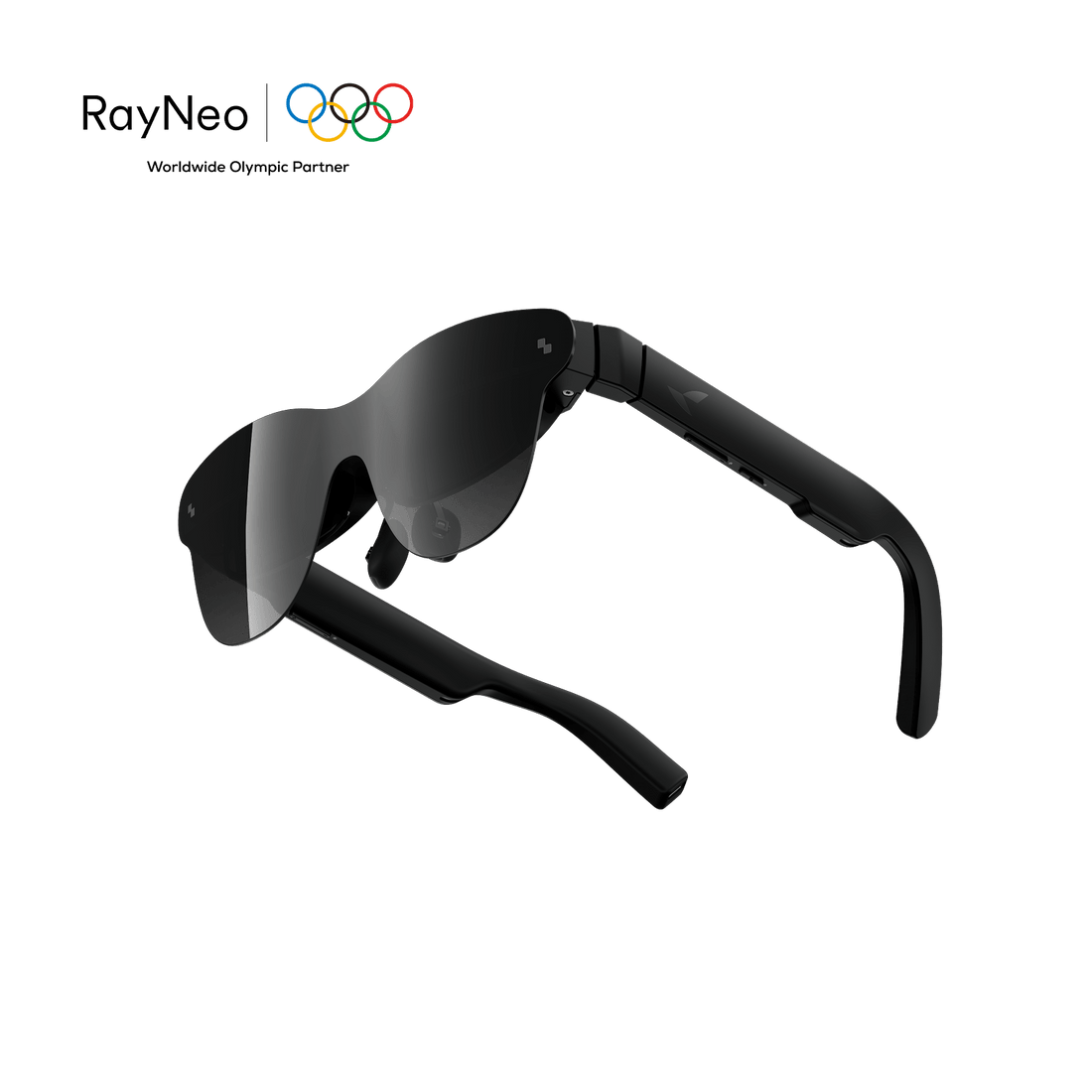
The RayNeo GT Max is a wired AR display, so it needs one of two things: a source port that outputs DisplayPort video over USB-C, or an HDMI signal converted through RayNeo’s own adapter. No separate streaming box is required for a PC connection, just the right cable path for your hardware.
Some Windows laptops, particularly those built around Thunderbolt 3, Thunderbolt 4, or USB4, wire their USB-C ports to output DisplayPort video directly. If your laptop falls into this group, GT Max plugs in with the included USB-C cable and the display activates without installing any software.
How to tell if your laptop qualifies before you buy or before you dig out an adapter:
RayNeo’s product page lists this direct path as working with “USB-C laptops and PCs with video output support,” which is deliberately broad because so many different laptop brands implement Thunderbolt or USB4 ports this way. It’s a hardware capability check, not a brand or price-tier check. What matters is whether that specific USB-C port actually outputs DisplayPort video, not whether the laptop is a budget or premium model, so confirm the port’s video output capability in your machine’s spec sheet rather than assuming a USB4 label alone settles it.
If you go through these checks and still aren’t sure how your specific machine will behave, RayNeo backs both GT Max and GT with a 30-day return window and a 1-year limited warranty. That means testing the direct USB-C connection first and falling back to the HDMI Adapter, or returning the glasses altogether, isn’t an all-or-nothing bet if your laptop turns out not to support video over USB-C.
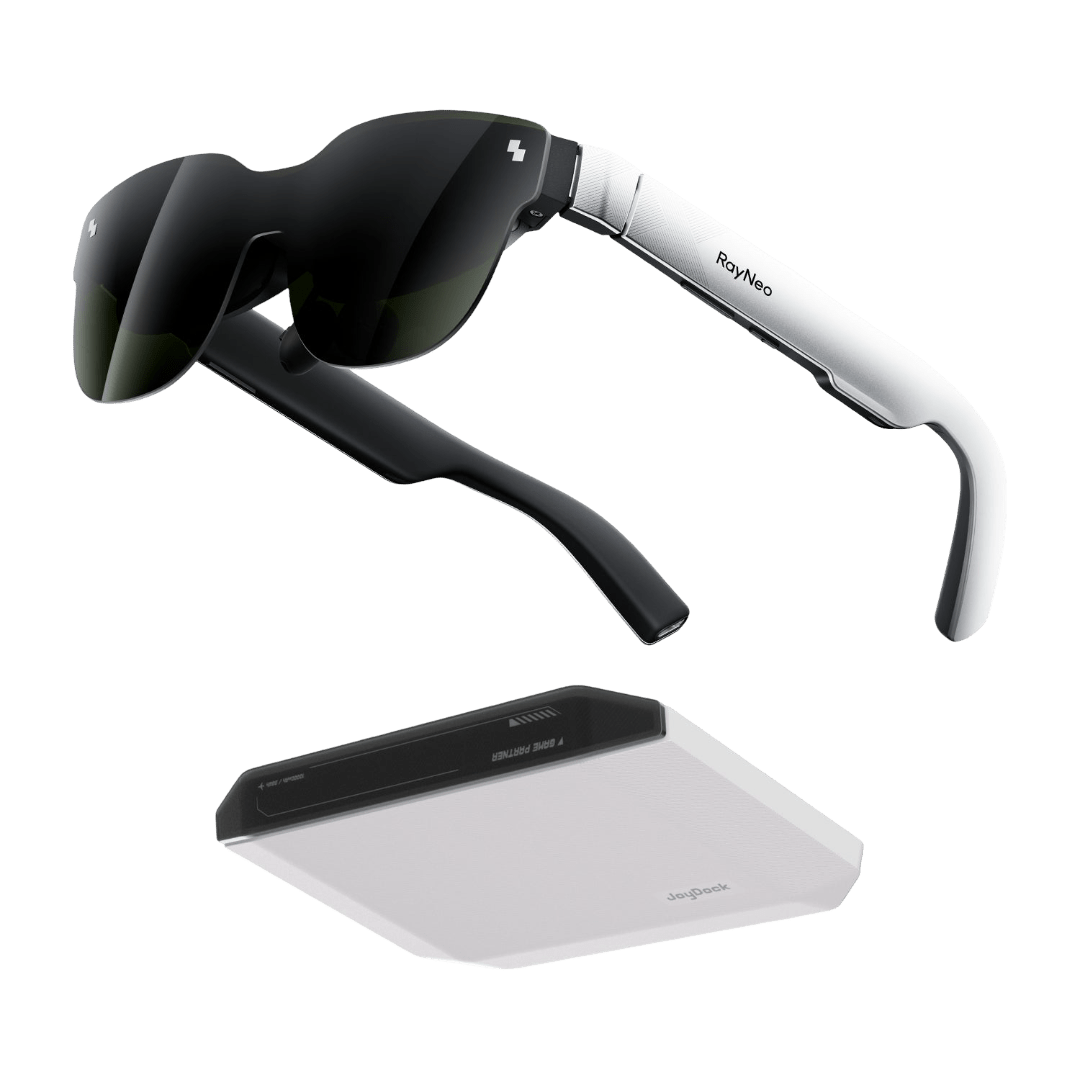
Most desktop towers don’t have a USB-C port on the video card at all, and a lot of older or lower-cost Windows laptops only expose HDMI for external displays. For either case, RayNeo sells an HDMI Adapter ($64) that takes an HDMI signal from the PC and converts it into the USB-C connection GT Max expects.
This is the same adapter RayNeo lists for connecting GT Max to game consoles like PS4, PS5, and Xbox, so if you’re already planning to use the glasses with a console, one adapter covers both the console and a desktop PC.
The HDMI cable alone doesn’t power the glasses. RayNeo’s own guidance for GT Max is that when you’re using an adapter, you need to make sure it’s connected correctly and sufficiently powered, which means the adapter needs its own USB-C PD power source separate from the HDMI signal. Setup is three connections rather than two: an HDMI cable from the graphics card or motherboard’s HDMI port into the adapter, the adapter’s USB-C cable into the glasses, and a USB-C PD charger plugged into the adapter’s own power input.
If your laptop has a USB-C port but it’s wired only for charging and data (common on lower-cost Windows laptops and some older business models), plugging GT Max directly into that port won’t produce an image. The port has no way to send a display signal no matter what cable you use. In that case, the fix is the same HDMI Adapter from scenario two, including the separate USB-C PD charger it needs: connect the adapter to the laptop’s HDMI port instead of its USB-C port, plug in the power source, and route the signal to the glasses from there.
The table below summarizes all three paths.
| Your Windows PC | Connection method | What you need |
|---|---|---|
| Laptop with Thunderbolt 3/4 or USB4 port (DisplayPort Alt Mode) | Direct USB-C | Included USB-C cable only |
| Desktop with HDMI output | HDMI to USB-C | RayNeo HDMI Adapter ($64) + USB-C PD power source |
| Laptop with charging-only USB-C, HDMI available | HDMI to USB-C | RayNeo HDMI Adapter ($64) + USB-C PD power source |

RayNeo GT Max advertises a 267-inch cinema-scale virtual screen, with 227-inch and 307-inch sizes also available, inside a 59-degree field of view. That describes how large the image appears to you, not a physical panel projected into the room; there’s no external projection, which makes it harder for someone sitting across from you to see what’s on your screen.
RayNeo’s GT model, covered in more detail further down, defaults to a smaller 201-inch virtual screen at a narrower 46-degree field of view, which RayNeo describes as comparable to viewing a 201-inch screen from about 6 meters away.
On weight, GT Max is 78 grams and GT is 68 grams, for the glasses alone, not counting whatever cable or adapter connects them to your PC. That’s lighter than a VR headset but heavier than an ordinary pair of glasses, so whether a full workday feels comfortable depends on your face and how used you are to something resting on your nose and ears for hours at a stretch.

Once GT Max is connected, whether directly over USB-C (powered by the connected device) or through the HDMI Adapter (powered by its own USB-C PD source), Windows typically detects it like any other external monitor. No RayNeo driver or app installation is required for basic display output.
That last step is worth trying rather than skipping. A preset built around movie viewing is tuned differently from one meant for static text, so switching to Office mode for the few seconds it takes, then judging for yourself whether documents or code read more comfortably, is a reasonable habit for PC work.
Audio follows the same logic as any other external display with built-in speakers. GT Max’s Bang & Olufsen-tuned quad speakers will typically show up as a separate audio output option in Windows once the glasses are connected, alongside your laptop’s own speakers or headphones. You can choose which one plays sound for a video call or anything else in Settings > System > Sound, the same way you’d pick between a monitor’s speakers and your laptop’s when both are available.

GT Max offers three spatial display modes, and the difference between them comes down to how the virtual screen reacts when you move your head, which matters more for desk work than it might sound:
For PC work at a desk, Pinned is the mode built for that use case: it’s the one where the screen doesn’t chase your head. Looking down at your keyboard or over at a second physical monitor doesn’t drag the virtual screen along with your gaze, which is the behavior you’d expect from a monitor that’s actually sitting on your desk.
Pinned mode runs at 336 nits of brightness, while Follow and Steady run brighter at up to 1,200 nits (non-Pinned brightness). Whether Pinned’s lower brightness works for office use is worth checking against your own space: a dim room and a desk near a sunlit window are different tests.
Text clarity on a 1920x1080 panel translates to 38 pixels per degree, a specification RayNeo lists specifically for the GT Max’s optical engine. Pixel density is one of the main factors in how comfortable a display feels for reading dense text over long stretches, alongside brightness and how large the virtual screen sits in your field of view, so it’s worth judging against your own reading habits rather than treating the PPD figure alone as a guarantee.
Using GT Max as a Windows external display works well for reading, writing, browsing, and any task that’s mostly static screen content. It’s a more private way to work in a shared space like a train, a shared office, or a coffee shop, since Second-screen-only mode removes the laptop display that someone behind you could otherwise see.
It’s not a replacement for a large physical monitor if you need to glance between multiple physical windows quickly, or if you’re doing color-critical creative work where a calibrated physical display matters. And because the glasses draw power through the same USB-C connection, using them as an external monitor on a laptop running on battery will draw down that battery somewhat faster than the laptop screen alone would, the same tradeoff you’d see plugging in any other external display accessory.
The same USB-C or HDMI connection also works for gaming on that PC, whether that means switching over during a break from work or using GT Max as a dedicated gaming display; just move out of Office mode into Standard or Movie mode first, since neither is tuned for static text.
Does RayNeo GT Max need special drivers to work as a Windows monitor?
Can I use GT Max with a Windows desktop that has no USB-C port at all?
What resolution and refresh rate does GT Max output on a PC?
Is RayNeo GT the cheaper alternative, and does it also work with Windows PCs?
Does GT Max charge while connected to a PC?





Share:
RayNeo Smart Glasses Comparison: iO vs GT vs GT Max vs X3 Pro
The Newest Smart Glasses Released in 2026: RayNeo's iO and GT Series