

$449.00

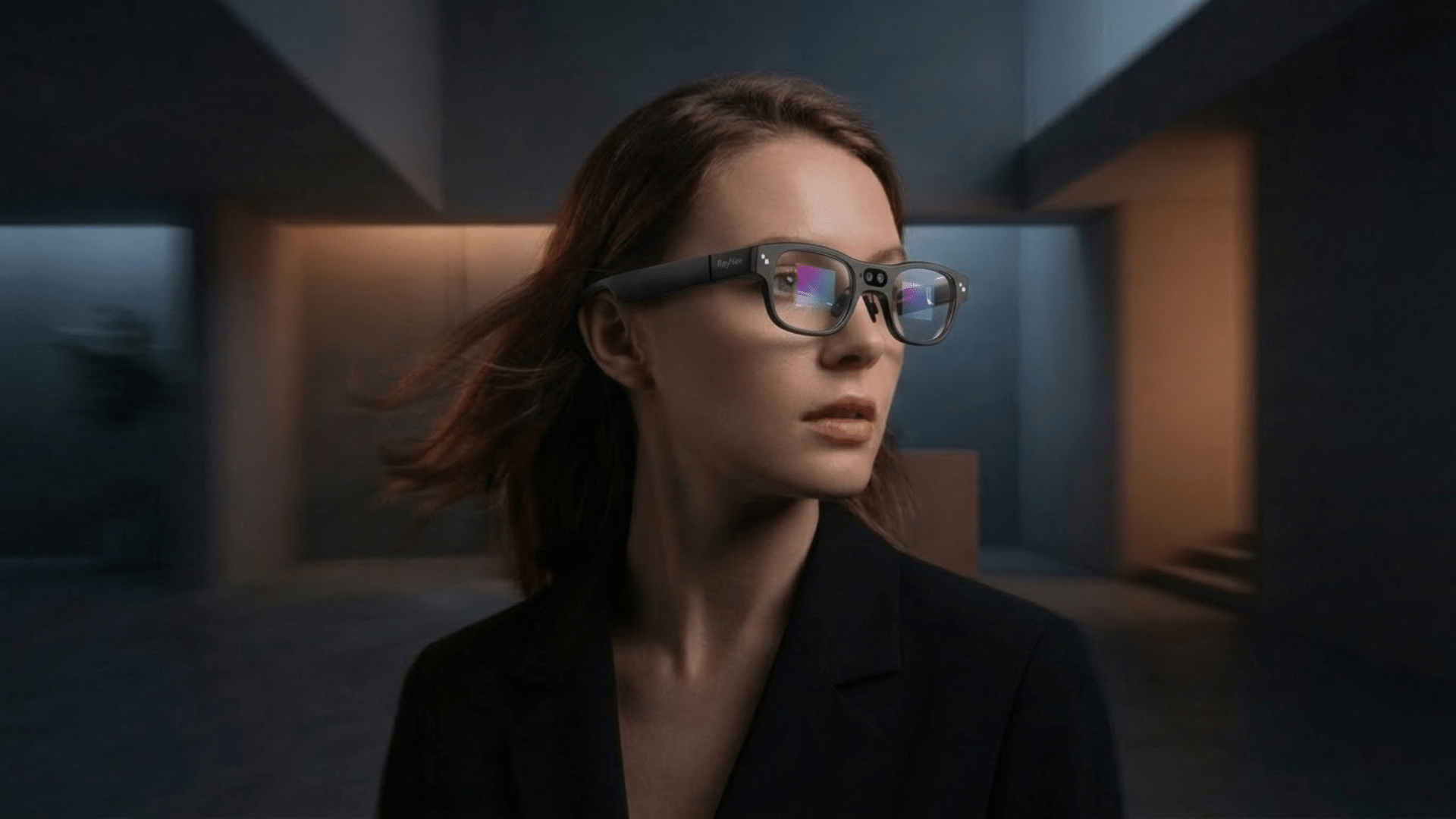
Most camera-equipped smart glasses connect to a phone over Bluetooth, the same way wireless earbuds do. But "smart glasses" is a broad label that also covers display-only AR glasses with no camera and usually no Bluetooth chip at all, connected instead by a wired USB-C cable. Confusing the two before buying is an easy way to end up with a wired device when a wireless one was actually what you wanted.
RayNeo's current camera-equipped model, the X3 Pro, connects over Bluetooth 5.3. Its predecessor, the X2, used Bluetooth 5.2. RayNeo's own Air series, which has a display but no camera, skips Bluetooth entirely and relies on a wired connection instead. Below is what that actually looks like in practice, model by model, plus the pairing steps and what to check if your phone won't find the glasses.
Not always, but it's the default for the category. A camera built into a frame needs a way to reach your phone for setup, firmware updates, and pulling photos and video off the device, and Bluetooth is the low-power connection most manufacturers build in for that job. Most camera-only smart glasses on the market, the kind with a camera but no display, pair with a phone through Bluetooth and a manufacturer's own companion app, similar to how a fitness tracker or wireless earbuds connect.
The exception is display-only AR glasses. These project a virtual screen without a built-in camera, and several of them, including RayNeo's own Air lineup, rely on a wired connection instead. If a product page doesn't list Bluetooth in its connectivity specs, don't assume it works wirelessly. Check before you buy, especially if a wireless connection to your phone is the actual feature you're shopping for.

RayNeo X3 Pro is a standalone AI and AR device with its own Bluetooth 5.3 radio, alongside Wi-Fi 6. According to RayNeo's own connectivity guide, it functions as what the company calls a "master" Bluetooth device: it can connect directly to your phone, and it can also pair directly with a RayNeo Ring, a wireless keyboard, or a game controller, without needing your phone as a go-between for those accessories.
The RayNeo Ring named here is the same controller accessory line used with the earlier X2. Whether it ships bundled with X3 Pro or is sold separately isn't specified in RayNeo's connectivity materials, so check the current X3 Pro product page for what's actually included in the box if a ring controller matters to your decision.
In everyday terms, this means the glasses keep a low-power Bluetooth link running with your phone throughout the day, the same kind of background connection that keeps a smartwatch synced. That link is what carries notifications and phone calls through to the glasses' built-in microphone array and speakers. RayNeo's connectivity guide doesn't break down which channel, Bluetooth or Wi-Fi, handles photo and video transfers specifically, so don't assume a faster Wi-Fi transfer is guaranteed for every file type until that detail is confirmed.
RayNeo's own step-by-step guide describes the process this way:
A couple of things worth knowing before you start: RayNeo's guide recommends charging both the glasses and your phone to at least 60 percent before pairing, and notes that audio pairing (for calls and music) sometimes needs to be confirmed separately in your phone's Bluetooth settings, on top of the initial device pairing in the RayNeo App.
RayNeo's connection guide calls out a few platform-specific steps, mostly because iOS is stricter than Android about background app activity:
| iPhone | Android | |
|---|---|---|
| Extra permissions needed | Enable Bluetooth and local network access, plus lock screen/banner notification alerts | Enable background activity for the RayNeo App, disable battery optimization for it |
Neither platform is unsupported. iPhone setup just involves a couple of extra permission screens the first time, mainly so the background Bluetooth link doesn't get cut by iOS's stricter task management.
One more thing worth checking before buying: RayNeo's connectivity materials list two different minimum OS baselines for the RayNeo App, iOS 15.5 and Android 9 in one place, iOS 15 and Android 10 in another. Since those numbers don't agree, the more reliable move is checking the RayNeo App's current listing in the Apple App Store or Google Play, or RayNeo's support page, for the requirement that applies right now, particularly if your phone is more than a couple of years old.

RayNeo's earlier camera-equipped glasses, the X2, also connected over Bluetooth (version 5.2), along with Wi-Fi 5 and built-in GPS. It shipped with the RayNeo Ring, a separate Bluetooth-connected controller with its own touchpad and buttons for navigating the glasses' interface, in addition to phone pairing. As of this writing, RayNeo's official product page lists the X2 as out of stock, and RayNeo hasn't stated whether that's a permanent discontinuation or a stock gap. It's included here as background on how RayNeo's camera glasses have handled Bluetooth across two generations, not as a current purchase recommendation.
Camera glasses with no display, just a camera, microphones, and speakers built into a plain-lens frame, generally follow the same wireless pattern as RayNeo's own camera glasses: Bluetooth pairing through the manufacturer's own companion app, available for both iOS and Android. The specific steps differ by brand (some use a physical button, others a voice prompt, to enter pairing mode), but the underlying idea, pair once through Bluetooth, then use an app for settings and file transfer, is consistent across most of the camera-glasses category. If you're comparing a specific model, its own product page or support documentation is the accurate source for its exact pairing steps and Bluetooth version, since these details do vary between manufacturers.
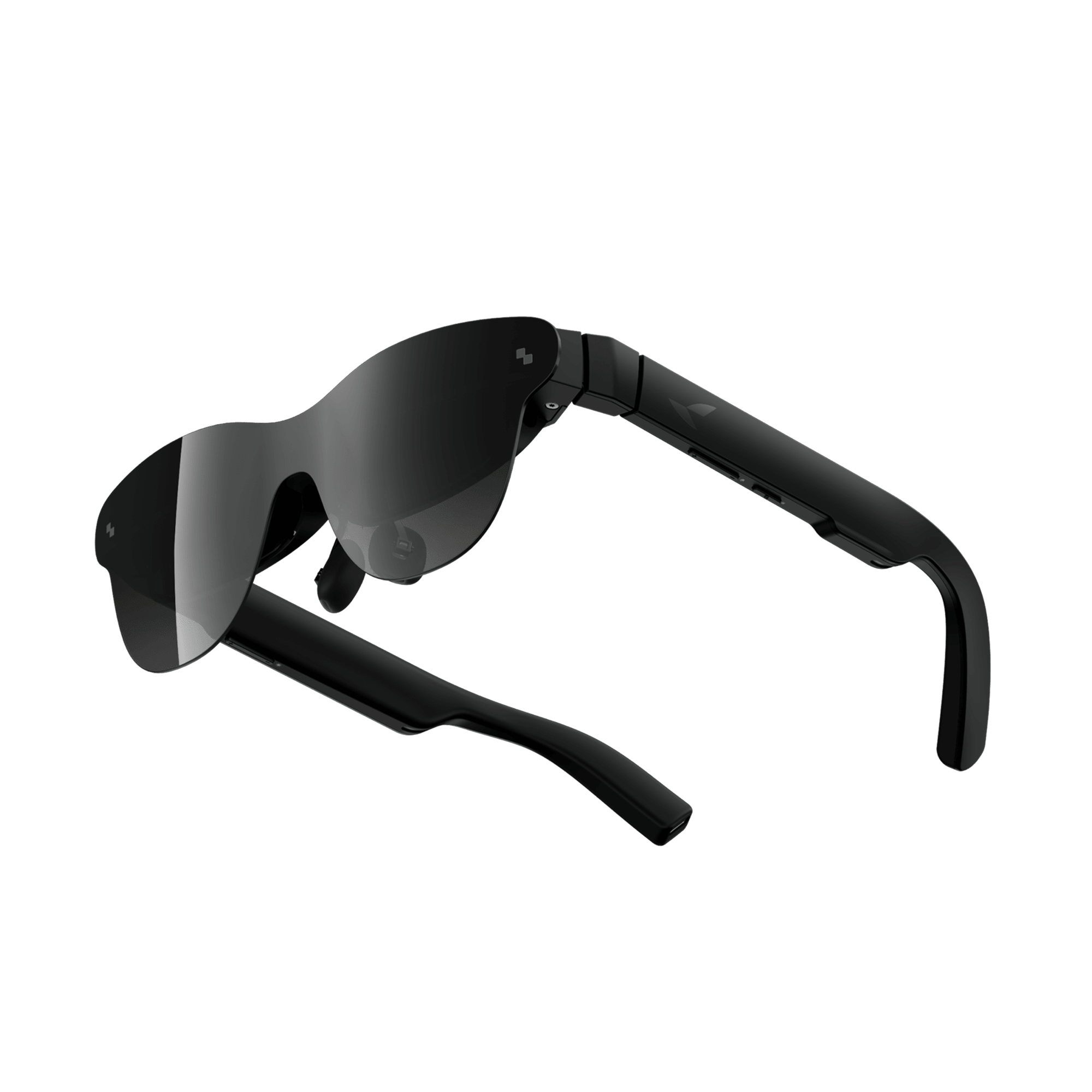
This is the mismatch that trips people up. RayNeo's own Air 4 Pro, Air 3s Pro, and Air 2s are display-only AR glasses: no camera, and, per RayNeo's own connectivity guide, they "usually" don't include a built-in Bluetooth chip either. They connect to a phone, PC, or game console through a wired USB-C cable, which carries both the video signal and power.
That doesn't mean Bluetooth disappears entirely once you're wearing them. It's just handled differently. RayNeo's connectivity guide describes these models as relying on your phone's own Bluetooth radio for audio, not the glasses' own hardware: you can pair wireless earbuds to your phone for private audio while the glasses handle the video display over the USB-C cable. The glasses themselves aren't a Bluetooth device in that setup. Your phone is doing the Bluetooth work, and the glasses are just the screen.
The practical requirement worth checking before buying: connecting Air-series glasses to a phone specifically requires a device with USB-C DisplayPort Alt Mode support. Most iPhones don't support this natively without an adapter, and not every Android phone does either. The most reliable way to check is to look at your own phone's technical specifications or support page for wording like "USB-C video output," "DisplayPort Alt Mode," or "external display support," rather than assuming any USB-C port behaves the same way.
RayNeo's guide adds two platform-specific notes for this wired video connection, separate from anything Bluetooth-related. On iPhone, the video signal itself typically needs an official or MFi-certified adapter, since iOS handles the DisplayPort/HDMI video path differently than Android does. On Android, some flagship phones with a desktop mode can use Air-series glasses like an external monitor for multi-window use, rather than just mirroring the phone screen. Both of these are about the Air series' wired connection, not about X3 Pro's Bluetooth pairing described earlier, worth keeping straight since the two product lines connect very differently.
| RayNeo X3 Pro | RayNeo X2 (out of stock) | RayNeo Air series (Air 2s / 3s Pro / 4 Pro) | |
|---|---|---|---|
| Built-in camera | Yes | Yes | No |
| Native Bluetooth chip | Yes, Bluetooth 5.3 | Yes, Bluetooth 5.2 | No |
| Wi-Fi | Yes, Wi-Fi 6 | Yes, Wi-Fi 5 | Not applicable (wired connection) |
| How it connects to a phone | Wireless Bluetooth pairing through the RayNeo App | Wireless Bluetooth pairing, plus a Bluetooth-connected Ring controller | Wired USB-C cable (requires DisplayPort Alt Mode support on the phone) |
| Companion app | RayNeo App (iOS and Android) | RayNeo App (iOS and Android) | Not required for basic display use |
| Can pair Bluetooth accessories directly (Ring, keyboard, game controller) | Yes | Via the RayNeo Ring | No, relies on phone's Bluetooth for paired audio |
A few checks cover most connection problems, regardless of which camera glasses you're using:
Do all smart glasses use Bluetooth to connect to a phone? No, and the split roughly follows whether the glasses have a camera. On a product page, look for the actual word "Bluetooth" and a version number (like 5.2 or 5.3) in the connectivity or specs section. If a listing only mentions "USB-C" or a cable in that section, with no Bluetooth version listed, treat it as wired, not wireless, no matter how the marketing copy elsewhere describes the product.
What Bluetooth version does RayNeo X3 Pro use? Bluetooth 5.3, alongside Wi-Fi 6. It also supports pairing directly with accessories like a RayNeo Ring, a keyboard, or a game controller, not just a phone.
Is RayNeo X2's older Bluetooth version a problem? Bluetooth 5.2 versus 5.3 mainly affects power efficiency and connection range in marginal cases, not core pairing reliability. The bigger practical issue with the X2 is availability: RayNeo's official store currently lists it as out of stock, so it isn't a model you can purchase new right now regardless of its Bluetooth version.
Can I use RayNeo Air glasses without a wired connection at all? Not for the display itself, and there's no Bluetooth-pairing workaround for that part since it isn't a data connection to begin with, it's a video signal running over the cable, similar to plugging a monitor into a laptop. A USB-C hub or dock in between doesn't change that requirement. The one piece that can go wireless is audio, by pairing earbuds to your phone directly.
Does pairing over Bluetooth mean I don't need an app? No. Bluetooth handles the wireless link itself, but setup, firmware updates, and adjusting features still go through a companion app. For RayNeo X3 Pro, that's the RayNeo App, required on both iOS and Android for full functionality even after the initial Bluetooth pairing succeeds.
Can RayNeo X3 Pro stay connected to a phone and other Bluetooth accessories at the same time? Yes. Because X3 Pro operates as what RayNeo calls a Bluetooth "master" device, it holds its own direct pairing with accessories like a RayNeo Ring, keyboard, or game controller, separate from its Bluetooth link to your phone. Your phone doesn't act as a relay between the glasses and those accessories, so a controller connection and a phone connection run at the same time without one interrupting the other.
Why would camera glasses need both Bluetooth and Wi-Fi? They serve different jobs. Bluetooth is a low-power connection well suited to staying active all day for calls and notifications. Wi-Fi typically handles heavier data needs, like a faster internet connection for AI features. As noted above, RayNeo doesn't specify which connection type handles photo and video file transfers on X3 Pro, so confirm that directly if it affects your workflow.
If a wireless Bluetooth connection to your phone is a requirement, not just an assumption, check the specific product's connectivity spec before buying rather than going by category name alone. Camera-equipped glasses like RayNeo X3 Pro are built around Bluetooth pairing from the ground up, with a setup process similar to wireless earbuds. Display-only AR glasses, including RayNeo's own Air lineup, are a different animal: no camera, usually no built-in Bluetooth chip, and a wired USB-C connection instead. Knowing which category a specific pair of glasses falls into, before you compare specs any further, is the fastest way to avoid buying the wrong kind of device for how you actually want to connect it to your phone.





Share:
Which Camera Glasses Record the Best Video?
Best Smart Glasses with Bluetooth for Calls and Music