Setting up a new pair of smart glasses can sometimes be frustrating. Bluetooth pairing issues, app connection failures, or unclear indicator signals may prevent users from accessing important features. Without the correct setup process, even advanced smart glasses may work only as regular eyewear.
This guide explains how smart glasses connect to phone devices through clear setup steps and practical troubleshooting tips. You will learn how to complete pairing, manage permissions, and optimize your setup for commuting, working, entertainment, or gaming.
Preparation: What You Need Before Connecting
Before starting the connection process, prepare three key factors in advance: device compatibility, battery level, and app version. These steps can help create a smoother setup experience.
Check Device Compatibility
Compatibility issues are among the most common problems users overlook. Before setup, check your phone's operating system, Bluetooth support, and whether the companion app supports your device. Older phones or outdated software may cause unstable connections or prevent app installation.
For AR display glasses using USB-C video output, check whether your phone supports DisplayPort Alt Mode. Not all USB-C ports support video output, and some devices may require an additional adapter, especially on iPhone models. Confirm compatibility before connecting your glasses.
Charge Your Devices Fully
Battery level can have a significant impact on connection stability. Low battery levels may affect wireless performance or limit certain device functions.
Therefore, users should charge both devices before the first connection and any long session. Turning off battery saver or ultra power saving modes may also help reduce potential connection interruptions.
Download The Required Companion App
Most AI smart glasses and AR smart glasses require a companion app for setup, firmware updates, and feature management. Pairing only through the system Bluetooth menu may limit access to supported features.
It is recommended to download the latest companion app from official channels, such as Google Play, the App Store, or the brand's official website. Avoid using modified or outdated versions from third-party app stores.
Pay attention to app permissions during setup. Android users may need to allow location and background activity permissions, while iPhone users should enable notification permissions for reliable alerts.
For RayNeo iO AI Glasses, the companion app helps complete the initial setup process, manage permissions, and access supported AI features. After connecting the glasses to your phone, users can adjust settings and enable functions such as live translation, meeting notes, Lifelog, and voice-based AI assistance for a smoother everyday experience.
Method 1: Connecting Wireless AI Smart Glasses
Wireless AI smart glasses may include independent processors and operating systems. The phone typically works together with the glasses through Bluetooth and companion apps rather than acting only as an external display. The connection process focuses on device pairing, secure data transfer, and switching between supported devices. These steps happen within the first few minutes of connection.
Activate Pairing Mode On Glasses
Many users experience difficulties during the first pairing step because they only turn on the device without entering pairing mode. Depending on the model, different button combinations may be required to make the glasses discoverable. A pairing prompt or indicator light should confirm that the device is discoverable.
Some smart glasses provide voice or visual prompts during pairing mode. If the phone does not detect the device, restart the glasses and enter pairing mode again.
Connect Through Bluetooth On Your Phone
Once smart glasses are connected to a phone, users can access supported features through Bluetooth and companion apps. Search for the glasses in the phone's Bluetooth settings, complete pairing, and then use the companion app to manage audio, notifications, and device settings.
Some custom Android systems may have connection issues. If users skip the system Bluetooth menu and search only inside the companion app, the connection often fails. The app lacks the system-level authorization to bind the device. A two-layer pairing method is recommended. Pair in the system settings first, then complete feature pairing in the app. This method can improve reconnection reliability after power cycles or when switching locations.
Complete Setup In The Companion App
The companion app setup process is important for completing firmware updates, adjusting settings, and enabling supported features. Some AI smart glasses may require additional downloads during the first setup.
Adjust notification settings based on your needs. Keeping only important alerts, such as messages, calendar reminders, and navigation notifications, can create a better daily experience.
Method 2: Connecting AR Display Glasses Via USB-C
For AR display glasses, the phone acts as the video source and controller. This setup is suitable for movies, cloud gaming, and mobile work. Wired connections are usually more stable than wireless ones if your cables are high quality.
| Connectivity Aspect |
Recommended Specification |
| Cable Standard |
USB 3.1 Gen 1 or higher |
| Protocol Support |
DisplayPort Alt Mode (DP Alt Mode) |
| Cable Length |
1.0 to 1.5 meters |
| Connection Order |
Plug in while glasses are powered off |
Make A Direct USB-C Wired Connection
Many black-screen issues are related to incompatible cables or unsupported video output standards. Use the original cable or a cable that supports DP Alt Mode to ensure proper video transmission.
For the best results, turn the glasses off first. Connect the cable to the phone and glasses and ensure a tight fit. Then, turn the glasses on. This reduces handshake failures on Android phones with slow drivers. If your phone supports desktop or screen mirror modes, a popup should appear in five to ten seconds.
Choose Between Mirroring And AR Mode
Once your phone detects the glasses, you will see different display options. Screen mirroring is the most common. It shows exactly what is on your phone screen. It has the best compatibility for video apps and remote desktops. However, it does not use the spatial sensors or multi-window features of the glasses. Extended AR mode creates a separate virtual space. Some brands let you place multiple windows in your view for a multi-screen office setup.
Users often start with mirroring for entertainment and later explore AR mode for productivity tasks such as viewing multiple virtual screens.
Grant Permissions And Calibrate Tracking
If your glasses support head tracking, you must grant permissions in the app or system settings. This affects long-term comfort. You will need to allow access to the gyroscope, camera, and pose data. If you ignore these popups, the image might float or cause motion sickness when you turn your head. Complete calibration according to the app instructions to improve tracking accuracy and viewing comfort.
If you change positions often, like moving from a desk to a recliner, recalibrate the tracking. It only takes a few seconds. It improves image stability and reading comfort. Some devices allow users to start calibration through simple gestures or voice commands, reducing the need to navigate through menus.
Method 3: Connecting Via Wireless Adapters Or Hubs
Wireless adapters and hubs can provide more flexibility when switching between TVs, consoles, and phones. This is a good choice for devices that lack native USB-C video output. This setup is more complex than a direct cable, but it offers more flexibility.
Use A Compatible Wireless Casting Device
Wireless protocols vary between glasses and adapters. Before purchasing an adapter, confirm that it supports your phone, glasses, and required video output method.
Avoid using too many adapters in the connection chain, as additional devices may increase latency and reduce stability. A receiver that outputs directly to USB-C or HDMI is usually a better option. Using a short cable and securing the adapter can help prevent signal drops.
Connect To The Same Wi-Fi Network
Most wireless casting requires the phone and adapter to be on the same network. If connection problems occur, check that both devices use the same Wi-Fi network and SSID.
In corporate environments, network restrictions may prevent wireless casting from working. If needed, a small travel router can create an independent network for your phone and glasses.
How To Connect Smart Glasses To Different Operating Systems
Operating systems differ in how they handle Bluetooth, permissions, and multitasking. This directly impacts your smart glasses experience. This section provides optimization tips for Android and iOS users to improve connection reliability.
Setup Guide For Android Users
For users looking for smart glasses for Android phones, compatibility depends on the Android version, Bluetooth support, companion app, and required permissions. Android also offers more customization options across different devices. Android users should update their system, install the companion app, allow required permissions, and disable battery optimization if needed to maintain a stable connection.
Permissions vary across Android brands. Make sure the companion app has the required permissions for notifications and background activity. Some Android phones with desktop mode can also use AR display glasses as external monitors.
Some users search for smart phone glasses when looking for wearable devices that connect with smartphones. These devices are commonly referred to as smart glasses.
Connection Tips for iPhone Users
The connection experience on iPhone is generally stable. However, the system has strict rules for background tasks and permissions. Smart glasses must follow these policies to work reliably. iPhone users should ensure Bluetooth and local network access are enabled in settings. These two settings allow the app to reconnect in the background. In notification settings, enable lock screen and banner alerts for the companion app. Without these, the system might block messages from reaching your glasses even if they are paired.
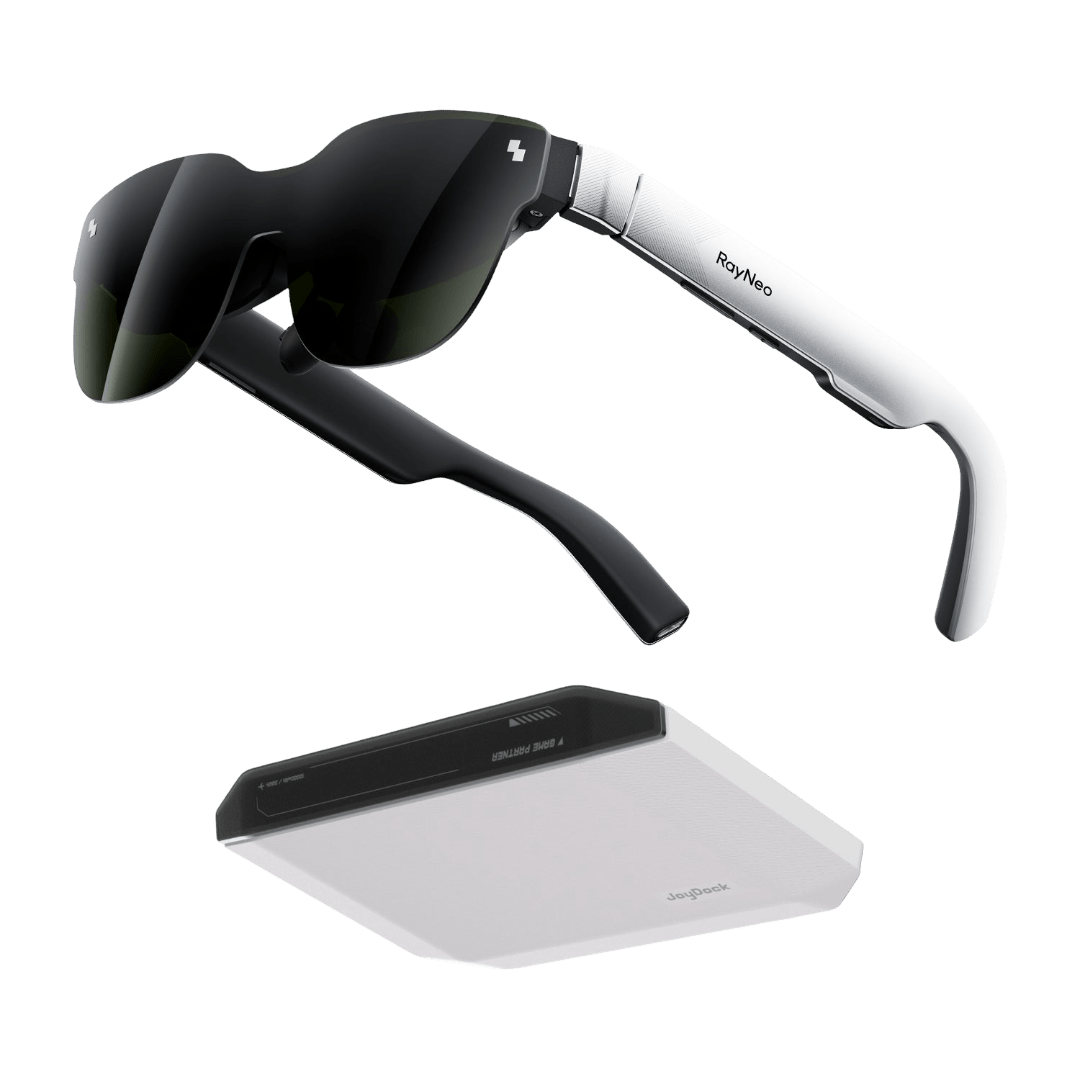
For AR display glasses, check the video output path. iOS handles DisplayPort and HDMI differently. You often need an official or MFi certified adapter to connect to the glasses. High quality adapters save time on troubleshooting. For long flights, use RayNeo Air 4 AR Glasses with HDR10 and 120Hz refresh rates. This improves clarity and dynamic range while reducing eye strain.
Troubleshooting Common Connection Issues
Even with proper setup, connection issues may occur. The following section covers common problems and solutions.
How To Fix Device Not Found Errors
If your phone cannot find the glasses, first ensure they are in pairing mode. Do not just turn them on. Power the glasses off, wait 10 seconds, then hold the pairing button until the light flashes. Manually scan for new devices in the phone Bluetooth menu. If the glasses still do not appear, they might be connected to another device. This is common if you also own a tablet. Disconnect or forget the glasses on the other device and try again.
In areas with many Wi-Fi signals, some phones slow down Bluetooth scanning to save power. Try turning off Wi-Fi and using airplane mode with only Bluetooth on. This reduces interference and helps the system find the device. If the problem persists, clear your Bluetooth cache or reset your network settings. This can help clear outdated pairing information and resolve some connection conflicts.
How To Resolve Black Screen On Wired Connection
A black screen during a wired connection usually points to a cable or protocol issue. First, try using the original or a high spec USB C cable. If the glasses get power but no signal, the cable or phone might not support DP Alt Mode. You can test this by connecting your phone to a TV or monitor. If the TV also shows no signal, the issue is with the phone.
Sometimes the glasses are just in sleep mode or set to a very low brightness. Check for a faint image or icon in a dark room. Use the companion app to boost the brightness. If the glasses show their own menus but go black when connected to the phone, check for system updates. Some OS updates cause temporary issues with video output that require a manufacturer patch.
How To Stop App Crash On Launch
If the companion app crashes, you cannot maintain a connection. This often happens after a major OS update. Check the app store for a new version right away. If you just moved data to a new phone, reinstalling the app is better than clearing the cache. This ensures all permissions and files are fresh.
Privacy settings can also cause crashes. If you deny storage or location permissions, some older app versions might fail to handle the error. Try enabling all requested permissions in your system settings. If crashes continue, check for app updates or contact the device manufacturer with system information to identify possible compatibility issues.
Conclusion
After learning how smart glasses connect to phone devices through Bluetooth, USB-C, and wireless solutions, users can complete setup more confidently and solve common connection problems. Most issues are related to preparation, permissions, or incorrect setup steps. Following the recommended methods and troubleshooting steps can help users resolve common issues such as device detection failures, wired connection problems, and app errors.
FAQ
Can I connect my smart glasses to two phones at once?
Most consumer smart glasses only support one main device for full features at a time. This prevents conflicts with notifications and AI settings. Some models allow multipoint Bluetooth for audio, but the app only recognizes one primary controller. If you use two phones, use the device switch feature in the app instead of re-pairing. This is faster and preserves your settings.
Why does my phone get warm when connected to AR glasses?
It is normal for your phone to get warm. The CPU and GPU work hard to output high bitrate video and handle AI tasks. If your phone gets too hot during gaming or 4K playback, try lowering the brightness or resolution. You should also remove thick protective cases to help heat escape more effectively.
Do I need Wi-Fi to keep the glasses connected to my phone?
You do not need Wi-Fi for basic functions. Calls, local videos, and offline AI work fine over Bluetooth or wired connections. However, online services like cloud gaming and streaming require a stable Wi-Fi or cellular network. We recommend using Wi-Fi 6 hardware for the best performance and less interference.
Will connecting smart glasses drain my phone battery quickly?
Connecting glasses can increase power consumption. Bluetooth usage typically requires less power, while high-resolution video or gaming may consume significantly more battery. Heavy users should use a power bank. You can also turn on power saving modes in the companion app to lower the refresh rate and save energy.




Setting up a new pair of smart glasses can sometimes be frustrating. Bluetooth pairing issues, app connection failures, or unclear indicator signals may prevent users from accessing important features. Without the correct setup process, even advanced smart glasses may work only as regular eyewear.
This guide explains how smart glasses connect to phone devices through clear setup steps and practical troubleshooting tips. You will learn how to complete pairing, manage permissions, and optimize your setup for commuting, working, entertainment, or gaming.
Preparation: What You Need Before Connecting
Before starting the connection process, prepare three key factors in advance: device compatibility, battery level, and app version. These steps can help create a smoother setup experience.
Check Device Compatibility
Compatibility issues are among the most common problems users overlook. Before setup, check your phone's operating system, Bluetooth support, and whether the companion app supports your device. Older phones or outdated software may cause unstable connections or prevent app installation.
For AR display glasses using USB-C video output, check whether your phone supports DisplayPort Alt Mode. Not all USB-C ports support video output, and some devices may require an additional adapter, especially on iPhone models. Confirm compatibility before connecting your glasses.
Charge Your Devices Fully
Battery level can have a significant impact on connection stability. Low battery levels may affect wireless performance or limit certain device functions.
Therefore, users should charge both devices before the first connection and any long session. Turning off battery saver or ultra power saving modes may also help reduce potential connection interruptions.
Download The Required Companion App
Most AI smart glasses and AR smart glasses require a companion app for setup, firmware updates, and feature management. Pairing only through the system Bluetooth menu may limit access to supported features.
It is recommended to download the latest companion app from official channels, such as Google Play, the App Store, or the brand's official website. Avoid using modified or outdated versions from third-party app stores.
Pay attention to app permissions during setup. Android users may need to allow location and background activity permissions, while iPhone users should enable notification permissions for reliable alerts.
For RayNeo iO AI Glasses, the companion app helps complete the initial setup process, manage permissions, and access supported AI features. After connecting the glasses to your phone, users can adjust settings and enable functions such as live translation, meeting notes, Lifelog, and voice-based AI assistance for a smoother everyday experience.
Method 1: Connecting Wireless AI Smart Glasses
Wireless AI smart glasses may include independent processors and operating systems. The phone typically works together with the glasses through Bluetooth and companion apps rather than acting only as an external display. The connection process focuses on device pairing, secure data transfer, and switching between supported devices. These steps happen within the first few minutes of connection.
Activate Pairing Mode On Glasses
Many users experience difficulties during the first pairing step because they only turn on the device without entering pairing mode. Depending on the model, different button combinations may be required to make the glasses discoverable. A pairing prompt or indicator light should confirm that the device is discoverable.
Some smart glasses provide voice or visual prompts during pairing mode. If the phone does not detect the device, restart the glasses and enter pairing mode again.
Connect Through Bluetooth On Your Phone
Once smart glasses are connected to a phone, users can access supported features through Bluetooth and companion apps. Search for the glasses in the phone's Bluetooth settings, complete pairing, and then use the companion app to manage audio, notifications, and device settings.
Some custom Android systems may have connection issues. If users skip the system Bluetooth menu and search only inside the companion app, the connection often fails. The app lacks the system-level authorization to bind the device. A two-layer pairing method is recommended. Pair in the system settings first, then complete feature pairing in the app. This method can improve reconnection reliability after power cycles or when switching locations.
Complete Setup In The Companion App
The companion app setup process is important for completing firmware updates, adjusting settings, and enabling supported features. Some AI smart glasses may require additional downloads during the first setup.
Adjust notification settings based on your needs. Keeping only important alerts, such as messages, calendar reminders, and navigation notifications, can create a better daily experience.
Method 2: Connecting AR Display Glasses Via USB-C
For AR display glasses, the phone acts as the video source and controller. This setup is suitable for movies, cloud gaming, and mobile work. Wired connections are usually more stable than wireless ones if your cables are high quality.
Make A Direct USB-C Wired Connection
Many black-screen issues are related to incompatible cables or unsupported video output standards. Use the original cable or a cable that supports DP Alt Mode to ensure proper video transmission.
For the best results, turn the glasses off first. Connect the cable to the phone and glasses and ensure a tight fit. Then, turn the glasses on. This reduces handshake failures on Android phones with slow drivers. If your phone supports desktop or screen mirror modes, a popup should appear in five to ten seconds.
Choose Between Mirroring And AR Mode
Once your phone detects the glasses, you will see different display options. Screen mirroring is the most common. It shows exactly what is on your phone screen. It has the best compatibility for video apps and remote desktops. However, it does not use the spatial sensors or multi-window features of the glasses. Extended AR mode creates a separate virtual space. Some brands let you place multiple windows in your view for a multi-screen office setup.
Users often start with mirroring for entertainment and later explore AR mode for productivity tasks such as viewing multiple virtual screens.
Grant Permissions And Calibrate Tracking
If your glasses support head tracking, you must grant permissions in the app or system settings. This affects long-term comfort. You will need to allow access to the gyroscope, camera, and pose data. If you ignore these popups, the image might float or cause motion sickness when you turn your head. Complete calibration according to the app instructions to improve tracking accuracy and viewing comfort.
If you change positions often, like moving from a desk to a recliner, recalibrate the tracking. It only takes a few seconds. It improves image stability and reading comfort. Some devices allow users to start calibration through simple gestures or voice commands, reducing the need to navigate through menus.
Method 3: Connecting Via Wireless Adapters Or Hubs
Wireless adapters and hubs can provide more flexibility when switching between TVs, consoles, and phones. This is a good choice for devices that lack native USB-C video output. This setup is more complex than a direct cable, but it offers more flexibility.
Use A Compatible Wireless Casting Device
Wireless protocols vary between glasses and adapters. Before purchasing an adapter, confirm that it supports your phone, glasses, and required video output method.
Avoid using too many adapters in the connection chain, as additional devices may increase latency and reduce stability. A receiver that outputs directly to USB-C or HDMI is usually a better option. Using a short cable and securing the adapter can help prevent signal drops.
Connect To The Same Wi-Fi Network
Most wireless casting requires the phone and adapter to be on the same network. If connection problems occur, check that both devices use the same Wi-Fi network and SSID.
In corporate environments, network restrictions may prevent wireless casting from working. If needed, a small travel router can create an independent network for your phone and glasses.
How To Connect Smart Glasses To Different Operating Systems
Operating systems differ in how they handle Bluetooth, permissions, and multitasking. This directly impacts your smart glasses experience. This section provides optimization tips for Android and iOS users to improve connection reliability.
Setup Guide For Android Users
For users looking for smart glasses for Android phones, compatibility depends on the Android version, Bluetooth support, companion app, and required permissions. Android also offers more customization options across different devices. Android users should update their system, install the companion app, allow required permissions, and disable battery optimization if needed to maintain a stable connection.
Permissions vary across Android brands. Make sure the companion app has the required permissions for notifications and background activity. Some Android phones with desktop mode can also use AR display glasses as external monitors.
Some users search for smart phone glasses when looking for wearable devices that connect with smartphones. These devices are commonly referred to as smart glasses.
Connection Tips for iPhone Users
The connection experience on iPhone is generally stable. However, the system has strict rules for background tasks and permissions. Smart glasses must follow these policies to work reliably. iPhone users should ensure Bluetooth and local network access are enabled in settings. These two settings allow the app to reconnect in the background. In notification settings, enable lock screen and banner alerts for the companion app. Without these, the system might block messages from reaching your glasses even if they are paired.
For AR display glasses, check the video output path. iOS handles DisplayPort and HDMI differently. You often need an official or MFi certified adapter to connect to the glasses. High quality adapters save time on troubleshooting. For long flights, use RayNeo Air 4 AR Glasses with HDR10 and 120Hz refresh rates. This improves clarity and dynamic range while reducing eye strain.
Troubleshooting Common Connection Issues
Even with proper setup, connection issues may occur. The following section covers common problems and solutions.
How To Fix Device Not Found Errors
If your phone cannot find the glasses, first ensure they are in pairing mode. Do not just turn them on. Power the glasses off, wait 10 seconds, then hold the pairing button until the light flashes. Manually scan for new devices in the phone Bluetooth menu. If the glasses still do not appear, they might be connected to another device. This is common if you also own a tablet. Disconnect or forget the glasses on the other device and try again.
In areas with many Wi-Fi signals, some phones slow down Bluetooth scanning to save power. Try turning off Wi-Fi and using airplane mode with only Bluetooth on. This reduces interference and helps the system find the device. If the problem persists, clear your Bluetooth cache or reset your network settings. This can help clear outdated pairing information and resolve some connection conflicts.
How To Resolve Black Screen On Wired Connection
A black screen during a wired connection usually points to a cable or protocol issue. First, try using the original or a high spec USB C cable. If the glasses get power but no signal, the cable or phone might not support DP Alt Mode. You can test this by connecting your phone to a TV or monitor. If the TV also shows no signal, the issue is with the phone.
Sometimes the glasses are just in sleep mode or set to a very low brightness. Check for a faint image or icon in a dark room. Use the companion app to boost the brightness. If the glasses show their own menus but go black when connected to the phone, check for system updates. Some OS updates cause temporary issues with video output that require a manufacturer patch.
How To Stop App Crash On Launch
If the companion app crashes, you cannot maintain a connection. This often happens after a major OS update. Check the app store for a new version right away. If you just moved data to a new phone, reinstalling the app is better than clearing the cache. This ensures all permissions and files are fresh.
Privacy settings can also cause crashes. If you deny storage or location permissions, some older app versions might fail to handle the error. Try enabling all requested permissions in your system settings. If crashes continue, check for app updates or contact the device manufacturer with system information to identify possible compatibility issues.
Conclusion
After learning how smart glasses connect to phone devices through Bluetooth, USB-C, and wireless solutions, users can complete setup more confidently and solve common connection problems. Most issues are related to preparation, permissions, or incorrect setup steps. Following the recommended methods and troubleshooting steps can help users resolve common issues such as device detection failures, wired connection problems, and app errors.
FAQ
Can I connect my smart glasses to two phones at once?
Most consumer smart glasses only support one main device for full features at a time. This prevents conflicts with notifications and AI settings. Some models allow multipoint Bluetooth for audio, but the app only recognizes one primary controller. If you use two phones, use the device switch feature in the app instead of re-pairing. This is faster and preserves your settings.
Why does my phone get warm when connected to AR glasses?
It is normal for your phone to get warm. The CPU and GPU work hard to output high bitrate video and handle AI tasks. If your phone gets too hot during gaming or 4K playback, try lowering the brightness or resolution. You should also remove thick protective cases to help heat escape more effectively.
Do I need Wi-Fi to keep the glasses connected to my phone?
You do not need Wi-Fi for basic functions. Calls, local videos, and offline AI work fine over Bluetooth or wired connections. However, online services like cloud gaming and streaming require a stable Wi-Fi or cellular network. We recommend using Wi-Fi 6 hardware for the best performance and less interference.
Will connecting smart glasses drain my phone battery quickly?
Connecting glasses can increase power consumption. Bluetooth usage typically requires less power, while high-resolution video or gaming may consume significantly more battery. Heavy users should use a power bank. You can also turn on power saving modes in the companion app to lower the refresh rate and save energy.
Share:
Leave a Comment
We'd love to hear your thoughts. Comments are reviewed before publication.