

$449.00

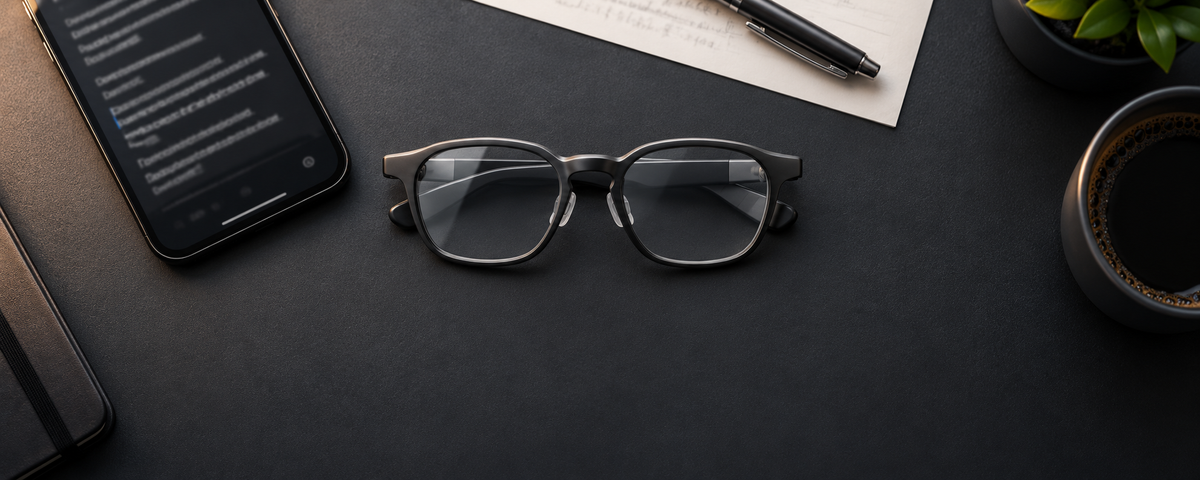
Three control paths sit alongside automatic scrolling on a smart-glasses teleprompter: a fixed-speed scroll you set in advance, hand control on the frame, and a phone that stays in sync with the glasses. Set up together, they let a presenter hold, move, or hand over the script at any moment without breaking eye contact.
On RayNeo iO, the automatic layer is Smart Follow, which uses voice tracking to follow your reading pace and advance the script as you speak. Live talks rarely stay on the page, though. A joke lands and the room laughs, a question comes from the floor, a demo runs longer than planned. Each of those moments calls for a different way of moving the script, and iO has one ready for each.
| Layer | What moves the text | Fits moments like | How you take over |
|---|---|---|---|
| 1. Smart Follow | Voice tracking that follows your reading pace and advances as you speak | A keynote or scripted talk read close to the page | Single-click the Smart Crown to hold the text |
| 2. Auto Scroll | A steady speed you select in advance | Timed segments, recording to camera, voiceover | Single-click to pause, rotate to reposition |
| 3. Manual Control | You, by rotating the Smart Crown | Q&A, live demos, panels, ad-libbed stretches | Already in your hand |
| 4. The phone | Teleprompter control in the RayNeo AI App, synchronized with the glasses in real time | A colleague steering from the side, or a phone on the lectern | Pass the phone to a teammate |
The first three layers are iO's three teleprompting modes, and each section of a talk runs on the one chosen for it. Two controls stay available while the script runs: a single click of the Smart Crown plays or pauses it, and rotating the crown scrolls it. Control from the phone stays synchronized with the glasses in real time.
Smart Follow suits the parts of a talk that are written word for word: an opening, a product announcement, a closing call to action. The text keeps pace with your natural speaking rhythm, so both hands stay free for gestures or a clicker.
Auto Scroll suits segments with a fixed length, such as a three-minute video take or a narrated walkthrough. The scroll speed is chosen before the segment starts, which makes the pace predictable and easy to rehearse against a timer.
Manual Control suits anything unscripted. The Smart Crown sits on the upper front of the right temple, and rotating it scrolls the text by hand. During a live demo or a question, the script simply waits on the line where you left it.
The phone suits team presentations and recorded sessions. A producer, a co-presenter, or an assistant at the side of the stage can control the teleprompter from the RayNeo AI App while the presenter keeps talking, and the glasses stay synchronized with the phone in real time.
For the basics of creating scripts and the three modes, our walkthrough of iO's captions, meeting notes and teleprompter covers the core features.
The setup fits into one rehearsal session and covers the script, the layout, and the people who will share control.
The words of a talk usually get plenty of rehearsal. The seams between sections get far less, and they are where a talk feels smooth or stalls. A useful run-through walks every seam on its own: the last line of one script, the move to the next one, and the first line on the new layer.
Three seams deserve the most attention. The first is the jump from a scripted opening into a live demo, where the script needs to hold still while you work. The second is the return from Q&A, where the next section needs to be ready the moment the last question ends. The third is any handover to a phone operator, where both people need the same picture of which section is live.
The operator is not reading from the lenses, so a short shared cue, such as a slide title or the last sentence of each section, tells them when their section begins.
With the talk split into sections, the next script opens in one of two ways. On the glasses, the Smart Crown opens Teleprompter and selects the next script from the list. From the phone, the script preview's Play on Glasses button sends it straight to the lenses, which suits a team talk where someone else queues each section.
Because the text sits on a transparent display, all of this happens while you face the room. The audience sees a presenter looking at them, not someone searching a monitor or a stack of cards.
What happens to the script when I stop to take a question or go off-script?
Which preset fits a talk, a video, or a voiceover?
How should a long script be split?
Ready for your next talk: RayNeo iO puts the script on a 33g pair of glasses, with voice-follow, fixed-speed, and hand control on the frame, and a phone that stays in step with all three.




Share:
Which Cables, Adapters and Power Accessories Should You Pack for AR Glasses?
What Are the Main Trade-Offs Between AI Glasses and AR Display Glasses?