

$449.00

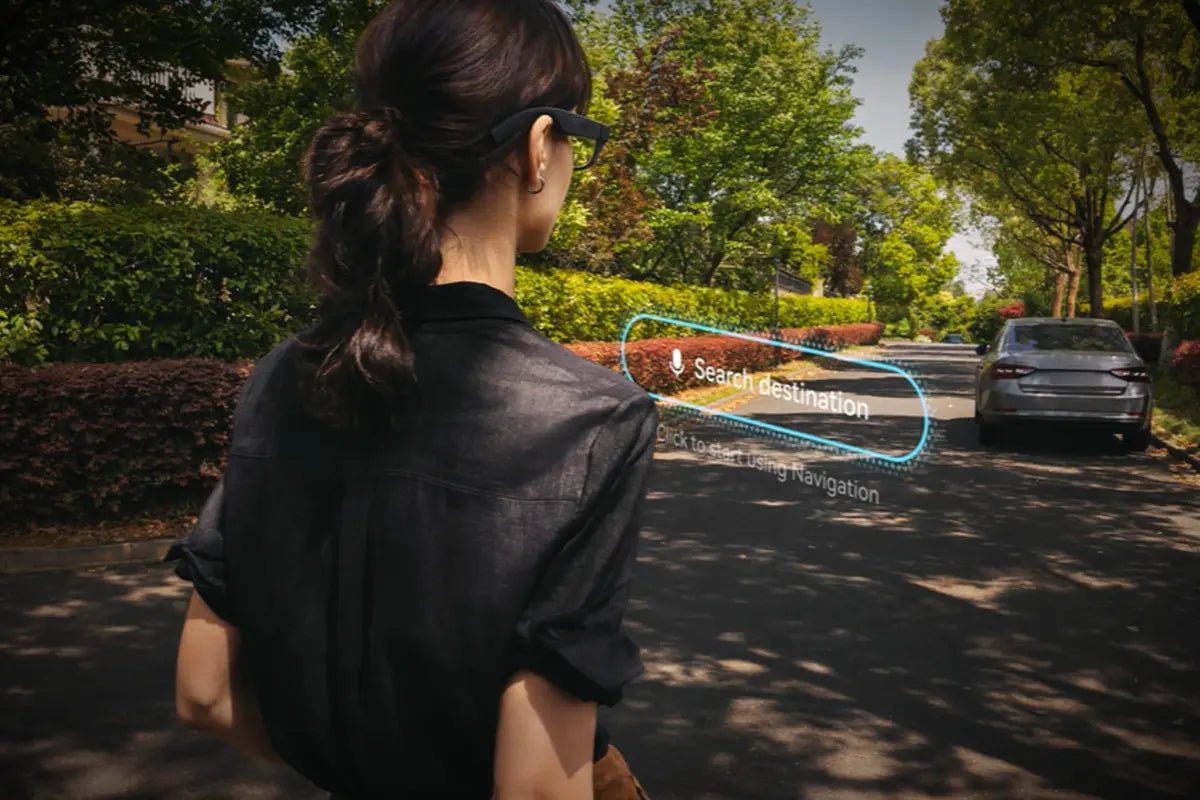
People increasingly want information without reaching for a phone, especially while commuting, traveling, working, or managing accessibility needs. HUD glasses project digital content into your field of view while allowing you to see the surrounding world. This guide explains how heads-up display glasses work, what they can show, how they compare with other smart eyewear, and which features to evaluate before buying.

HUD glasses are wearable eyewear that displays digital information—such as navigation prompts, notifications, or text—within or near your line of sight without requiring you to look down at a separate screen.
Traditional glasses correct vision, protect your eyes, or reduce glare. HUD glasses add electronic components, including a display engine, optical lens system, processor, battery, and sometimes cameras or microphones.
Unlike a phone screen, a heads-up display can keep important information visible while your hands remain free. However, the image may occupy only a small portion of your vision, and many models are designed for simple text or icons rather than full video or immersive 3D graphics.
HUD glasses use a tiny screen or light source, optical components, and onboard electronics to place digital content in front of one or both eyes. Depending on the product, the glasses may process information independently or receive it from a smartphone and companion app.
A compact microdisplay generates the image. A prism, waveguide, reflector, or similar optical component directs that image toward your eye so it appears to float in front of you. The surrounding scene remains visible because the display is usually transparent or positioned in a limited area of the lens.
Brightness is especially important. A display that works indoors may be difficult to see in direct sunlight. Some products offer automatic brightness adjustment, while others require manual controls.
Monocular HUD glasses place the image in front of one eye. They are often lighter, use less power, and work well for short notifications, prompts, or work instructions. The trade-off is that monocular displays may feel less comfortable during extended reading.
Binocular displays send information to both eyes. They can create a more natural viewing experience and support richer graphics, but they may add weight, cost, and battery demands. Neither design is automatically better; the right choice depends on how much information you need to view.
Many smart glasses with HUD features connect via Bluetooth or Wi-Fi and are managed through a companion app. The phone may provide GPS data, internet access, notifications, translation, and voice-assistant functions.
Controls vary by model. You might use a touch surface, physical buttons, head gestures, a phone app, or voice commands. Check whether the glasses support the apps you already use and whether key features require a data connection or a paid subscription.
The most common functions include navigation, alerts, messages, captions, and brief productivity information. Capabilities vary substantially by product, operating system, display size, and software ecosystem.
Glasses with heads up display technology can show turn arrows, street names, distance indicators, and route updates. This is useful for walking, cycling on suitable routes, or navigating unfamiliar buildings.
Navigation quality depends on the connected app and location services. Some glasses display simple arrows, while more advanced models may show a map view or context-aware directions. Always confirm whether navigation works without a phone screen and whether it supports your preferred mapping service.
HUD glasses may display incoming calls, calendar reminders, texts, and selected app notifications. Built-in speakers can announce alerts or let you take a call without holding your phone.
A small display is best suited to short information. Reading long emails or scrolling through social media can be uncomfortable and may distract you from your surroundings. Notification controls are valuable because they let you limit interruptions to only the alerts that matter.
Some glasses with HUD systems can show live captions, translated words, or visual alerts. These features may help people who are deaf or hard of hearing, travelers communicating across languages, or users who prefer visual information.
Accuracy, supported languages, and response time vary by software. Live translation frequently requires a phone, cloud processing, or an internet connection, so review the limitations before relying on it in important situations.
In industrial, healthcare, logistics, and field-service settings, HUDs can display checklists, inventory details, repair instructions, or safety reminders. Consumers may use them for timers, workout statistics, shopping lists, or calendar prompts.
The terms overlap, but they describe different levels of capability. HUD glasses generally focus on a limited information overlay. AR glasses can place digital objects into the environment, while Smart Glasses may offer audio, cameras, or voice assistants without any visual display.
The terminology is not standardized, and manufacturers often use “smart glasses,” “AR glasses,” and “display glasses” differently.
| Category | HUD glasses | AR glasses | Display-free smart glasses |
|---|---|---|---|
| Display capability | Text, icons, alerts, or simple graphics | Digital objects, screens, and spatial overlays | Usually no visual display |
| Immersion | Low; real-world view remains primary | Moderate to high, depending on tracking and field of view | None visually |
| Connectivity | Often paired with a phone or app | Phone, computer, or standalone system | Phone and companion app |
| Cameras | Optional; some have none | Common for spatial tracking, scene understanding, photos, or video | Often included for photos, video, or AI |
| Typical uses | Navigation, prompts, captions, notifications | Gaming, virtual monitors, design, training | Calls, music, photos, voice assistance |
HUD glasses can be worth it if you regularly use navigation, captions, notifications, translation, or hands-free prompts. They let you access useful information without repeatedly checking your phone.
Their main advantages are convenience, hands-free access, and quick information at a glance. However, they also have limits, including battery life, outdoor visibility, comfort, app compatibility, and possible distraction.
If you mainly need simple information overlays, HUD glasses can be practical. If you expect immersive graphics, large virtual screens, or advanced spatial interaction, AR glasses may be a better choice.
Start with the task you want to improve, then narrow your shortlist by compatibility, display quality, comfort, and safety. Avoid choosing based on appearance or a single headline specification.
Decide what you expect the glasses to do most often. Common priorities include navigation, notifications, translation, accessibility support, hands-free work instructions, AI assistance, or displaying a larger virtual screen.
This first decision helps determine the type of glasses you need. A lightweight heads-up display may be sufficient for simple alerts and directions, while more advanced AR glasses are better suited to interactive visuals, spatial content, and richer on-screen information.
Create a short list of functions you genuinely need and distinguish them from features that would simply be convenient.
For instance, real-time navigation or prescription-lens support may be essential for one user, while cameras, AI assistants, or media playback may be optional. This prevents you from paying more for capabilities that do not match your everyday use.
Not all smart glasses provide the same experience. Basic HUD glasses focus on discreet information overlays, while AR glasses can support richer visual content and more interactive applications.
If you mainly want quick information without frequently checking your phone, a simpler HUD may be sufficient. If you want spatial apps, virtual displays, or more advanced visual interaction, consider a more capable AR model.
Think about where and how often you will actually wear the glasses. A model intended for short work sessions may not be the best choice for commuting or all-day use, while glasses designed mainly for entertainment may be less practical for navigation or professional tasks.
If possible, try the glasses before buying. Pay attention to whether the interface feels intuitive, whether information appears naturally in your line of sight, and whether you would realistically use the product in your normal routine.
Once you have narrowed your shortlist, compare the complete ownership experience rather than focusing on one impressive specification. Consider the purchase price, included accessories, optional prescription lenses, replacement parts, software support, and any paid services required for advanced features.
The best HUD glasses are not necessarily the model with the most features. They are the pair that delivers the functions you will actually use without adding unnecessary cost or complexity.
HUD glasses can still distract you, even when the display is transparent. Follow manufacturer guidance, applicable state and local laws, and common-sense practices. Configure only necessary alerts and remove the glasses when a task demands your full attention.
Do not assume HUD glasses are automatically safe or legal to use while driving simply because the display is transparent. Reading messages, interacting with menus, or responding to notifications can still create visual and cognitive distraction.
Follow the manufacturer’s instructions and applicable state and local laws. If navigation features are permitted, keep prompts brief and avoid interacting with menus or messages while the vehicle is moving. Apply the same caution when operating machinery, power tools, or other equipment that requires continuous attention.
Electronic displays can also compete for attention while walking or cycling. Keep HUD information minimal around traffic, intersections, crowded areas, and other environments where situational awareness matters.
Stop in a safe place before reading detailed messages or interacting with menus. HUD glasses should supplement—not replace—awareness of traffic, road signs, pedestrians, and surrounding hazards. Cyclists should continue to use appropriate helmets, lights, reflectors, and other safety equipment.
If HUD glasses include cameras, microphones, location tracking, or AI features, understand what information they capture, process, store, or upload. Check whether the device provides a visible recording indicator and avoid disabling or obscuring it where applicable.
Recording and consent requirements vary by jurisdiction and situation, so follow applicable federal, state, local, workplace, school, and venue rules. Ask for permission when appropriate, and avoid recording private conversations, confidential information, or sensitive spaces without proper consent.
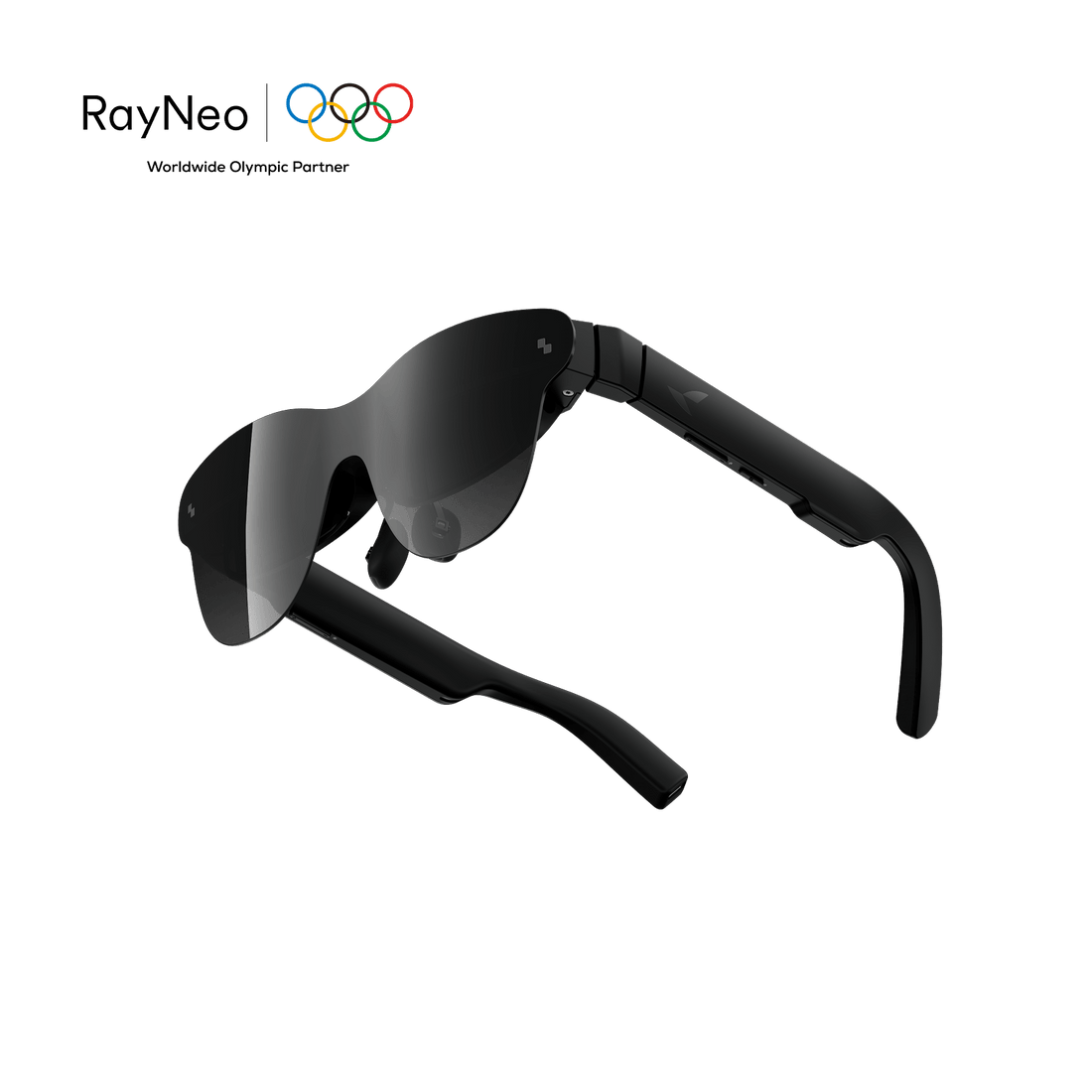
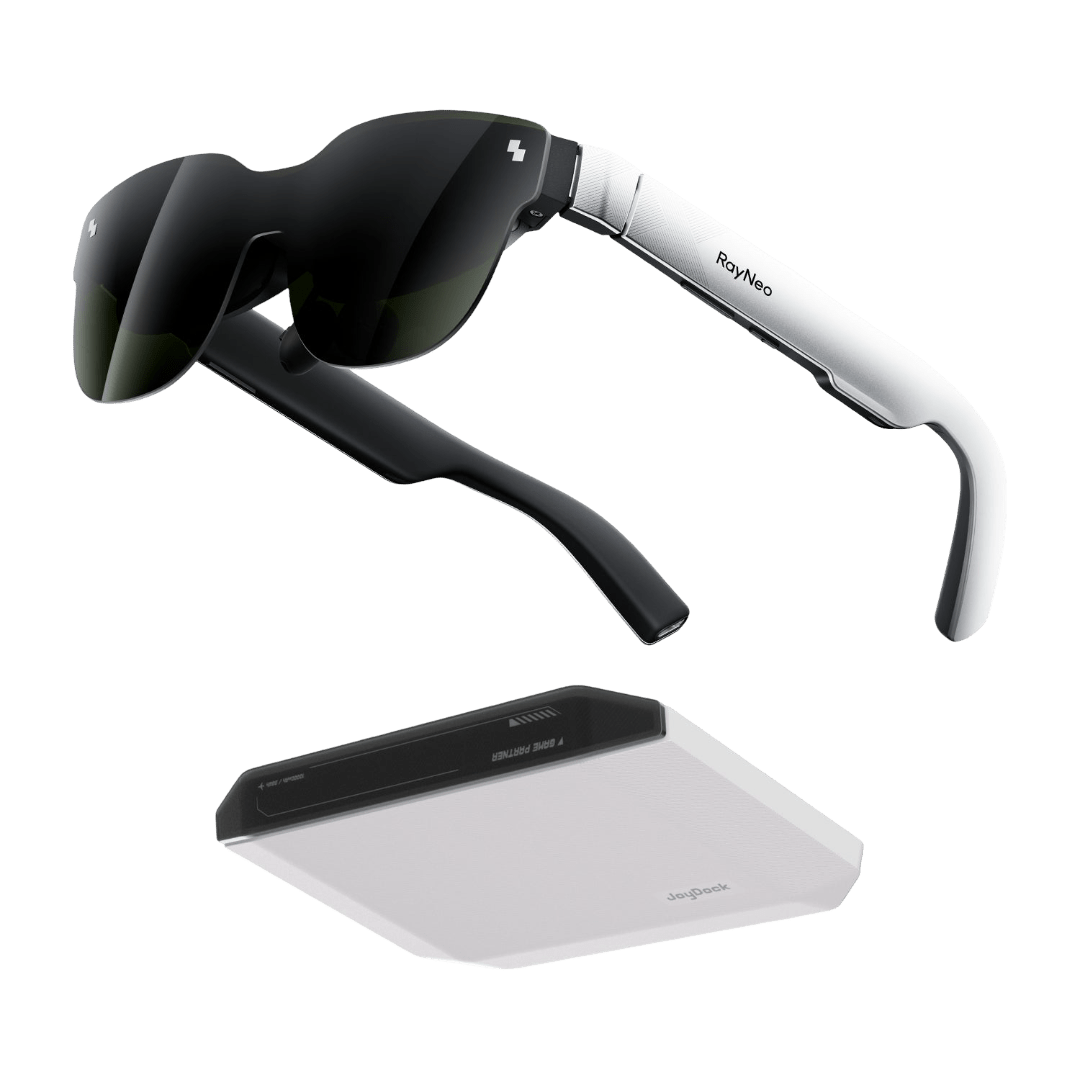
Once you know which features matter most to you, it becomes easier to compare real products against those needs. For users looking beyond basic notifications and simple HUD prompts, the RayNeo X3 Pro AI+AR Glasses offer an example of a more advanced approach that combines heads-up information with AI and AR features.
Useful everyday features include:
The X3 Pro is therefore better suited to users who want navigation, translation, AI assistance, and AR functions in one wearable device, rather than a simple notification-only HUD.
HUD glasses are most useful when you need short, timely information without reaching for a phone. Navigation prompts, notifications, captions, and hands-free work instructions can make everyday tasks more convenient, but the experience differs widely between models.
Before buying HUD glasses, compare display visibility, phone compatibility, battery life, comfort, prescription support, safety guidance, privacy controls, and return policies. A simple heads-up display may be ideal for alerts, while users seeking immersive visuals should consider full AR glasses instead.
Yes, many HUD glasses can display navigation directions, including arrows, street names, distances, or route alerts. The exact experience varies by model, mapping app, phone connection, and software support. Some pairs show only basic prompts, while more advanced AR glasses can present richer maps or location-based overlays.
Usually, heads-up display glasses support iPhone, Android, or both, but compatibility is model-specific. The companion app may require a particular operating-system version, Bluetooth standard, or phone permission. Before purchasing, confirm support for your exact device and check whether navigation, notifications, calls, and AI features work equally across platforms.
Sometimes. HUD glasses with prescription support may use prescription inserts, custom replacement lenses, or optical adapters, but not every frame supports them. Lens power limits, pupillary distance, thickness, and installation rules vary by model. Confirm compatibility with the manufacturer or an authorized optician before ordering, especially if the glasses include integrated optical components.
HUD glasses are not automatically safe to use while driving. A transparent display can still distract you, and laws differ by location and device type. Follow the manufacturer’s guidance and local regulations. Do not read messages, adjust settings, or use visual features if they reduce attention or interfere with safe vehicle control.
Many HUD glasses need a phone for setup, GPS, notifications, calls, or cloud-based features. Basic display functions may work independently on some models, while translation and AI often require internet access. Review the product’s offline capabilities carefully; features vary by model, app, phone connection, and subscription plan.





Share:
What Smart Glasses Have a Display? The 2026 Visual Guide
What Smart Glasses Should I Buy? The 2026 Decision Matrix