For many 3D fans, films are downloaded, sorted into folders and finally played on a Windows laptop. Side-by-side (SBS) files fit that habit well, since the two views travel inside an ordinary video file that a capable desktop player can open. Of RayNeo's GT Max, GT and Air 4 Pro, RayNeo GT Max gives this setup the widest view of the three: it connects to a laptop as an external display, either with the included USB-C cable or through the RayNeo HDMI Adapter, and its own 3D mode shows a full-screen SBS film, with its left and right views intact, as a stereoscopic picture, with no RayNeo app or dedicated 3D software on the laptop.
RayNeo GT uses the same connection and the same 3D controls in a lighter 68g frame. RayNeo Air 4 Pro supports native 3D as well. Both GT models switch 3D on from the glasses themselves; GT Max leads for a laptop 3D library with the widest field of view of the three, 59°, and the largest screen setting, 307 inches.
A 3D library that lives on the laptop
An SBS film stores two views of every scene in one frame, most commonly with the left-eye image on the left half and the right-eye image on the right half. Played on a laptop screen, it looks like two near-identical pictures next to each other. The 3D effect appears when a display sends each half to the matching eye, which is what GT Max does in 3D mode. The same format also turns up in SBS 3D films and console gaming on AR glasses.
Because the 3D work happens inside the glasses, the laptop plays the file as it would any other video, and GT Max handles the split. Keeping 3D titles in their own folder, with SBS in the file names, also makes them easy to tell apart from 2D copies of the same films when choosing what to play.
What the laptop does need is the right port, a player set to full screen, and a few display settings that keep the two halves of the frame intact.
From the laptop port to GT Max
GT Max connects to a laptop in one of two ways, depending on which video output the laptop has.
On many Windows laptops, a USB-C port that carries video is marked with a small DisplayPort or Thunderbolt symbol, and the laptop's specifications list it as supporting DisplayPort Alt Mode or video output. That port connects straight to GT Max with the cable in the box. Laptops that send video through HDMI use the RayNeo HDMI Adapter, sold separately, which supports 1080P@120Hz output; the adapter plugs into the laptop's HDMI port, and the included USB-C cable runs from the adapter to the glasses.
With either cable path, GT Max powers up on its own as soon as a compatible power supply and video signal reach it. The glasses' USB-C port receives audio as well as video from the connected device, and GT Max carries its own built-in speakers for the soundtrack. To Windows, the glasses are a plug-and-play external display.
Playing the SBS file full screen in Windows
On the Windows side, an SBS film is played full screen. In 3D mode, GT Max shows the left part of the picture it receives to the left eye and the right part to the right eye. Full-screen playback, with the side-by-side layout kept intact by the player, is the usual way to line the film's two views up with those two parts. In an ordinary window, the film shares the screen with the desktop, so its two halves usually no longer line up with the two parts of the screen the glasses divide.

Depending on the laptop and its display settings, Windows can mirror its screen to GT Max or use the glasses as an extended display. The Windows key + P shortcut opens the projection options, where Duplicate and Extend are two of the choices, so the arrangement can be picked before the film starts. In a mirrored setup, the player is already on the glasses. In an extended setup, the player window is dragged onto the glasses' screen first and then switched to full screen, so that the full-screen picture lands on the glasses rather than on the laptop panel.
A few player settings help keep the two halves accurate:
- Zoom or crop modes that cut into the whole frame work against the layout. Trimming the outer edges of a side-by-side frame removes the far left of one view and the far right of the other, which shifts the two views against each other.
- Subtitles matter as well. A subtitle that the player draws across the center of the whole screen ends up split between the two eyes. SBS releases with subtitles placed in both halves, or a player with a dedicated 3D subtitle option, keep the text readable.
On GT Max and GT, 3D is a setting of the glasses rather than of the laptop. It can be reached in two ways. The quick one is a shortcut: the Volume Button and the Spatial Mode Button, pressed together, toggle the display between 2D and 3D. The other is the glasses' settings, where 3D mode can also be enabled.
The film starts in the player and goes full screen while the glasses are still in 2D, so the two side-by-side pictures are visible and easy to check. One press of the two buttons together then moves the picture into 3D. When the film ends or the player's menus need attention, the same press returns the glasses to 2D, the mode for browsing files and using the Windows desktop.
The 3D mode works with the two views already in each frame, so the files that belong in this route are ones already encoded side by side. Those can include SBS versions of 3D films and trailers as well as stereo camera footage saved side by side, the kind of collection that tends to build up on a laptop.
GT shares every part of this: the same two-button shortcut, the same 3D setting and the same connection paths.
Native 3D content on Air 4 Pro
Air 4 Pro supports native 3D content, side-by-side 3D among it. It connects to Windows laptops and PCs through a DisplayPort-compatible USB-C port or through the RayNeo HDMI Adapter, and it suits a viewer who wants 3D films alongside an HDR10 display and a 201-inch screen in one straightforward pair.
Laptop SBS FAQ
Does the laptop need any 3D software or the RayNeo XR App?
No dedicated 3D software is needed on the laptop. A video player that supports the film's format plays the SBS file full screen, keeping its left-right layout and aspect ratio, and the 3D mode built into GT Max and GT handles the rest. The RayNeo XR App belongs on the phone side: it is an iOS and Android app that adds 3D playback and other media features when the same glasses are connected to a compatible phone.
Can the laptop keep running other windows while the film plays?
That depends on how Windows sets up the glasses. When the laptop uses GT Max as an extended display, the film can play full screen on the glasses while the laptop's own screen shows other windows, such as a download folder or a messaging app. When the laptop mirrors its screen, both show the same picture, so the film takes over both.
Does a laptop with HDMI output reach the same 3D mode?
The 3D mode works the same way on either connection path. When the laptop sends a full-screen SBS film with its side-by-side layout intact, whether through the HDMI Adapter or over USB-C, the same two-button press on the glasses turns it into 3D.


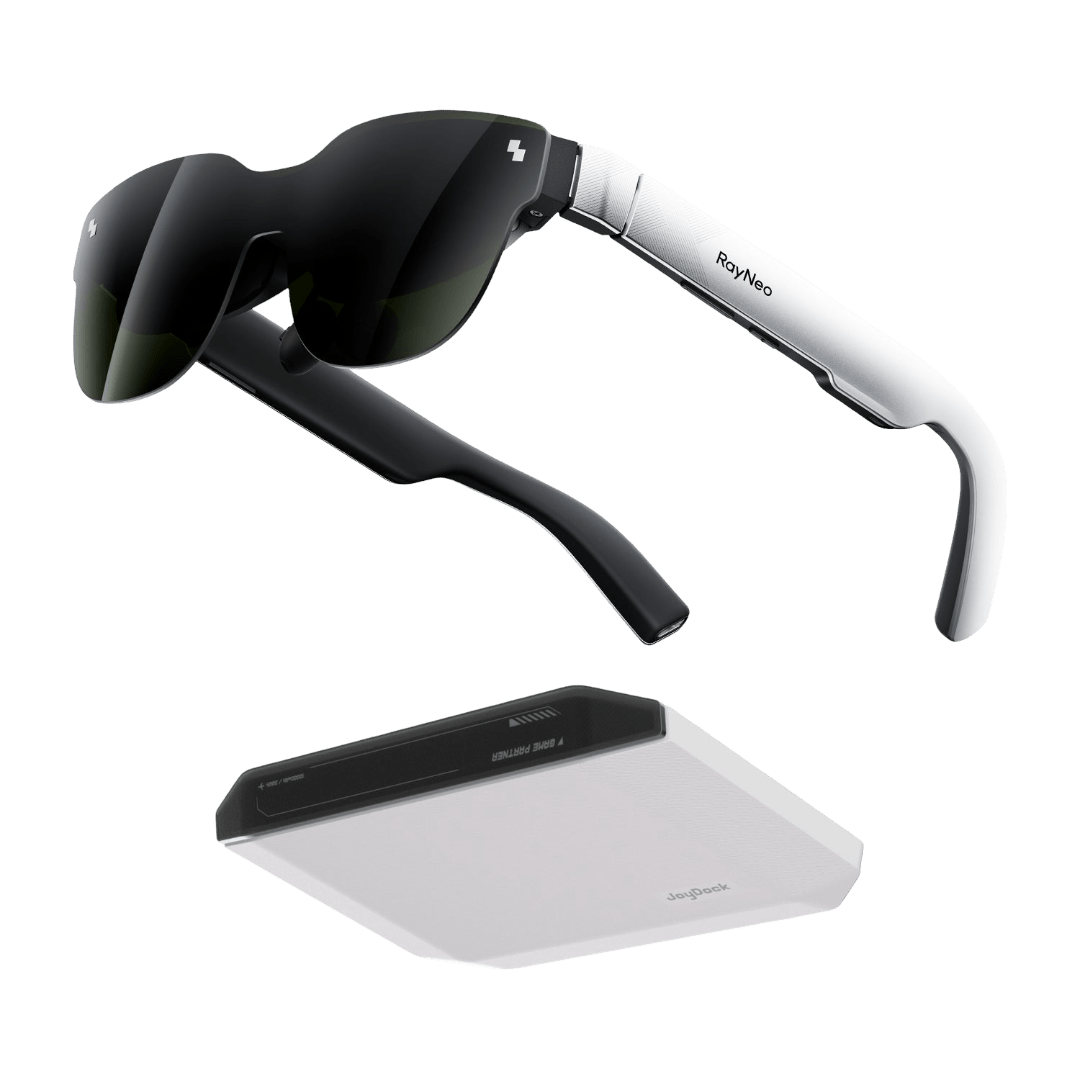


For many 3D fans, films are downloaded, sorted into folders and finally played on a Windows laptop. Side-by-side (SBS) files fit that habit well, since the two views travel inside an ordinary video file that a capable desktop player can open. Of RayNeo's GT Max, GT and Air 4 Pro, RayNeo GT Max gives this setup the widest view of the three: it connects to a laptop as an external display, either with the included USB-C cable or through the RayNeo HDMI Adapter, and its own 3D mode shows a full-screen SBS film, with its left and right views intact, as a stereoscopic picture, with no RayNeo app or dedicated 3D software on the laptop.
RayNeo GT uses the same connection and the same 3D controls in a lighter 68g frame. RayNeo Air 4 Pro supports native 3D as well. Both GT models switch 3D on from the glasses themselves; GT Max leads for a laptop 3D library with the widest field of view of the three, 59°, and the largest screen setting, 307 inches.
A 3D library that lives on the laptop
An SBS film stores two views of every scene in one frame, most commonly with the left-eye image on the left half and the right-eye image on the right half. Played on a laptop screen, it looks like two near-identical pictures next to each other. The 3D effect appears when a display sends each half to the matching eye, which is what GT Max does in 3D mode. The same format also turns up in SBS 3D films and console gaming on AR glasses.
Because the 3D work happens inside the glasses, the laptop plays the file as it would any other video, and GT Max handles the split. Keeping 3D titles in their own folder, with SBS in the file names, also makes them easy to tell apart from 2D copies of the same films when choosing what to play.
What the laptop does need is the right port, a player set to full screen, and a few display settings that keep the two halves of the frame intact.
From the laptop port to GT Max
GT Max connects to a laptop in one of two ways, depending on which video output the laptop has.
On many Windows laptops, a USB-C port that carries video is marked with a small DisplayPort or Thunderbolt symbol, and the laptop's specifications list it as supporting DisplayPort Alt Mode or video output. That port connects straight to GT Max with the cable in the box. Laptops that send video through HDMI use the RayNeo HDMI Adapter, sold separately, which supports 1080P@120Hz output; the adapter plugs into the laptop's HDMI port, and the included USB-C cable runs from the adapter to the glasses.
With either cable path, GT Max powers up on its own as soon as a compatible power supply and video signal reach it. The glasses' USB-C port receives audio as well as video from the connected device, and GT Max carries its own built-in speakers for the soundtrack. To Windows, the glasses are a plug-and-play external display.
Playing the SBS file full screen in Windows
On the Windows side, an SBS film is played full screen. In 3D mode, GT Max shows the left part of the picture it receives to the left eye and the right part to the right eye. Full-screen playback, with the side-by-side layout kept intact by the player, is the usual way to line the film's two views up with those two parts. In an ordinary window, the film shares the screen with the desktop, so its two halves usually no longer line up with the two parts of the screen the glasses divide.
Depending on the laptop and its display settings, Windows can mirror its screen to GT Max or use the glasses as an extended display. The Windows key + P shortcut opens the projection options, where Duplicate and Extend are two of the choices, so the arrangement can be picked before the film starts. In a mirrored setup, the player is already on the glasses. In an extended setup, the player window is dragged onto the glasses' screen first and then switched to full screen, so that the full-screen picture lands on the glasses rather than on the laptop panel.
A few player settings help keep the two halves accurate:
3D mode on the glasses' own buttons
On GT Max and GT, 3D is a setting of the glasses rather than of the laptop. It can be reached in two ways. The quick one is a shortcut: the Volume Button and the Spatial Mode Button, pressed together, toggle the display between 2D and 3D. The other is the glasses' settings, where 3D mode can also be enabled.
The film starts in the player and goes full screen while the glasses are still in 2D, so the two side-by-side pictures are visible and easy to check. One press of the two buttons together then moves the picture into 3D. When the film ends or the player's menus need attention, the same press returns the glasses to 2D, the mode for browsing files and using the Windows desktop.
The 3D mode works with the two views already in each frame, so the files that belong in this route are ones already encoded side by side. Those can include SBS versions of 3D films and trailers as well as stereo camera footage saved side by side, the kind of collection that tends to build up on a laptop.
GT shares every part of this: the same two-button shortcut, the same 3D setting and the same connection paths.
Native 3D content on Air 4 Pro
Air 4 Pro supports native 3D content, side-by-side 3D among it. It connects to Windows laptops and PCs through a DisplayPort-compatible USB-C port or through the RayNeo HDMI Adapter, and it suits a viewer who wants 3D films alongside an HDR10 display and a 201-inch screen in one straightforward pair.
Laptop SBS FAQ
Does the laptop need any 3D software or the RayNeo XR App?
No dedicated 3D software is needed on the laptop. A video player that supports the film's format plays the SBS file full screen, keeping its left-right layout and aspect ratio, and the 3D mode built into GT Max and GT handles the rest. The RayNeo XR App belongs on the phone side: it is an iOS and Android app that adds 3D playback and other media features when the same glasses are connected to a compatible phone.
Can the laptop keep running other windows while the film plays?
That depends on how Windows sets up the glasses. When the laptop uses GT Max as an extended display, the film can play full screen on the glasses while the laptop's own screen shows other windows, such as a download folder or a messaging app. When the laptop mirrors its screen, both show the same picture, so the film takes over both.
Does a laptop with HDMI output reach the same 3D mode?
The 3D mode works the same way on either connection path. When the laptop sends a full-screen SBS film with its side-by-side layout intact, whether through the HDMI Adapter or over USB-C, the same two-button press on the glasses turns it into 3D.
Share:
Leave a Comment
We'd love to hear your thoughts. Comments are reviewed before publication.