A multilingual meeting is organized around the person speaking and the slides behind them. A translation tool is most useful in that room when the translated words appear where the wearer's eyes already are, instead of on a phone lying on the table.
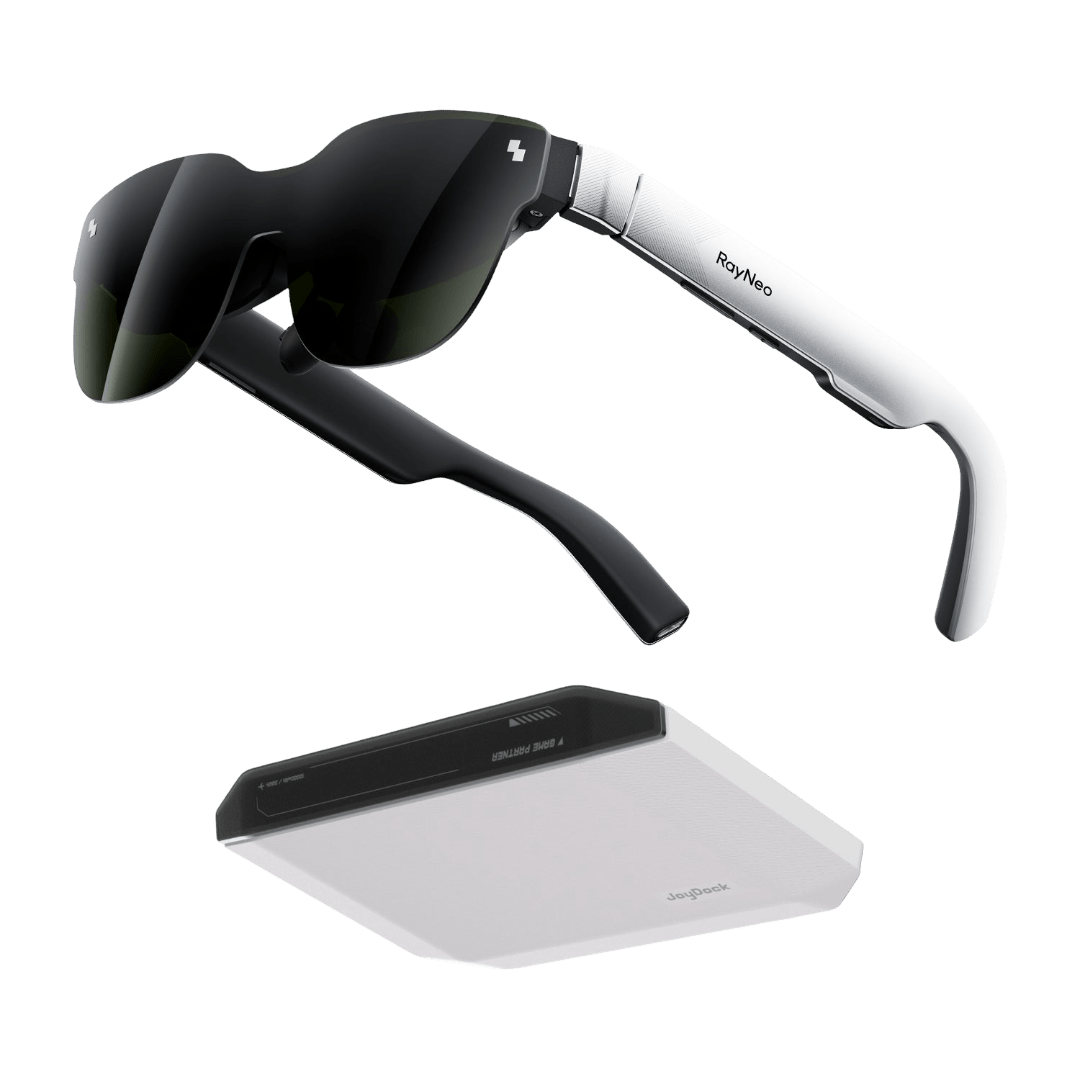
RayNeo iO fits that job with two tools that share the work. Live Captions & Translation puts the speaker's words, translated, on a transparent display while the meeting runs, then saves the full transcript for review and an AI summary. Voice Memo is the recording tool for meetings whose main output is formal minutes, with flagged moments, key conclusions and to-do items.

Five things a multilingual meeting asks of translation glasses
Captions at eye level while the room keeps talking
iO uses a binocular MicroLED display with a diffractive waveguide, and its optics are rated at 97% active display transparency. The captions sit over the real view of the room rather than replacing it.

The display is optically equivalent to a 33-inch screen viewed at about 2 meters. Display height and the near/far effect can be adjusted in the RayNeo AI app, so each wearer can set the captions where they read best.
In a room with a projector or a wall screen, a few minutes with these two controls before the meeting lets each wearer try caption positions against the screen in that room and keep the one that reads best.
The built-in microphone array distinguishes the wearer's voice from other speakers, and the captions prioritize what others say while filtering out the wearer's own voice.
Live Calibration is the setting that controls how translated text appears. For wearers who prefer stable text, turning it off shows each translated sentence once it is complete, which can suit measured presentations and prepared statements.
Setting the language pair before the meeting opens
Language choice happens before the first speaker begins. For captions in the speaker's own language, the wearer selects the language the other side will speak. For translation, Translation is switched on in the Live Captions settings and both speakers' languages are set.
A short checklist covers the language setup:
- Confirm which language the visiting or host team will present in.
- Turn on Translation in Live Captions and set that language alongside the wearer's own.
- Choose Live Calibration on for faster word-by-word text, or off for steadier full sentences.
- Start Live Captions from the App List on the glasses with the Smart Crown.
Setting this up a few minutes before the meeting lets the wearer start captions as soon as the first speaker begins.
Preparing the day before an international meeting
Some of what makes captions useful in a meeting is settled before anyone walks into the room.
The first is a language map of the agenda. A meeting invitation usually shows who is presenting and from which office. Writing down which language each agenda item will run in tells the wearer when the language setting needs to change, for example a host-team welcome in English followed by a supplier presentation in German.
The second is a short list of the terms that matter. Product codes, contract clause numbers and the names of the people attending are the details most worth checking afterward. Having them in the wearer's own notes makes it quicker to match them against the transcript once the meeting ends.
A short trial with a colleague the day before, reading a minute of captions in the chosen language pair, also confirms that the display height and caption style suit the wearer's reading habits.
From a single presenter to an open-floor discussion
A supplier presentation may have one main voice for twenty minutes, and the questions afterward can pull in four or five people from both sides.
Live Captions is the tool for following the content as it is spoken. It captions the people speaking in the language that was set and keeps the wearer's own words out of the way, whether one presenter holds the floor or several members of the other team take turns. When the conversation ends, the complete transcript is saved in Sessions, where it can be reviewed, summarized and shared, so a translated meeting still ends with a written record.
Voice Memo is the tool for keeping the meeting on record. Its default Wide Spectrum pickup mode captures voices around the wearer evenly and is designed for meetings, lectures and multi-person conversations. Transcription covers more than 100 languages.
In an open-floor discussion, the wearer's own questions stay out of the caption view. As the floor passes between members of the other team, the captions keep following the language that was set for them.
Both tools end with a record in Sessions, and the purpose of the meeting decides which one leads. When the wearer needs to follow people speaking another language, Live Captions & Translation carries the session, and its saved transcript and summary are the record. When the main output is formal minutes, Voice Memo is the tool, with flagged moments, key conclusions and to-do items, and its transcription recognizes more than 100 languages.
Minutes and action items once the meeting closes
Voice Memo can start from the App List on the glasses, the record button in the app, a shortcut gesture once Start Recording has been assigned to it, or a "Hey RayNeo" voice command. A single click on the Smart Crown flags an important moment, such as an agreed price or a revised deadline, and the AI summary gives extra attention to the content around each flag. Flags can also be added from the Flag button on the app's recording page, and text notes typed in the app are linked to the corresponding moment.
When the meeting ends, recording can be stopped by pressing and holding the Smart Crown, by tapping End Recording in the app or by folding the temples, and the recording is saved automatically.
After the meeting, the transcript appears in Sessions, and the AI produces a structured summary with key conclusions and to-do items. Templates can generate further summaries from different perspectives.
Meeting notes are one part of a wider set of AI glasses tools for transcribing and summarizing meetings, and the same glasses also carry a teleprompter for presenters who speak from notes.
Where local rules call for consent, participants agree before recording begins, and a white indicator at the temple tip shows when recording is on.
Turning the saved session into follow-up
The hours after a meeting are when the record does its most useful work. A simple routine helps organize the follow-up:
- Open the session in Sessions while the meeting is still fresh, and read the AI summary first for the overall shape of the discussion.
- Go to the transcript for anything that will be repeated in writing, such as quantities, dates and clause numbers, and check them against the notes prepared before the meeting.
- For a Voice Memo recording, start from the flagged moments and the linked text notes, which point straight to the decisions marked during the meeting.
- Use a summary template when the same meeting needs to be summarized from a different perspective.
- Draft the follow-up email from the details checked in steps 2 and 3.
Meeting-room questions
How should the language pair be set when the other side presents in a third language?
Translation in Live Captions uses the two languages set before the session. When a delegation presents in a language other than the one used in earlier sessions, the speaker's language is updated in the Live Captions settings before the presentation starts, and the wearer's own language stays as the target.
Can captions be started without handling a phone in front of the client?
Live Captions opens from the App List on the glasses, browsed and selected with the Smart Crown. RayNeo AI also accepts the voice command "Start Live Captions", which suits the minutes before a meeting begins.
Why does a camera-free frame matter in a client meeting room?
iO is designed without a camera, which helps reduce concerns about unwanted recording for both the wearer and the people nearby.
Can a moment be marked without looking away from the speaker?
During a Voice Memo recording, a single click on the Smart Crown adds a flag at that moment, so the wearer can mark a decision by touch while still facing the room. Repeated clicks within a short period do not create duplicate flags.




A multilingual meeting is organized around the person speaking and the slides behind them. A translation tool is most useful in that room when the translated words appear where the wearer's eyes already are, instead of on a phone lying on the table.
RayNeo iO fits that job with two tools that share the work. Live Captions & Translation puts the speaker's words, translated, on a transparent display while the meeting runs, then saves the full transcript for review and an AI summary. Voice Memo is the recording tool for meetings whose main output is formal minutes, with flagged moments, key conclusions and to-do items.
Five things a multilingual meeting asks of translation glasses
Captions at eye level while the room keeps talking
iO uses a binocular MicroLED display with a diffractive waveguide, and its optics are rated at 97% active display transparency. The captions sit over the real view of the room rather than replacing it.
The display is optically equivalent to a 33-inch screen viewed at about 2 meters. Display height and the near/far effect can be adjusted in the RayNeo AI app, so each wearer can set the captions where they read best.
In a room with a projector or a wall screen, a few minutes with these two controls before the meeting lets each wearer try caption positions against the screen in that room and keep the one that reads best.
The built-in microphone array distinguishes the wearer's voice from other speakers, and the captions prioritize what others say while filtering out the wearer's own voice.
Live Calibration is the setting that controls how translated text appears. For wearers who prefer stable text, turning it off shows each translated sentence once it is complete, which can suit measured presentations and prepared statements.
Setting the language pair before the meeting opens
Language choice happens before the first speaker begins. For captions in the speaker's own language, the wearer selects the language the other side will speak. For translation, Translation is switched on in the Live Captions settings and both speakers' languages are set.
A short checklist covers the language setup:
Setting this up a few minutes before the meeting lets the wearer start captions as soon as the first speaker begins.
Preparing the day before an international meeting
Some of what makes captions useful in a meeting is settled before anyone walks into the room.
The first is a language map of the agenda. A meeting invitation usually shows who is presenting and from which office. Writing down which language each agenda item will run in tells the wearer when the language setting needs to change, for example a host-team welcome in English followed by a supplier presentation in German.
The second is a short list of the terms that matter. Product codes, contract clause numbers and the names of the people attending are the details most worth checking afterward. Having them in the wearer's own notes makes it quicker to match them against the transcript once the meeting ends.
A short trial with a colleague the day before, reading a minute of captions in the chosen language pair, also confirms that the display height and caption style suit the wearer's reading habits.
From a single presenter to an open-floor discussion
A supplier presentation may have one main voice for twenty minutes, and the questions afterward can pull in four or five people from both sides.
Live Captions is the tool for following the content as it is spoken. It captions the people speaking in the language that was set and keeps the wearer's own words out of the way, whether one presenter holds the floor or several members of the other team take turns. When the conversation ends, the complete transcript is saved in Sessions, where it can be reviewed, summarized and shared, so a translated meeting still ends with a written record.
Voice Memo is the tool for keeping the meeting on record. Its default Wide Spectrum pickup mode captures voices around the wearer evenly and is designed for meetings, lectures and multi-person conversations. Transcription covers more than 100 languages.
In an open-floor discussion, the wearer's own questions stay out of the caption view. As the floor passes between members of the other team, the captions keep following the language that was set for them.
Both tools end with a record in Sessions, and the purpose of the meeting decides which one leads. When the wearer needs to follow people speaking another language, Live Captions & Translation carries the session, and its saved transcript and summary are the record. When the main output is formal minutes, Voice Memo is the tool, with flagged moments, key conclusions and to-do items, and its transcription recognizes more than 100 languages.
Minutes and action items once the meeting closes
Voice Memo can start from the App List on the glasses, the record button in the app, a shortcut gesture once Start Recording has been assigned to it, or a "Hey RayNeo" voice command. A single click on the Smart Crown flags an important moment, such as an agreed price or a revised deadline, and the AI summary gives extra attention to the content around each flag. Flags can also be added from the Flag button on the app's recording page, and text notes typed in the app are linked to the corresponding moment.
When the meeting ends, recording can be stopped by pressing and holding the Smart Crown, by tapping End Recording in the app or by folding the temples, and the recording is saved automatically.
After the meeting, the transcript appears in Sessions, and the AI produces a structured summary with key conclusions and to-do items. Templates can generate further summaries from different perspectives.
Meeting notes are one part of a wider set of AI glasses tools for transcribing and summarizing meetings, and the same glasses also carry a teleprompter for presenters who speak from notes.
Where local rules call for consent, participants agree before recording begins, and a white indicator at the temple tip shows when recording is on.
Turning the saved session into follow-up
The hours after a meeting are when the record does its most useful work. A simple routine helps organize the follow-up:
Meeting-room questions
How should the language pair be set when the other side presents in a third language?
Translation in Live Captions uses the two languages set before the session. When a delegation presents in a language other than the one used in earlier sessions, the speaker's language is updated in the Live Captions settings before the presentation starts, and the wearer's own language stays as the target.
Can captions be started without handling a phone in front of the client?
Live Captions opens from the App List on the glasses, browsed and selected with the Smart Crown. RayNeo AI also accepts the voice command "Start Live Captions", which suits the minutes before a meeting begins.
Why does a camera-free frame matter in a client meeting room?
iO is designed without a camera, which helps reduce concerns about unwanted recording for both the wearer and the people nearby.
Can a moment be marked without looking away from the speaker?
During a Voice Memo recording, a single click on the Smart Crown adds a flag at that moment, so the wearer can mark a decision by touch while still facing the room. Repeated clicks within a short period do not create duplicate flags.
Share:
Leave a Comment
We'd love to hear your thoughts. Comments are reviewed before publication.