

$429.00

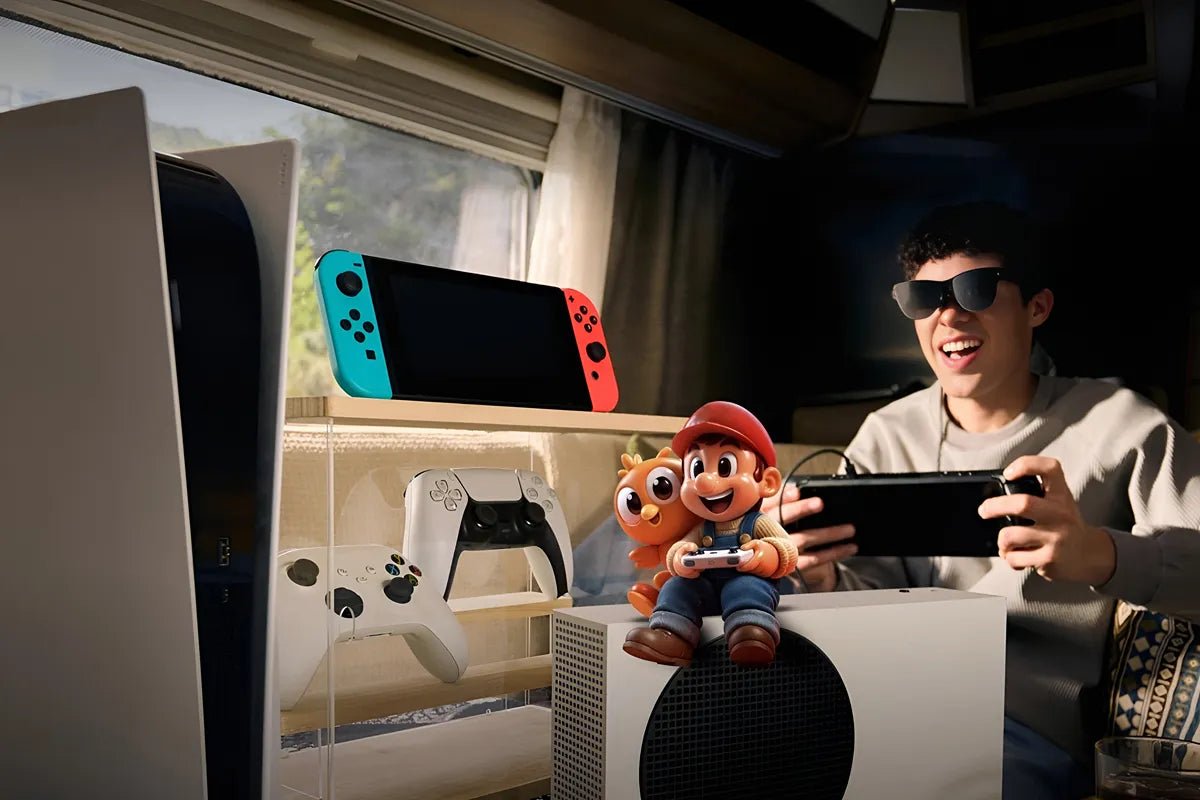
A Nintendo Switch is built for portable gaming, but its compact display can make cinematic, racing, and open-world games feel less immersive. Playing on a TV gives you a larger view, yet it also limits where you can set up. Switch AR glasses offer a more flexible alternative by placing a large virtual display in front of your eyes without requiring a full-size monitor or television.
This setup can be useful at home, while traveling, or whenever the main TV is unavailable. However, connecting AR glasses to a Nintendo Switch requires the right dock, cable, and display connection. This guide explains how Switch AR glasses work, why a dock is needed, how to set up the connection, and what kind of virtual-screen gaming experience you can expect.

AR glasses work with Nintendo Switch by acting as a wearable external display that places your game on a large virtual screen. Because the Switch does not normally send video directly to AR glasses through USB-C, you usually need a compatible dock or gaming adapter between the console and the glasses. Once connected, you can play with your usual controllers while viewing the game through the glasses instead of the Switch screen or a TV.
AR glasses need to receive video from the device you are playing on before they can show your game. Many AR glasses are designed to get that video through a USB-C connection that supports DisplayPort Alt Mode. The Nintendo Switch doesn’t provide that type of direct connection to AR glasses, so a compatible dock is required in between.
DisplayPort Alt Mode allows a compatible USB-C port and cable to carry DisplayPort audio and video to an external display. For devices that support this type of video output, compatible AR glasses can often connect directly through USB-C without an additional display adapter.
The Nintendo Switch uses a different external-display workflow. Its standard TV mode routes video through a dock rather than providing the same direct USB-C connection used by many phones, tablets, and laptops. A compatible dock therefore acts as the link between the Switch and the AR glasses.
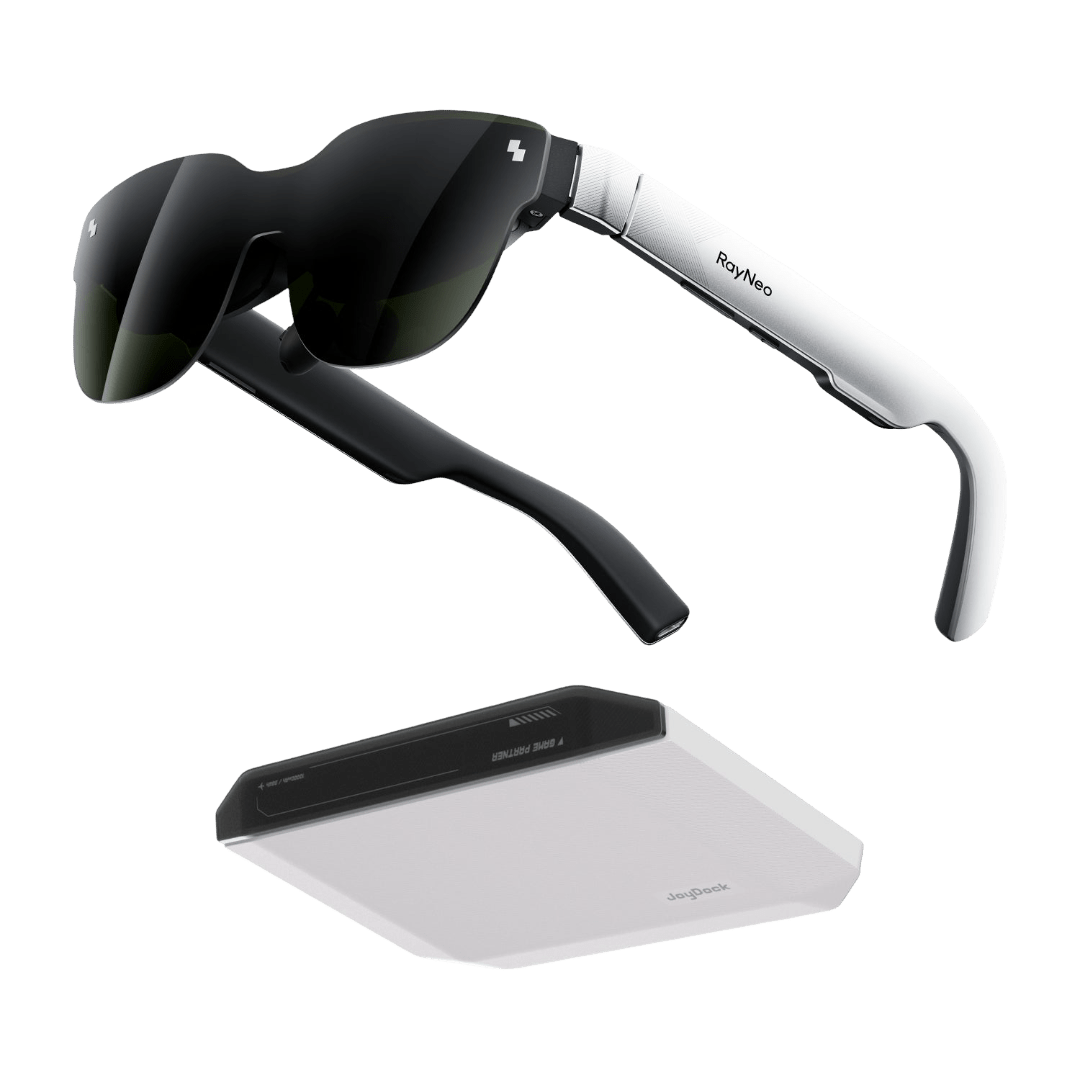
JoyDock is a portable gaming adapter that connects a Nintendo Switch to compatible AR glasses. It replaces the need to carry the console's traditional TV dock for this type of wearable-display setup. It also contains a built-in battery that can provide power to the Switch while you play.
Here’s How It Works:
For Nintendo Switch gaming, compatible AR glasses can turn the console experience into a large virtual-screen setup when paired with the right adapter. The GT Max is better suited to players who want a wider, more immersive view, while the GT prioritizes lighter weight and higher pixel density for portable gaming.
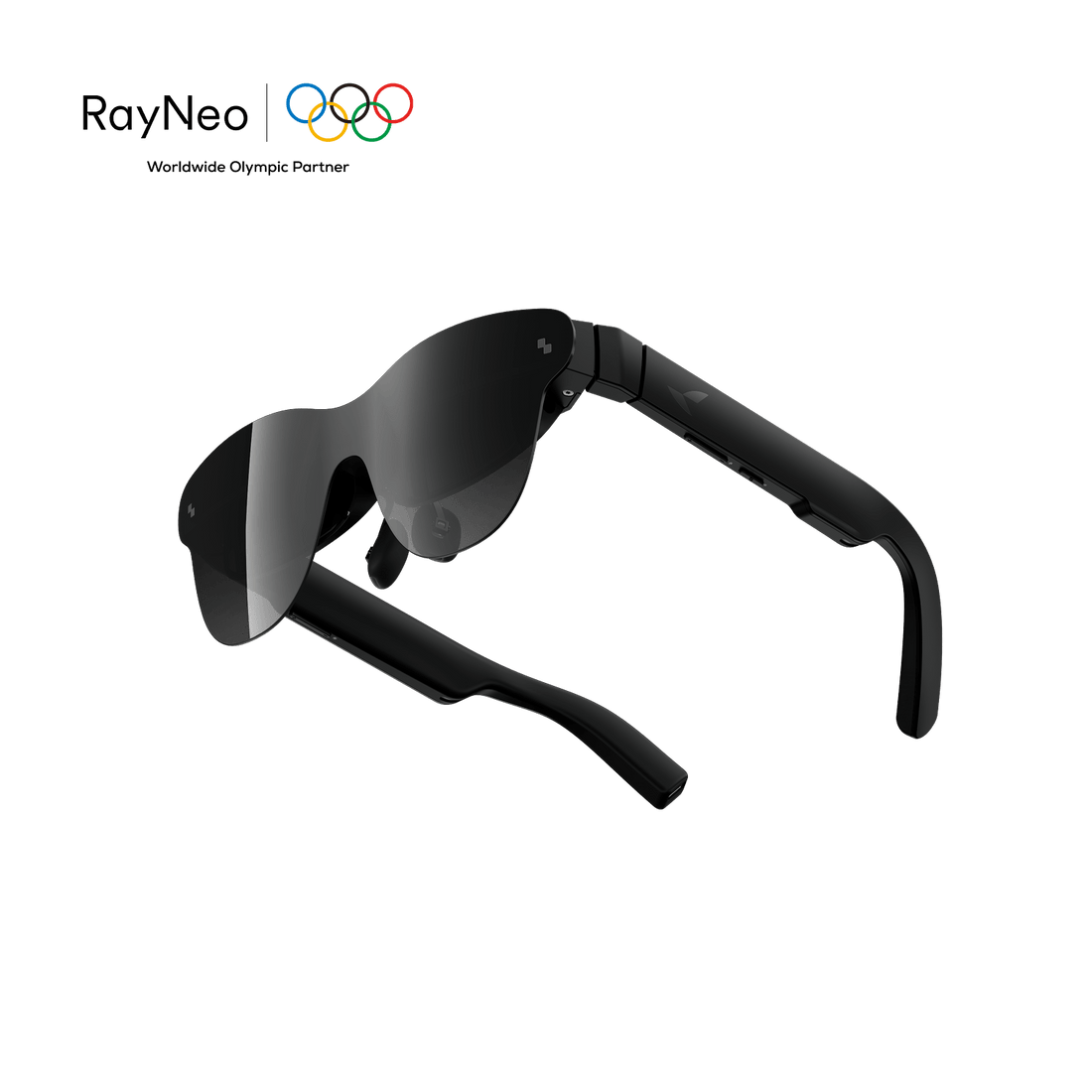
The RayNeo GT Max AR Glasses are the stronger choice for Switch players who want the biggest, most immersive virtual display. Connect the Switch through JoyDock to play on a large screen while the adapter’s built-in battery helps power the console.

The RayNeo GT AR Glasses are better suited to Switch players who prioritize portability and a lighter fit. At 68g, they are 10g lighter than the GT Max, making them a practical option for gaming on the sofa, in bed, or while traveling.

Once you have the right equipment, connecting AR glasses to your Nintendo Switch is fairly simple. Following the setup in the right order can help you avoid common problems such as a blank screen or a failed connection.
Before you begin, ensure you have the following gear ready:
Follow these steps to ensure the Switch correctly recognizes the external display:
If the virtual screen does not appear correctly, check the connection, power, firmware, and fit before changing other settings.
Using AR glasses with the Nintendo Switch moves gameplay from the console’s built-in display to a much larger virtual screen. This gives you more flexibility to play from a couch, bed, hotel room, or other space without setting up a television or monitor.
Screen size is one of the most noticeable differences. The RayNeo GT Max offers 227-, 267-, and 307-inch-equivalent virtual screen settings, while the RayNeo GT offers 136-, 201-, and 231-inch-equivalent options. These measurements describe the apparent size of the virtual image rather than a physical screen that is literally hundreds of inches wide.
Virtual screen size should also be distinguished from display resolution. Both GT models use 1920 × 1080 Full HD displays, so selecting a larger virtual screen does not increase the number of pixels available. The original Nintendo Switch outputs up to 1080p in TV mode, while Nintendo Switch 2 can support up to 4K at 60 fps on compatible displays. The GT Series presents the image at the glasses’ own Full HD display resolution.
Both models also support up to a 120Hz refresh rate in 2D mode, although actual game frame rate depends on the console, game, and output configuration. Native 3DoF viewing modes add further flexibility: Pinned and Steady modes can keep the screen more stable in virtual space, while Follow mode moves the display with your head. Together, these features create a portable big-screen gaming setup without requiring a nearby TV.
A Nintendo Switch does not have to stay limited to its handheld screen when a compatible portable dock can route the game to a wearable display. With the right JoyDock setup, Switch AR glasses can give you the feeling of playing on a massive screen while preserving much of the console's grab-and-go convenience.
GT Max is the stronger choice when you want the widest and most immersive image, while GT makes more sense when lower weight and higher pixel density matter more. Either way, understanding the dock and fit requirements before you start will make the setup experience much easier.
Yes, compatible AR glasses can work with Nintendo Switch 2 when you use the right dock or adapter to handle the video connection. For example, JoyDock supports Switch 2 after a firmware update, allowing compatible glasses to receive the console’s display. You may also need the correct Switch 2 mounting bracket. Once everything is connected properly, you can play on a large virtual screen instead of the console’s built-in display.
For Switch 2, the better choice between RayNeo GT Max and RayNeo GT depends on how immersive you want the screen to feel. GT Max gives you a wider 59-degree field of view and a larger 267-inch-equivalent default display, while GT is lighter and uses a smaller 201-inch-equivalent default view. Both support Full HD output, 120Hz 2D refresh, native 3DoF tracking, and Switch connectivity through JoyDock for portable play sessions.
The virtual screen can feel hundreds of inches wide, but that number describes apparent size rather than a physical panel in front of you. RayNeo GT Max offers 227-, 267-, and 307-inch-equivalent display settings, while RayNeo GT offers 136-, 201-, and 231-inch options. Your actual sense of size depends on field of view, fit, viewing mode, and how your eyes perceive the image, so the experience can vary between people.





Share:
What Are the Best Affordable Smart Glasses That Are Still Worth Buying?
What Are Augmented Reality AR Glasses? Consumer Guide (2026)