

$429.00

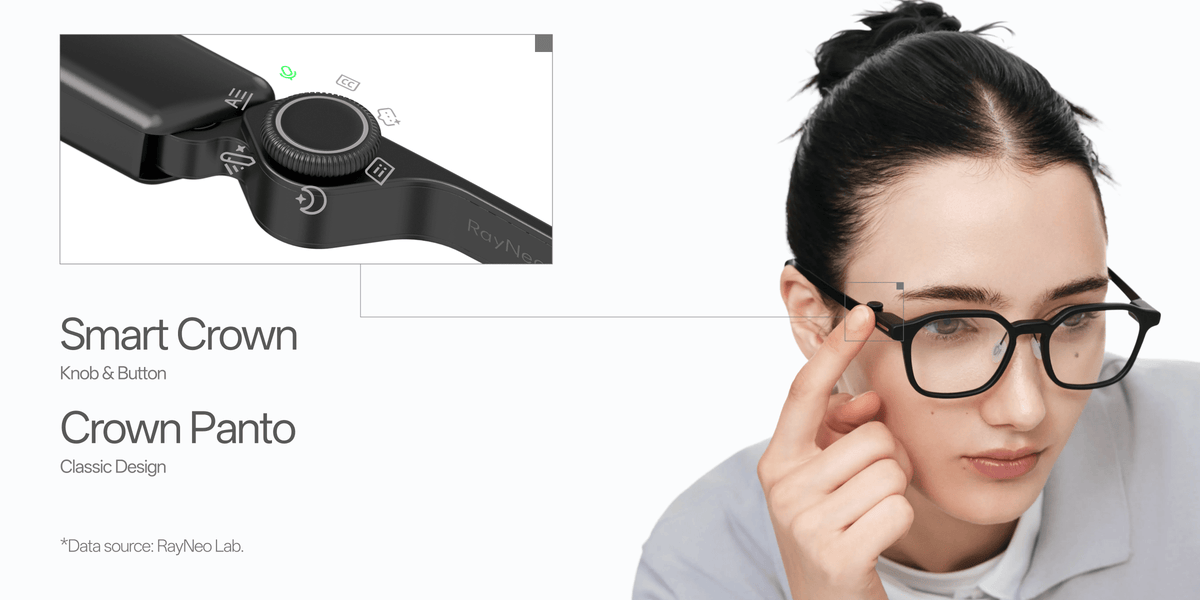
RayNeo iO Live Captions helps you catch what matters in noisy environments, conversations with strong accents, and fast-paced conversations. In a group, iO's microphone array tells your voice apart from other speakers and keeps your own voice off the display. With accents, recognition follows the language you select for the other person, across 55 languages and 109 accents. With rapid turn-taking, the Smart Crown rewinds captions mid-conversation, and in translation mode a setting called Live Calibration lets you choose speed or stability.
When a record of exactly who said what matters, Voice Memo is the tool for it: with Speaker Recognition enabled, it separates different speakers in the transcript and lets you rename them. For the basics of starting captions and the other display features, see our guide to live captions, meetings, and the teleprompter.
A few things are in place before any difficult conversation:
Live Captions starts from the App List on the glasses or from the Glasses tab in the RayNeo App.
iO's built-in 4-mic array distinguishes the wearer's voice from other speakers. The captions prioritize what the other speakers say and filter out your own voice, so you can focus on the information you need during the conversation. With 97% active display transparency, the captions float over a clear view of the people around the table. More on how the array is built is in our microphone array explainer.
Three iO tools handle speakers differently, and picking the right one is the main decision for multi-person conversations:
| Tool | What you see live | How speakers appear in the saved record | Best for |
|---|---|---|---|
| Live Captions | Other speakers' speech as text; your own voice filtered out | Full transcript saved in Sessions | Following a group conversation as it happens |
| Real-Time Translation (inside Live Captions) | The other person's translated speech on the glasses; your translated speech on the phone | Original and translated text side by side, as conversation bubbles with each speaker labeled | Face-to-face, two-way bilingual conversations |
| Voice Memo | A recording in progress; the transcript is generated after recording ends | When Speaker Recognition is enabled, different speakers are separated and can be renamed; AI summary with key conclusions and to-do items | Meetings where who said what matters afterward |
Voice Memo has two pickup modes. Wide Spectrum, the default, captures voices around you evenly and is recommended for meetings, lectures, and multi-person conversations. Voice Isolation focuses on the voice directly in front of you while reducing background noise, and is recommended for interviews and one-on-one conversations. Voice Memo transcription recognizes 100+ languages, a separate capability from the 55 languages of Live Captions and Translation. After transcription, templates generate further summaries from different perspectives, and text notes you add in the app are linked to the matching moment in the recording.
Conversations with strong accents are one of the situations Live Captions is designed for. iO's Live Captions and Translation cover 55 languages and 109 accents, and before each session you select the language the other person is speaking. Recognition follows that selection, so it is the setting to get right first.
A practical setup for accented speech:
Fast-paced conversations are the third situation Live Captions is built for, and iO has two controls for keeping pace: the Smart Crown rewind in every Live Captions session, and Live Calibration in translation mode.
Rewind without stopping. During an active Live Captions session, rotating the Smart Crown, the control on the upper front of the right temple, scrolls back through previous captions, and a progress bar at the bottom shows where you are. After a short pause, the display returns to the ongoing conversation on its own, so checking an earlier line does not leave you stranded in the past.
Live Calibration, for translation. Real-Time Translation is switched on inside the Live Captions settings, where you set both speakers' languages. Once it is running, Live Calibration controls how the translated text appears:
| Live Calibration | How text appears | Suits |
|---|---|---|
| On | Updates word by word as the person speaks; appears faster, but the text may shift during the conversation | Quick exchanges, short replies, conversations where people jump in quickly |
| Off | Appears after the complete sentence is recognized; more stable to read | Longer turns, detailed explanations |
The setting follows your preference for speed or stability: On when speed matters most, Off when stability matters most.
Playback and turn-taking in translation mode. A play button on the phone reads your translated speech aloud for the other person, and audio pickup pauses automatically while it plays. Because the translated text is already on the phone screen, in a quick exchange the other person can simply read it.

| Situation | Feature | Setting | Why it helps |
|---|---|---|---|
| Dinner table or team huddle with several people | Live Captions | The other speakers' language | Other speakers prioritized; your own voice filtered out |
| Meeting where you need who-said-what afterward | Voice Memo | Wide Spectrum, with Speaker Recognition enabled | Separates speakers in the transcript and lets you rename them |
| One-on-one interview, strong accent | Voice Memo to capture it, or Live Captions to follow it live | Voice Isolation for Voice Memo; the speaker's language for Live Captions | Focuses on the voice in front of you, or recognizes speech in the selected language |
| Fast bilingual exchange | Real-Time Translation | Live Calibration On | Text arrives word by word |
| Slow, detailed bilingual explanation | Real-Time Translation | Live Calibration Off | Full sentences, more stable to read |
| Busy venue with notifications coming in | Any of the above | Focus Mode on | Mutes pushed notifications, RayNeo Suggestions, and reminders, which keeps the display clear |
During a Voice Memo, a single click of the Smart Crown flags an important moment, and the AI summary gives extra attention to content around flagged moments. In a meeting with quick exchanges, flagging is faster than writing anything down.
iO is a consumer device, not a hearing aid or a certified captioning service; for deaf and hard-of-hearing users in conversations where a missed word has real consequences, such as medical or legal appointments, it works best alongside professional captioning or an interpreter rather than in place of them.
For long sessions, iO's 240mAh battery is rated for 6.2 hours of continuous translation and 18 hours of continuous recording, with up to two days of typical use. The RayNeo iO Eyewear Charging Case, available on its own or in the Charging Case Bundle, charges the glasses when they are placed inside it, and its built-in 2000mAh battery delivers up to 5 full charges.

RayNeo X3 Pro approaches spoken language as part of a full-color, standalone AI+AR platform. Its real-time translation covers 14 languages (Chinese, English, Cantonese, German, French, Spanish, Italian, Japanese, Korean, Russian, Thai, Vietnamese, Indonesian, and Malay), with output as on-screen text or synchronized audio. A 3-mic array with beamforming handles pickup, and its AI productivity tools cover voice-to-text transcription, key-point extraction, and meeting summaries.
For captions in hard conversations, iO is the stronger fit of the two: wearer-versus-others filtering, Live Calibration, Smart Crown rewind, and 55 languages with 109 accents, in a 33-gram camera-free frame built for everyday AI and productivity. X3 Pro suits someone who wants translation and meeting transcription on the same glasses as a camera, navigation, and apps.
Does my own speech show up anywhere?
Can I search past captioned conversations later?
Will people nearby know captions are running?
Can I start captions without reaching for my phone?
See how captions, translation, and Voice Memo fit together on RayNeo iO.





Share:
Can Prescription Inserts Correct Astigmatism and High Myopia?
Can AI Glasses Make Reminders and Tasks Without Taking Out Your Phone?