Running AR glasses at 120Hz from a handheld comes down to three things lining up: glasses that accept 120Hz, a handheld that sends 120Hz over its USB-C port, and a refresh rate chosen for the external display rather than the handheld's own screen. The RayNeo GT Max and RayNeo GT run 2D content at up to 120Hz on a 1920x1080 Tandem Micro-OLED panel, and both Steam Deck and ROG Ally send DisplayPort video over USB-C, so the handheld's own display settings are where its output refresh rate is chosen.
On Steam Deck, that setting lives in Settings > Display, where the resolution dropdown holds the refresh rate choices for a connected external display. On ROG Ally and Ally X, it lives in Windows 11 under Settings > System > Display > Advanced display.
What each handheld brings to the 120Hz setup
The handheld's built-in screen and its video output are two different things. A Steam Deck with a 60Hz screen can still send a faster signal out of its USB-C port, because the port's DisplayPort output is rated separately.
A 1920x1080 signal at 120Hz sits well inside those output ratings, which is why a direct cable from handheld to glasses is the cleanest route to 120Hz.
On the glasses side, GT and GT Max connect directly to devices that support video output via USB-C DisplayPort Alt Mode, handheld gaming devices included, with Steam Deck and Windows among their popular platforms. Both GT models refresh at up to 120Hz in 2D and at 60Hz in 3D, and pressing the Volume Button and the Spatial Mode Button together switches the glasses between 2D and 3D display modes, so games stay in 2D for the full 120Hz.
GT and GT Max have no built-in battery and do not need charging. They turn on automatically when the handheld supplies power and a video signal, and unplugging the cable turns them off, so the whole setup is one cable from start to finish.
Steam Deck (LCD and OLED): picking 120Hz in Game Mode
-
Connect directly. Plug the glasses' included USB-C cable into the Deck's USB-C port. The Deck powers the glasses over the same cable, so nothing else is needed.
-
Open Settings > Display with the glasses connected. Since SteamOS 3.3.2, this menu has external display resolution and refresh rate selection.
-
Turn off automatic resolution for external displays if it is switched on. That toggle lets the Deck choose a resolution for you; switching it off lets you choose the mode yourself.
-
Choose the refresh rate in the resolution dropdown, keeping the resolution at 1920x1080 to match the GT series' Micro-OLED panels. Valve puts alternative refresh rates for external displays in this dropdown, not in the Quick Access slider, so this is where the glasses' refresh rate is set.
-
Check the frame-rate limit in the Quick Access Performance panel. The Deck stores refresh rate and frame-rate limit settings separately for internal and external displays, so a limit set for the handheld screen does not carry over, and a leftover external limit can hold the game at 60fps.
In Desktop Mode, the same choice sits in System Settings > Display Configuration. Select the glasses' display and set its refresh rate there.
For long sessions with the Deck on a charger, the GT series also connects through a dock and the RayNeo HDMI Adapter:
- Seat the Deck in its dock. Valve's Steam Deck Docking Station has an HDMI 2.0 output and supports up to 1440p at 120Hz.
- Connect the adapter to the dock's HDMI output. Its outputs include 1080p at 120Hz alongside 4K and 2K at 30Hz.
- Connect the adapter to the glasses with their included USB-C cable.
The adapter is plug-and-play, with no downloads or configuration, and it keeps your device charged during gaming. On this route the refresh rate is chosen the same way, in Settings > Display. The console and Steam Deck HDMI guide walks through the cabling.

ROG Ally and Ally X: setting 120Hz in Windows 11
-
Connect to a DisplayPort-capable port. On the original ROG Ally, that is the single USB-C port. On ROG Ally X, both USB-C ports support DisplayPort, which leaves the other port free for a charger.
-
Choose how Windows uses the glasses. Press Windows + P and pick Second screen only for a glasses-only setup, or Extend to keep the Ally's screen active as a second display.
-
Set the refresh rate. Go to Settings > System > Display, select the glasses' display, open Advanced display, and choose 120Hz under Choose a refresh rate. Keep the resolution at 1920x1080.
-
Make the glasses the main display when using Extend. Under Multiple displays, select the glasses and tick "Make this my main display."
-
Match the game's own settings. Set the game to fullscreen, pick 120Hz where the game offers a refresh option, and lift any 60fps cap in the game's video menu.
Windows handles all of this through its standard display settings, the same way it treats any external monitor, so no extra software is needed for the glasses.
Power works differently on the two Ally models. On Ally X, the second USB-C port also supports Power Delivery, so the charger goes there. On the original Ally, GT and GT Max connect through the RayNeo USB-C Charging Adapter to charge the source device over USB-C PD while the glasses run on DisplayPort over USB-C.
Choosing glasses for an Ally in the first place is a separate decision, and the ROG Ally handheld gaming guide covers screen size, IPD sizing, and power planning.
Air 3s and Air 3s Pro: one extra switch on the glasses
The RayNeo Air 3s Pro and Air 3s are 1080p glasses with a Refresh Rate option on the glasses themselves, switching between 60Hz and 120Hz. On these two models, the glasses-side setting and the handheld setting together decide the rate. The glasses-side steps are:
- Press the menu button on the left temple to enter setting mode.
- Press the volume button to move to the "Refresh Rate" option.
- Press the menu button to select 120Hz.
- Hold the menu button for three seconds to exit.
Air 3s also offers Game Mode, a one-button display mode that runs at 120Hz with no app or pairing required.
Air 3s and Air 3s Pro are compatible with Steam Deck, Steam Deck OLED, ROG Ally X, ROG Ally Z1, and ROG Ally Z1 Extreme.

Getting the game's frame rate to use 120Hz
A 120Hz refresh rate means the glasses can show up to 120 new images per second. Motion only looks smoother when the game renders more than 60 frames per second to fill them. When it does, camera pans look less smeared and moving text stays easier to read.
How close a game gets to 120 depends on the title and its settings, and a handheld's processor is the limit here, not the glasses. Lighter games, older titles, and lower graphics presets get closest. On Steam Deck, a game rendering for a 1920x1080 display can be asked to draw more pixels than on the Deck's own screen, so a lower in-game resolution or preset is the first lever when frame rates drop. For demanding games, a frame cap that divides evenly into 120, such as 40 or 60, keeps frame pacing even on a 120Hz display.
Quick checks for a 120Hz setup
Start with these checks:
FAQ
Does the Steam Deck OLED's 90Hz screen limit the glasses to 90Hz?
The glasses can still run at 120Hz. The Deck's output over USB-C is rated up to 4K at 120Hz, and SteamOS keeps refresh settings separate for the internal and external displays. The refresh rate chosen for the external display in Settings > Display applies to the glasses only, and the OLED screen keeps its own setting for handheld play.
Does the cable matter for 120Hz?
The included USB-C cable is the one to use, since it is built for DisplayPort video. A replacement cable has to carry DisplayPort video too; charge-only USB-C cables carry no picture at all, which shows up as a black screen rather than a lower refresh rate.
Is Armoury Crate SE needed to set 120Hz on the glasses?
Windows display settings handle it on their own. Windows treats the glasses as an external monitor, and the refresh rate for that monitor is set in Windows display settings.
Which RayNeo glasses fit a 120Hz handheld setup best?
RayNeo GT Max gives the largest screen, a 267-inch virtual screen across a 59-degree field of view, with S, M, and L IPD sizes.
RayNeo GT is the lighter 68g option, with a 201-inch screen at 46 degrees, a denser 49 PPD, and a fixed 64mm IPD. Both run 2D at up to 120Hz over one USB-C cable and hold color accuracy to ΔE < 2, and the
GT Max refresh rate and PPD explainer compares refresh rate and pixel density across the two.
RayNeo Air 3s Pro is a 1080p, 120Hz option with its own Refresh Rate setting on the glasses.


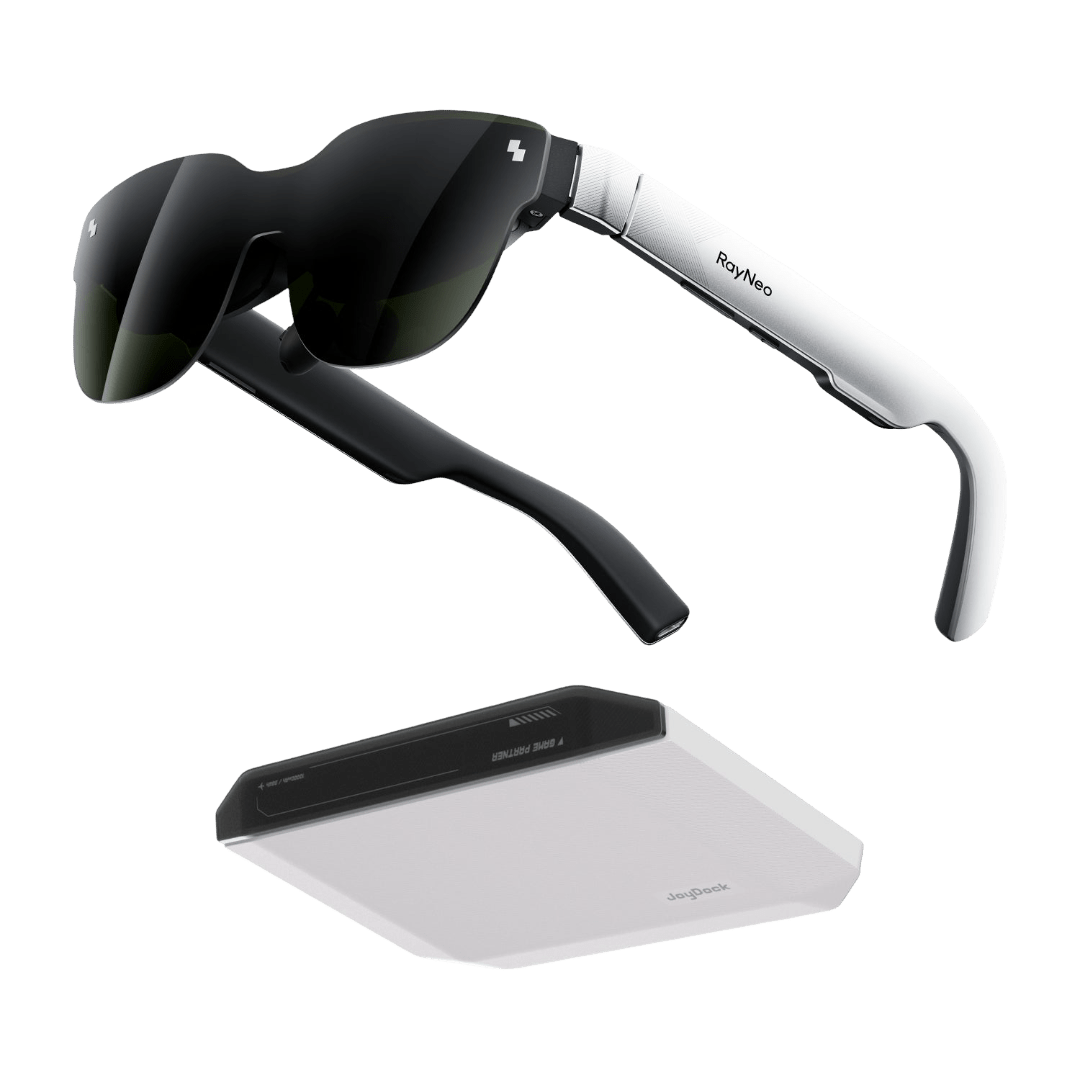


Running AR glasses at 120Hz from a handheld comes down to three things lining up: glasses that accept 120Hz, a handheld that sends 120Hz over its USB-C port, and a refresh rate chosen for the external display rather than the handheld's own screen. The RayNeo GT Max and RayNeo GT run 2D content at up to 120Hz on a 1920x1080 Tandem Micro-OLED panel, and both Steam Deck and ROG Ally send DisplayPort video over USB-C, so the handheld's own display settings are where its output refresh rate is chosen.
On Steam Deck, that setting lives in Settings > Display, where the resolution dropdown holds the refresh rate choices for a connected external display. On ROG Ally and Ally X, it lives in Windows 11 under Settings > System > Display > Advanced display.
What each handheld brings to the 120Hz setup
The handheld's built-in screen and its video output are two different things. A Steam Deck with a 60Hz screen can still send a faster signal out of its USB-C port, because the port's DisplayPort output is rated separately.
A 1920x1080 signal at 120Hz sits well inside those output ratings, which is why a direct cable from handheld to glasses is the cleanest route to 120Hz.
On the glasses side, GT and GT Max connect directly to devices that support video output via USB-C DisplayPort Alt Mode, handheld gaming devices included, with Steam Deck and Windows among their popular platforms. Both GT models refresh at up to 120Hz in 2D and at 60Hz in 3D, and pressing the Volume Button and the Spatial Mode Button together switches the glasses between 2D and 3D display modes, so games stay in 2D for the full 120Hz.
GT and GT Max have no built-in battery and do not need charging. They turn on automatically when the handheld supplies power and a video signal, and unplugging the cable turns them off, so the whole setup is one cable from start to finish.
Steam Deck (LCD and OLED): picking 120Hz in Game Mode
In Desktop Mode, the same choice sits in System Settings > Display Configuration. Select the glasses' display and set its refresh rate there.
For long sessions with the Deck on a charger, the GT series also connects through a dock and the RayNeo HDMI Adapter:
The adapter is plug-and-play, with no downloads or configuration, and it keeps your device charged during gaming. On this route the refresh rate is chosen the same way, in Settings > Display. The console and Steam Deck HDMI guide walks through the cabling.
ROG Ally and Ally X: setting 120Hz in Windows 11
Windows handles all of this through its standard display settings, the same way it treats any external monitor, so no extra software is needed for the glasses.
Power works differently on the two Ally models. On Ally X, the second USB-C port also supports Power Delivery, so the charger goes there. On the original Ally, GT and GT Max connect through the RayNeo USB-C Charging Adapter to charge the source device over USB-C PD while the glasses run on DisplayPort over USB-C.
Choosing glasses for an Ally in the first place is a separate decision, and the ROG Ally handheld gaming guide covers screen size, IPD sizing, and power planning.
Air 3s and Air 3s Pro: one extra switch on the glasses
The RayNeo Air 3s Pro and Air 3s are 1080p glasses with a Refresh Rate option on the glasses themselves, switching between 60Hz and 120Hz. On these two models, the glasses-side setting and the handheld setting together decide the rate. The glasses-side steps are:
Air 3s also offers Game Mode, a one-button display mode that runs at 120Hz with no app or pairing required.
Air 3s and Air 3s Pro are compatible with Steam Deck, Steam Deck OLED, ROG Ally X, ROG Ally Z1, and ROG Ally Z1 Extreme.
Getting the game's frame rate to use 120Hz
A 120Hz refresh rate means the glasses can show up to 120 new images per second. Motion only looks smoother when the game renders more than 60 frames per second to fill them. When it does, camera pans look less smeared and moving text stays easier to read.
How close a game gets to 120 depends on the title and its settings, and a handheld's processor is the limit here, not the glasses. Lighter games, older titles, and lower graphics presets get closest. On Steam Deck, a game rendering for a 1920x1080 display can be asked to draw more pixels than on the Deck's own screen, so a lower in-game resolution or preset is the first lever when frame rates drop. For demanding games, a frame cap that divides evenly into 120, such as 40 or 60, keeps frame pacing even on a 120Hz display.
Quick checks for a 120Hz setup
Start with these checks:
FAQ
Does the Steam Deck OLED's 90Hz screen limit the glasses to 90Hz?
Does the cable matter for 120Hz?
Is Armoury Crate SE needed to set 120Hz on the glasses?
Which RayNeo glasses fit a 120Hz handheld setup best?
Share:
Leave a Comment
We'd love to hear your thoughts. Comments are reviewed before publication.