

$429.00

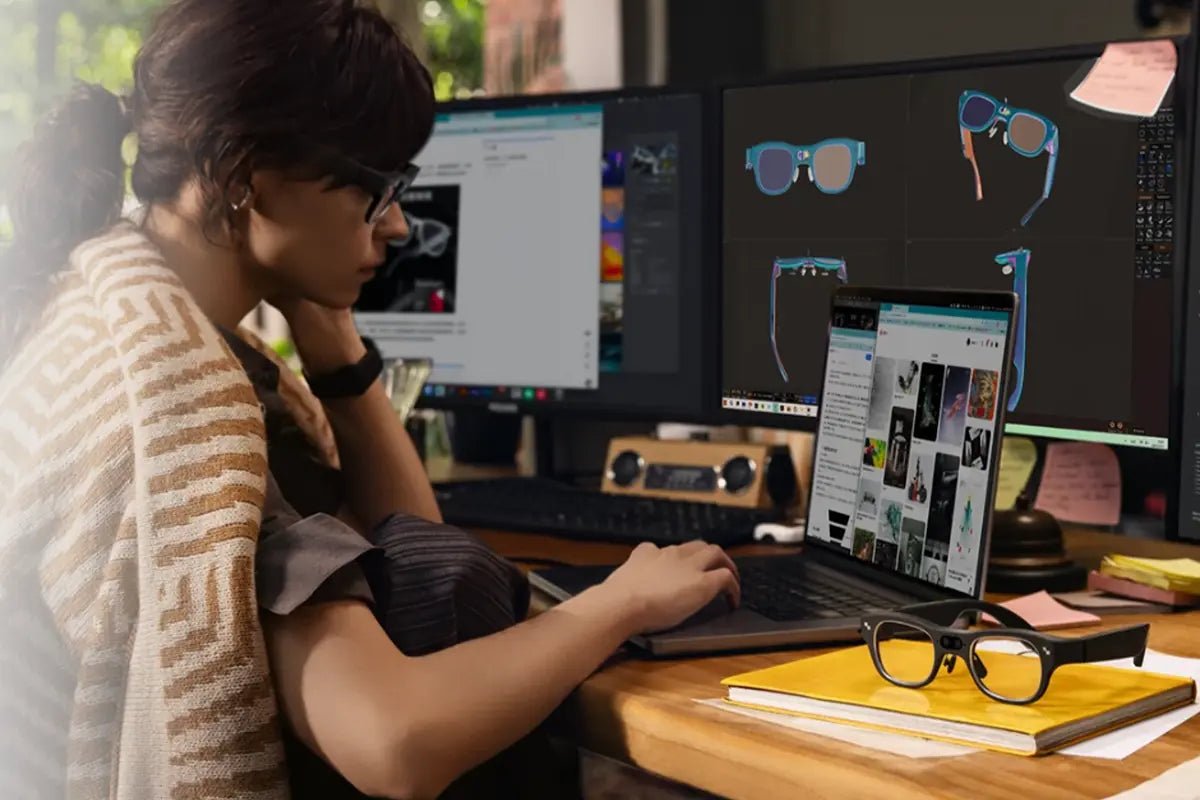
Computer display glasses can refer to two very different types of eyewear. AR glasses create a virtual screen in front of your eyes, offering a portable and more private way to work, watch content, or play games. Traditional computer glasses, by contrast, are designed to be worn while looking at a physical monitor and may help reduce glare or improve viewing comfort.
The right choice depends on how you plan to use them: AR glasses are better suited to users who want a virtual display on the go, while protective or prescription computer glasses are intended for conventional screen use. In this guide, we explain the main types of computer display glasses, how they differ, and what to consider when choosing the right option for your needs.

When shopping for eye glasses for computer monitors, first decide whether you need a new display or help viewing the display you already have. These categories solve separate problems and should not be treated as interchangeable.
AR virtual monitor glasses connect to a compatible device and create a private virtual screen in front of you. Depending on the hardware and software, they may mirror your existing display, extend your desktop, or support multiple virtual screens.
They are most relevant for users who want a larger portable workspace, private viewing, gaming, or entertainment without relying on a conventional monitor.
Traditional computer glasses are worn while looking at a physical monitor rather than replacing the screen itself. They may include an anti-reflective coating to reduce distracting reflections, as well as prescription lenses optimized for typical computer-viewing distances.
Some computer glasses also include blue-light filtering, although blue-light filtering alone should not be considered a proven solution for digital eye strain.
Prescription computer glasses may use single-vision, occupational, or progressive lenses depending on the user's eyesight, monitor distance, and working environment.
Although both are sometimes described as computer glasses, their functions are fundamentally different.
| Factor | AR display glasses | Traditional computer glasses |
|---|---|---|
| Purpose | Create a virtual monitor | Improve comfort while viewing a physical screen |
| Computer connection | Usually required through USB-C, HDMI, or a dock | No connection required |
| Display capability | Can mirror, extend, or sometimes create multiple screens | Cannot display or replace computer content |
| Main benefits | Privacy, portability, large virtual workspace | Glare reduction, prescription correction, comfortable viewing |
| Limitations | Compatibility, cables, power, tracking, and pre-boot restrictions | No added screen space; benefits vary by user and lens |
| Ideal users | Travelers, remote workers, gamers, and multitaskers | Office workers, students, and users needing vision correction |
In short, choose AR display glasses if you want a portable virtual screen or extra display space. Traditional computer glasses are more suitable if your main goal is better visual comfort while using a regular monitor.
Computer display glasses may improve viewing comfort, but they do not automatically reduce digital eye strain. The effect depends on your eyesight, lighting, display quality, fit, and screen habits.
Traditional computer glasses can help when they provide the right prescription or reduce distracting reflections with anti-reflective coatings. Blue-light filtering lenses are common, but they should not be treated as a proven solution for eye strain.
AR virtual monitor glasses serve a different purpose. They provide a portable virtual display and may improve viewing posture for some users, but comfort still depends on image clarity, brightness, optical design, and fit.
Regular breaks, good lighting, readable text size, frequent blinking, and an up-to-date prescription remain important during long computer sessions.
AR virtual monitor glasses work by receiving a video signal from a computer or other compatible device and projecting that image into your field of view through built-in microdisplays and optical components.
The basic process is:
Device connection → video signal → microdisplay → optical projection → virtual screen
First, the glasses connect to a computer, usually through USB-C with DisplayPort Alt Mode or a compatible adapter. The computer sends the video signal to the glasses, where microdisplays generate the image and optical components direct it toward your eyes.
The glasses then appear as a mirrored or extended display, while some models use spatial tracking to keep the virtual screen fixed in position as you move your head.
Most AR virtual monitor glasses act as wearable displays rather than standalone computers, so the connected device still runs the operating system, apps, and files.
The right choice depends on whether you want a portable virtual display or simply want to view your existing monitor more comfortably. Consider the setting, your prescription, connection requirements, and how long you expect to wear the glasses at one time.
AR display glasses can be useful for remote workers and frequent travellers who want a larger workspace without carrying an external monitor. Depending on the model and software, they may mirror a laptop screen, extend the desktop, or support multiple virtual displays.
This can be practical in hotel rooms, shared offices, or other compact workspaces where a laptop screen feels limiting. For regular work use, prioritize sharp text, stable screen positioning, comfortable fit, and compatibility with your computer rather than virtual screen size alone.
AR display glasses can provide a large personal viewing experience for gaming, movies, and streaming without requiring a TV or portable monitor. Their compact form can also make them convenient for planes, trains, hotels, and other situations where space is limited.
For gaming, look at latency, refresh rate, image clarity, audio, and device compatibility. Some consoles and computers may require an adapter or dock.
For travel, remember that AR glasses do not always guarantee complete privacy. If your laptop is operating in mirror mode, the same content may still remain visible on its physical screen.
Traditional computer glasses are generally the more practical option if you already use a physical monitor and do not need additional virtual screen space.
The correct prescription can make prolonged computer work more comfortable when everyday glasses are not optimized for monitor distance. Anti-reflective coatings can also reduce distracting reflections from windows, room lighting, and glossy screens.
Blue-light filtering may be included in some lenses, but it should not be treated as the main solution for digital eye strain. Prescription accuracy, appropriate lighting, monitor positioning, readable text size, and regular breaks are usually more important considerations.
A careful checklist prevents the most common purchasing mistakes. Review both technical specifications and everyday comfort, especially if you expect to use the glasses for work rather than occasional entertainment.
Confirm the required video connection, operating-system support, and adapter requirements. Windows compatibility may differ from macOS, ChromeOS, Linux, or a gaming console.
For protective glasses, compatibility is simpler, but prescription measurements and lens options still matter. If you use a work-managed computer, confirm that external displays and related applications are permitted.
For AR glasses, compare resolution, refresh rate, field of view, brightness, contrast, screen stability, speakers, and viewing modes. Sharp text is essential for spreadsheets and coding.
Do not judge quality by virtual screen size alone. A slightly smaller display with crisp text and reliable tracking can be more useful than a huge but blurry image.
Check the supported diopter range if you are nearsighted. Adjustable focus may work for mild or moderate myopia, but it does not necessarily correct astigmatism or complex prescriptions.
Ask whether prescription inserts are available, whether regular glasses fit underneath, and whether buying inserts requires a separate order from an optical provider.
Nose pressure, temple tension, cable placement, and lens brightness become noticeable during long sessions. Look for adjustable nose pads, balanced weight, and a frame that stays in place when you turn your head.
For traditional eyewear, consider lens thickness, frame flexibility, and whether the glasses work comfortably with headphones or a headset.
Include adapters, prescription inserts, carrying cases, replacement cables, and possible battery packs in your budget.
Review the warranty terms in your market, return window, dead-pixel policy, and availability of replacement parts. These details matter more for specialized electronics than for ordinary frames.
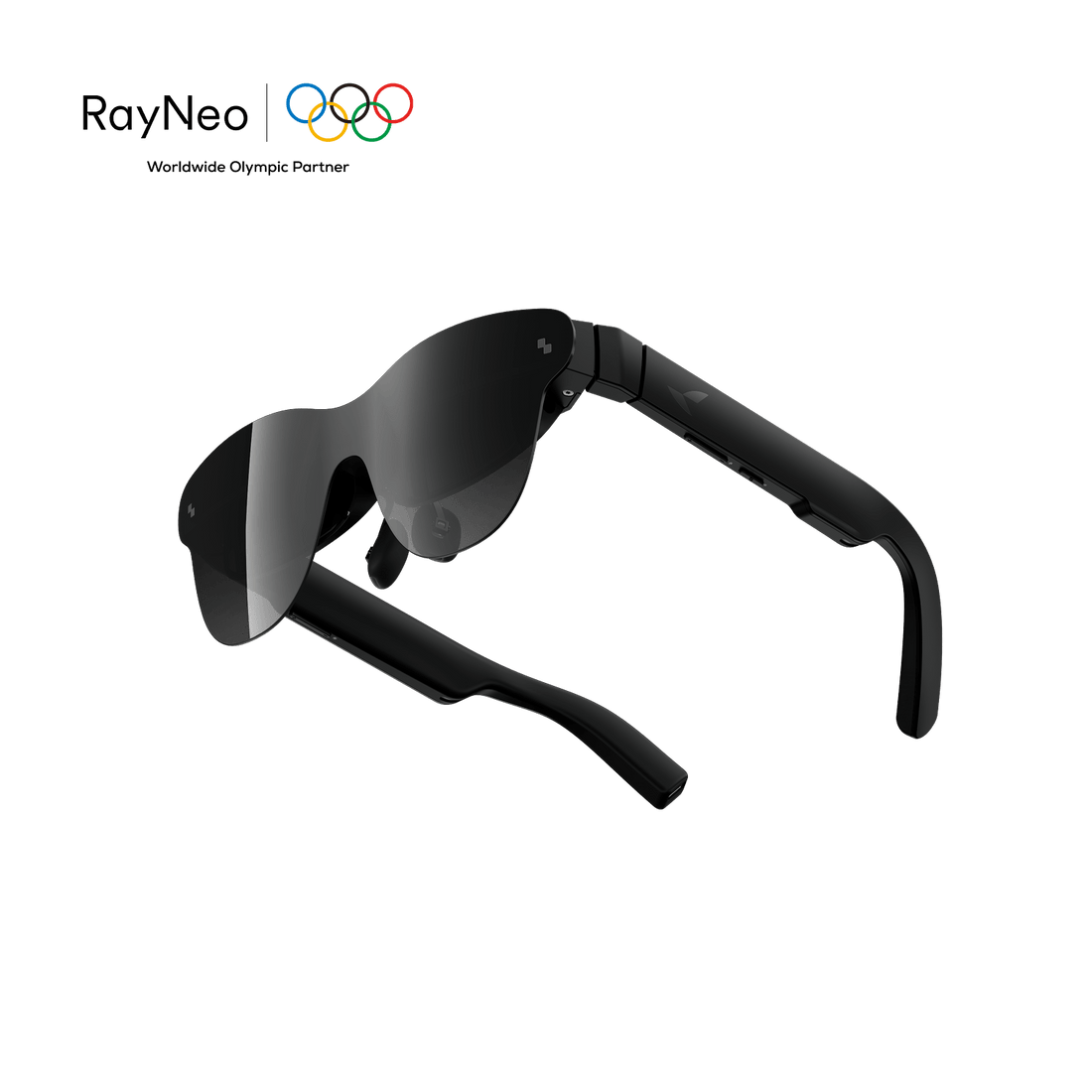
If you want Smart Glasses that go beyond displaying content, the RayNeo X3 Pro AI+AR Glasses take a different approach. Rather than serving mainly as an external computer display, they operate as a standalone AI+AR platform with full-color MicroLED displays, built-in processing, Wi-Fi, and their own operating system.
The X3 Pro combines a 43-inch virtual display at 2 metres with features including Gemini Live, real-time translation, turn-by-turn navigation, camera capture, meeting transcription, and hands-free controls. Prescription lenses are also supported through a separate optical solution.
This makes it a better fit for users who want navigation, information, and AI assistance directly within their field of view.
Once you have confirmed compatibility, setup should focus on getting a stable image and a comfortable viewing position.
Connect the glasses to your computer or other supported device using the required USB-C, HDMI, or adapter-based connection.
Make sure the cable supports video output rather than charging or data only.
Open your computer’s display settings and choose the appropriate mode.
You may be able to:
Additional virtual monitors may require compatible software or model-specific features.
Install any required companion software and update the glasses’ firmware if the manufacturer recommends it.
If the image does not appear, check the video-output settings, cable connection, power requirements, and adapter compatibility.
Position the virtual screen at a comfortable height and viewing distance. Adjust brightness, focus, nose pads, and frame position until text appears clear and the glasses remain stable.
Avoid setting the brightness higher than necessary, especially in darker environments.
Before relying on the glasses for long work sessions, test them with the activities you actually plan to perform.
Read documents, move windows, browse websites, play a game, or watch video while checking text clarity, head tracking, audio, heat, fit, and cable convenience.
A short real-world test is more useful than judging comfort from specifications alone.
Computer display glasses can either create a new virtual screen or make a physical monitor more comfortable to view. AR glasses are the better choice for a portable private monitor, large virtual workspace, travel, and entertainment. Traditional computer glasses are more suitable for glare discomfort, prescription correction, and everyday office viewing.
Compare connection requirements, optical clarity, fit, prescription support, and total cost before buying. If vision symptoms persist despite better habits and equipment, consult an eye-care professional.
No. Computer display glasses may refer to AR eyewear that projects a virtual monitor, while blue-light glasses are traditional lenses with a filtering treatment. AR glasses connect to a device and display content; blue-light lenses do not. Blue-light filtering may feel comfortable for some users, but it is not a guaranteed cure for digital eye strain.
They may reduce discomfort for some people, particularly when anti-reflective coatings control glare or prescription lenses correct a focusing problem. However, glasses for looking at computer screens cannot address every cause of strain. Breaks, blinking, suitable lighting, monitor positioning, and an up-to-date prescription remain important.
No. Virtual monitor glasses do not work with every PC or laptop automatically. Many require USB-C DisplayPort video, while others need an HDMI adapter or powered dock. Operating-system support, available power, graphics hardware, and display settings can also affect performance. Check the manufacturer’ s compatibility list before purchasing.
It depends on the glasses and the computer. Display glasses that receive a standard USB-C DisplayPort or HDMI video signal may show BIOS or UEFI screens if the computer activates that video output before the operating system loads. However, software-based virtual-monitor or multi-screen features generally require the operating system and will not be available during boot.





Share:
What are the Best Alternatives for Meta Smart Glasses?
RayNeo at MIT Reality Hack 2026: Winning Big with the Elite Hacker Community