Pressing Windows key + P on a laptop opens a short list of display choices, and two of them decide what a pair of AR glasses will show. Duplicate puts a copy of the laptop screen in the glasses. Extend turns the glasses into a second, separate desktop with room for its own windows.
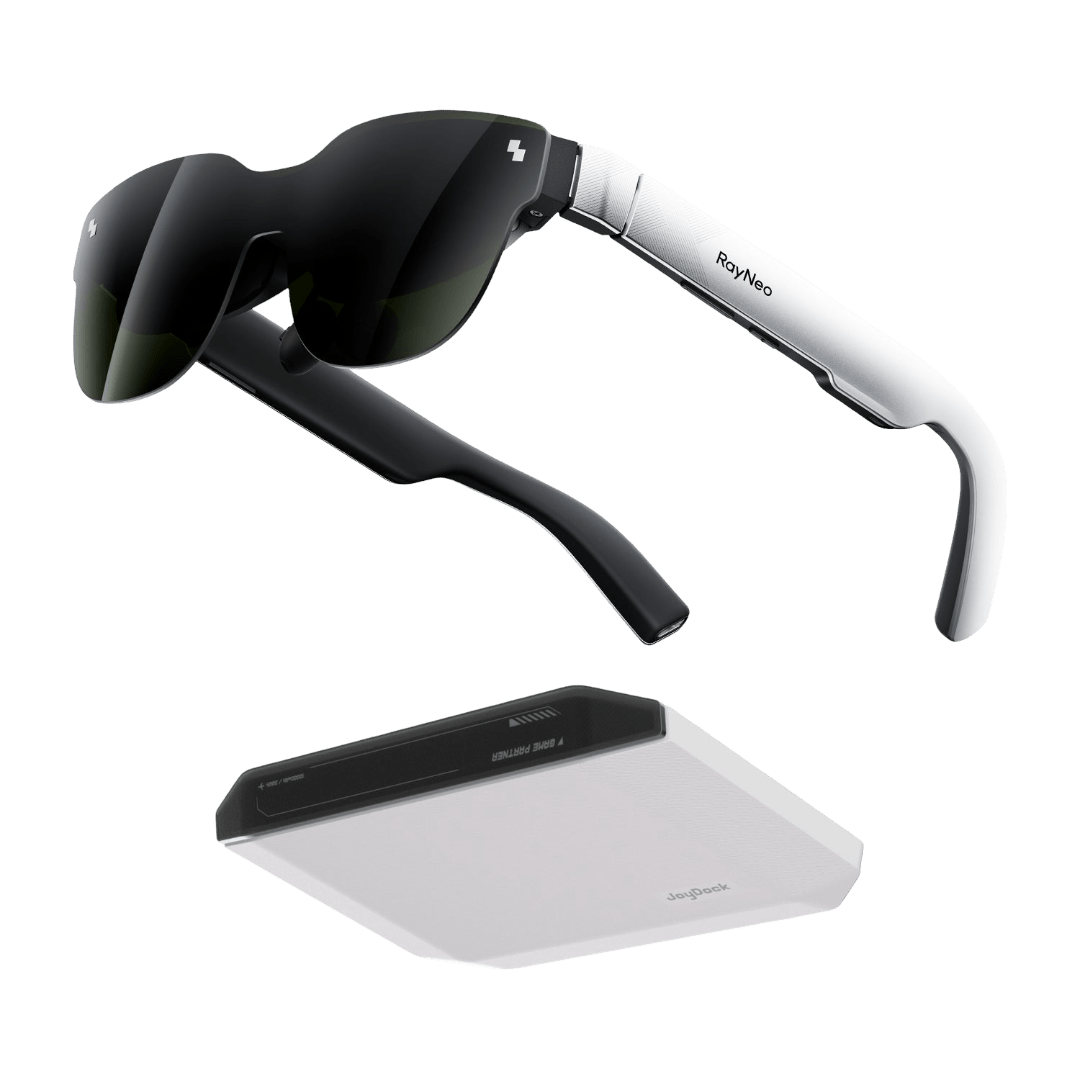
RayNeo GT Max fits a Windows extended display setup well. Over a USB-C port with DisplayPort video, or an HDMI port through an adapter, it works as a plug-and-play external display that can mirror or extend the desktop, depending on the PC. On a PC that supports extended display, Windows treats GT Max as a second monitor, so an editor can stay on the laptop while a game, a running build or a reference page fills the glasses' wide view. RayNeo GT connects the same way, with a narrower view and denser pixels for small text.
Mirroring or extending: what the glasses do on a Windows PC
Working more comfortably on an extended or virtual display is one of the core uses the GT series is built around, alongside films and games. Over USB-C with DisplayPort Alt Mode, or from an HDMI source through a compatible adapter, GT and GT Max act as a plug-and-play external display, used for screen mirroring or extended display depending on the source device.
For a Windows user, that means three things. No app is needed for basic display use, because the glasses appear to Windows as one standard external monitor, in the same way a desk monitor does. Both arrangements are on offer, and the choice between them is made in Windows rather than on the glasses. And whether a second desktop is possible is decided by the PC and its graphics hardware: on a PC that can run a second monitor beside its own screen, Extend appears in the same menu as Duplicate.
Mirroring shows one desktop twice: whatever is on the laptop is also in the glasses. Extending creates a second desktop beside the first, so the mouse can travel off the edge of the laptop screen into the glasses, and each screen holds different windows. For coding alongside a game, a build or documentation, extend is the mode that gives two workspaces.
Duplicate and Extend in Windows' own display menu
Windows offers the same choices in two places. The Windows key + P panel is the quick route, with four options: PC screen only, Duplicate, Extend and Second screen only. The full version sits under Settings > System > Display, where a drop-down for multiple displays lists Duplicate these displays and Extend these displays.
The same Display page handles the details that make an extended desktop feel natural. Each display appears there as a numbered box, and dragging the box for the glasses above or beside the laptop's box tells Windows which edge the mouse should cross to reach it. One display carries the main taskbar and is where many apps open first; selecting the glasses and ticking the option to make it the main display hands that role to the glasses. Each display also keeps its own scale setting, so text in the glasses can be set larger or smaller without changing the laptop panel.
Code on one screen, the running result on the other
An extended desktop is most useful when the two screens hold two halves of the same task. For coding, that usually means the code on one screen and what the code produces on the other.
A few pairings work well:
-
Web development. The editor stays on the laptop panel, and a browser with the page being built and its developer tools fills the glasses. With a development server that reloads on save, each change appears on the larger screen without switching windows.
-
Game development. The engine editor and scripts stay on the laptop, and the game itself runs on the glasses, close to the way a player will see it.
-
Debugging. The debugger and its breakpoints sit on one screen while the application runs on the other, so stepping through code never covers the program being tested.
-
Data and scripts. A notebook or script runs on one screen and the charts or output it generates appear on the other.
On GT Max, the wide view shows that browser or game window as a large picture ahead of the wearer. Which screen holds the code is a personal choice. Some developers keep the editor on the laptop panel, close to the keyboard, and send everything visual to the glasses; others do the reverse when the code itself is what they read most.
Sending a game to the glasses in full screen
On an extended desktop, the first thing to settle before gaming is which screen the game opens on. Many games start on the main display, so making the glasses the main display in Settings > System > Display before launching is the first thing to try.
Many PC games also include a monitor or display selector in their video settings, and where a game offers one, choosing the glasses there sends the game to them even when the laptop stays the main display.
For a session that moves between a game and code, a game's borderless windowed mode, if it has one, often lets the mouse move off the game and onto the laptop screen without minimizing it. That suits testing a build on the glasses while fixing code on the laptop.
Two other arrangements cover the remaining cases. Duplicate shows the same picture on both screens, a simple fallback for a game with no display selector. Second screen only puts the whole desktop on the glasses, so a game has only the glasses to open on; switching back to Extend afterwards restores the two-screen layout for work.
Laptops and desktops that connect
Laptops and PCs whose USB-C port carries video connect to GT and GT Max directly, whether that port offers DisplayPort over USB-C, DP Alt Mode or compatible Thunderbolt video output. On many laptops only some USB-C ports carry video, and the laptop's specifications show which ones list DisplayPort output or Thunderbolt. The USB-C cable in the box carries the picture, and the glasses take their power from the computer.
Typical routes into a Windows setup:
- Thin-and-light and gaming laptops with a video-capable USB-C or Thunderbolt port connect with the one cable.
- Desktop PCs with a USB-C video output on the graphics card or motherboard connect the same way.
- Desktop PCs with HDMI output only connect through the RayNeo HDMI Adapter and the same cable from the glasses box.
- MacBook models from 2015 onward with USB-C connect directly as well, for developers who move between Windows and macOS.
Port types and adapters are covered in more depth in the guide to PC display glasses over USB-C DP Alt Mode or an HDMI adapter, and a broader Windows setup walkthrough is in smart glasses as a Windows PC external display.
Extended-desktop FAQ
Does Windows keep the arrangement the next time the glasses are plugged in?
Windows keeps display settings for screens it has seen before, and in Windows 11 the multiple-displays settings include an option that puts windows back where they were based on which monitors are connected. If the laptop comes back in Duplicate instead of Extend, one press of Windows key + P and a choice of Extend restores the two-screen layout.
Which speakers play the sound when the glasses are connected?
GT and GT Max receive audio as well as video over the USB-C cable, and they appear in Windows as a sound output alongside the laptop's own speakers or headphones. The output is chosen under Settings > System > Sound, or from the volume control on the taskbar. That makes it easy to play a game's sound through the glasses' speakers, or to keep a call in the laptop's headphones while the game runs on the glasses.
Why does a window change size when it moves onto the glasses?
Windows applies each display's own scale setting, and a laptop panel with a higher resolution than the glasses' Full HD display often runs at a larger scale. When a window crosses from one to the other, many apps redraw it at the new display's scale, and some can briefly look larger or smaller. Setting the two scale values so text looks similar on both screens makes the move between them smoother.
Can GT handle the same coding and gaming setup?
GT connects through the same USB-C and HDMI routes and works with Windows display settings in the same way, so the choice between the two depends on how a week splits between code and games. A developer who reads code for most of the day and games now and then leans toward GT, whose narrower view packs the same Full HD desktop more densely. A player who wants games and wide browser debugging shown as a large, immersive picture leans toward GT Max.
For model selection and the relevant trade-offs, see What Are the Best XR Glasses for Gaming, Movies, and Using as a Virtual Monitor?.




Pressing Windows key + P on a laptop opens a short list of display choices, and two of them decide what a pair of AR glasses will show. Duplicate puts a copy of the laptop screen in the glasses. Extend turns the glasses into a second, separate desktop with room for its own windows.
RayNeo GT Max fits a Windows extended display setup well. Over a USB-C port with DisplayPort video, or an HDMI port through an adapter, it works as a plug-and-play external display that can mirror or extend the desktop, depending on the PC. On a PC that supports extended display, Windows treats GT Max as a second monitor, so an editor can stay on the laptop while a game, a running build or a reference page fills the glasses' wide view. RayNeo GT connects the same way, with a narrower view and denser pixels for small text.
Mirroring or extending: what the glasses do on a Windows PC
Working more comfortably on an extended or virtual display is one of the core uses the GT series is built around, alongside films and games. Over USB-C with DisplayPort Alt Mode, or from an HDMI source through a compatible adapter, GT and GT Max act as a plug-and-play external display, used for screen mirroring or extended display depending on the source device.
For a Windows user, that means three things. No app is needed for basic display use, because the glasses appear to Windows as one standard external monitor, in the same way a desk monitor does. Both arrangements are on offer, and the choice between them is made in Windows rather than on the glasses. And whether a second desktop is possible is decided by the PC and its graphics hardware: on a PC that can run a second monitor beside its own screen, Extend appears in the same menu as Duplicate.
Mirroring shows one desktop twice: whatever is on the laptop is also in the glasses. Extending creates a second desktop beside the first, so the mouse can travel off the edge of the laptop screen into the glasses, and each screen holds different windows. For coding alongside a game, a build or documentation, extend is the mode that gives two workspaces.
Duplicate and Extend in Windows' own display menu
Windows offers the same choices in two places. The Windows key + P panel is the quick route, with four options: PC screen only, Duplicate, Extend and Second screen only. The full version sits under Settings > System > Display, where a drop-down for multiple displays lists Duplicate these displays and Extend these displays.
The same Display page handles the details that make an extended desktop feel natural. Each display appears there as a numbered box, and dragging the box for the glasses above or beside the laptop's box tells Windows which edge the mouse should cross to reach it. One display carries the main taskbar and is where many apps open first; selecting the glasses and ticking the option to make it the main display hands that role to the glasses. Each display also keeps its own scale setting, so text in the glasses can be set larger or smaller without changing the laptop panel.
Code on one screen, the running result on the other
An extended desktop is most useful when the two screens hold two halves of the same task. For coding, that usually means the code on one screen and what the code produces on the other.
A few pairings work well:
On GT Max, the wide view shows that browser or game window as a large picture ahead of the wearer. Which screen holds the code is a personal choice. Some developers keep the editor on the laptop panel, close to the keyboard, and send everything visual to the glasses; others do the reverse when the code itself is what they read most.
Sending a game to the glasses in full screen
On an extended desktop, the first thing to settle before gaming is which screen the game opens on. Many games start on the main display, so making the glasses the main display in Settings > System > Display before launching is the first thing to try.
Many PC games also include a monitor or display selector in their video settings, and where a game offers one, choosing the glasses there sends the game to them even when the laptop stays the main display.
For a session that moves between a game and code, a game's borderless windowed mode, if it has one, often lets the mouse move off the game and onto the laptop screen without minimizing it. That suits testing a build on the glasses while fixing code on the laptop.
Two other arrangements cover the remaining cases. Duplicate shows the same picture on both screens, a simple fallback for a game with no display selector. Second screen only puts the whole desktop on the glasses, so a game has only the glasses to open on; switching back to Extend afterwards restores the two-screen layout for work.
Laptops and desktops that connect
Laptops and PCs whose USB-C port carries video connect to GT and GT Max directly, whether that port offers DisplayPort over USB-C, DP Alt Mode or compatible Thunderbolt video output. On many laptops only some USB-C ports carry video, and the laptop's specifications show which ones list DisplayPort output or Thunderbolt. The USB-C cable in the box carries the picture, and the glasses take their power from the computer.
Typical routes into a Windows setup:
Port types and adapters are covered in more depth in the guide to PC display glasses over USB-C DP Alt Mode or an HDMI adapter, and a broader Windows setup walkthrough is in smart glasses as a Windows PC external display.
Extended-desktop FAQ
Does Windows keep the arrangement the next time the glasses are plugged in?
Which speakers play the sound when the glasses are connected?
Why does a window change size when it moves onto the glasses?
Can GT handle the same coding and gaming setup?
For model selection and the relevant trade-offs, see What Are the Best XR Glasses for Gaming, Movies, and Using as a Virtual Monitor?.
Share:
Leave a Comment
We'd love to hear your thoughts. Comments are reviewed before publication.