


Contents
- 1. The Landscape: Not All Displays Are Created Equal
- 2. Fit Check: Which Display Fits Your Gear?
- 3. Step-by-Step Setup: Activating Your Display
- 4. Market Comparison: Which Display is "Best"?
- 5. Deep Dive: The RayNeo X3 Pro Difference
- 6. Realistic Limitations & Transparency
- 7. FAQ: Expert Advice
- 8. Next Steps: Choose Your Display
If you are searching for "smart glasses with a display," you have likely realized that many popular "smart" glasses (like the Meta Ray-Ban) are actually blind—they have cameras and speakers, but they cannot show you anything. You want to see the future, not just hear it.
In 2026, the market for visual smart glasses is dominated by two distinct technologies. Here is the quick breakdown to help you choose:
-
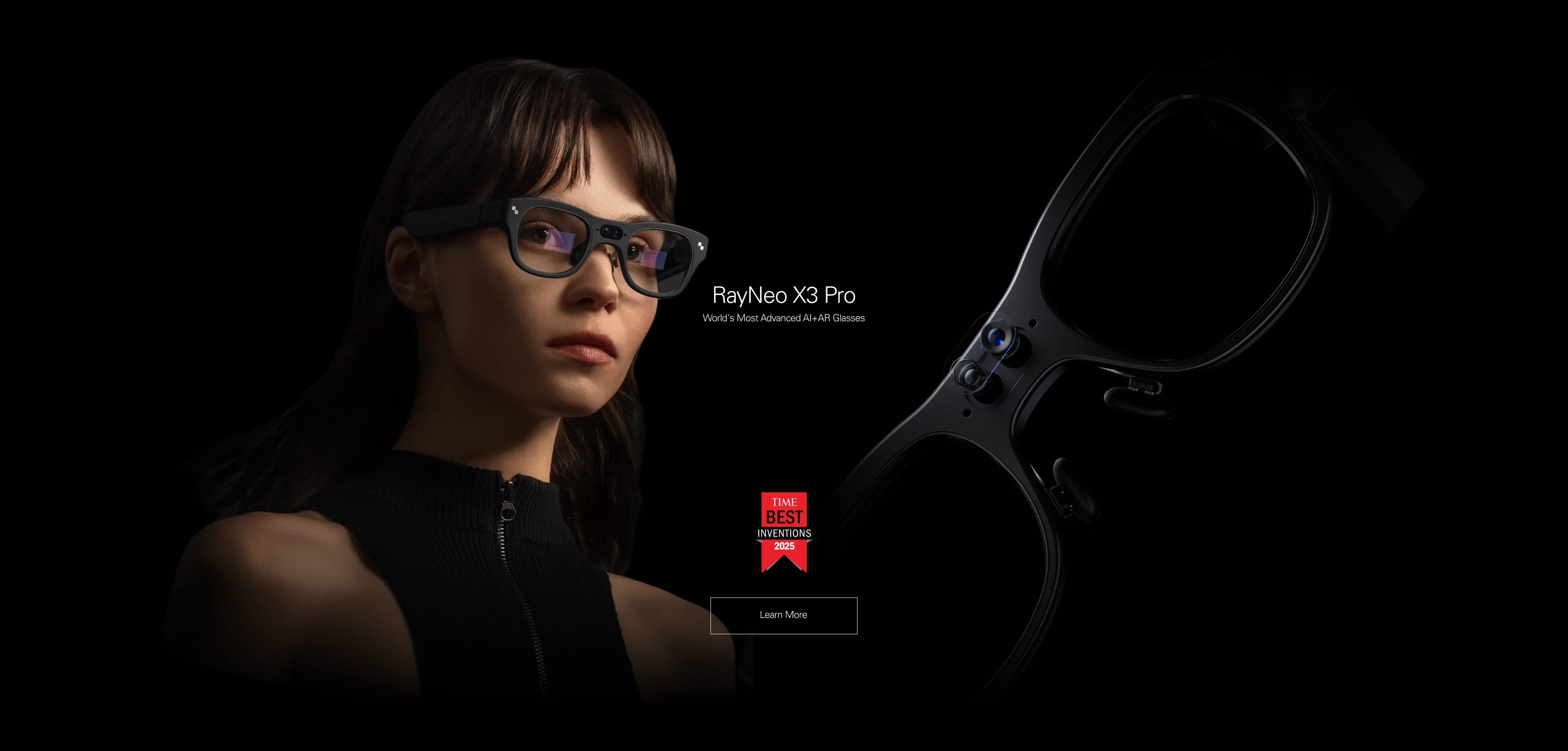
The "Augmented Reality" Display (Best for Daily Life): RayNeo X3 Pro.
Uses Waveguide MicroLED technology to overlay transparent, holographic information (like translation subtitles and navigation arrows) onto the real world. It is wireless and runs on its own processor. -
The "Virtual Screen" Display (Best for Media): RayNeo Air 3s Pro.
Uses Micro-OLED technology to create a massive, opaque virtual theater screen. It blocks the real world to immerse you in movies or games. It requires a cable connection.
This comprehensive guide (approx. 20-minute read) will explain exactly which glasses have displays, how the display technologies differ, and how to set them up for your specific needs.
1. The Landscape: Not All Displays Are Created Equal

The confusion in the market comes from the fact that "Display" can mean two very different things. Understanding this physics difference is the key to being happy with your purchase.
Type A: The "See-Through" Display (Waveguide)
Representative Model: RayNeo X3 Pro
The Tech: This technology uses microscopic structures etched into the lens to guide light from a tiny projector into your eye. The lens remains transparent, looking mostly like normal glass.
-
What you see: Digital graphics floating in the real world. Imagine green arrows painted on the sidewalk or a text message hovering next to your coffee cup.
-
Best for: Interaction. Reading real-time translations, following navigation, checking notifications without losing eye contact.
-
Limitations: The field of view (FOV) is typically smaller (~30 degrees), meaning the information sits in the center of your vision. It is not designed for full-immersion movies.
Type B: The "Virtual Monitor" Display (Birdbath/Micro-OLED)
Representative Model: RayNeo Air 3s Pro
The Tech: This uses tiny, high-brightness OLED screens reflected into your eyes. It is designed to mimic a large physical screen sitting in a dark room.
-
What you see: A giant rectangular screen (equivalent to 201 inches) floating in a black void. It creates a private theater experience.
-
Best for: Consumption. Gaming on Steam Deck, watching Netflix on a plane, or extending your laptop screen for privacy.
-
Limitations: It is "tethered" (requires a cable). It is hard to walk around while wearing them because the screen blocks a significant portion of your vision.
2. Fit Check: Which Display Fits Your Gear?
Before buying, you need to ensure you have the hardware to drive these displays. "Display Glasses" (Type B) are particularly picky about connections.
Scenario A: You have a modern Android Flagship
-
Compatible Models: Samsung Galaxy S21/S22/S23/S24/S25 series, Z Fold series.
-
For RayNeo Air 3s Pro: ✔ Perfect. These phones support "Samsung DeX," which fills the glasses' display with a full desktop computer interface.
-
For RayNeo X3 Pro: ✔ Perfect. The companion app runs smoothly for data tethering.
-
-
Incompatible Models: Google Pixel 6/7, most Redmi Note series.
-
The Issue: These phones lack hardware video output. You cannot use wired display glasses (Air 3s Pro) directly.
-
The Fix: Choose the RayNeo X3 Pro (Wireless) or buy a Pocket TV adapter for the Air glasses.
-
Scenario B: You have an iPhone
-
iPhone 15 / 16 (USB-C): ✔ Universal Support.
-
Works plug-and-play with RayNeo Air 3s Pro for screen mirroring.
-
Works flawlessly with RayNeo X3 Pro app.
-
-
iPhone 14 & Older (Lightning): ⚠ Limitation.
-
The RayNeo X3 Pro is your best bet because it connects wirelessly.
-
To use RayNeo Air 3s Pro, you must purchase a specific adapter (RayNeo Pocket TV) because Lightning ports cannot output high-def video.
-
Scenario C: You are a Gamer
-
Steam Deck / ROG Ally: The RayNeo Air 3s Pro is the gold standard. It plugs directly into the USB-C port and acts as a 1080p/120Hz external monitor.
-
Nintendo Switch: The Switch does not output video over standard USB-C. You must use the RayNeo JoyDock adapter to power the console and send the video signal to the Air glasses.
3. Step-by-Step Setup: Activating Your Display
Once you've chosen your technology, getting the image clear and stable is the next step. Here is the workflow.
Setup for RayNeo X3 Pro (The Wireless HUD)
-
Power Up: Long-press the temple button. The waveguide display will illuminate with the boot logo.
-
App Bridge: Install the "RayNeo App" on your phone. This app acts as the control center.
-
Network Link: Connect the glasses to Wi-Fi via the app. This is crucial for AI features (like translation) that need cloud processing.
-
Visual Calibration: The glasses will ask you to look at specific points to calibrate the eye-tracking. This ensures the AR overlays align with the real world (e.g., navigation arrows sticking to the road).
Setup for RayNeo Air 3s Pro (The Wired Screen)
-
Physical Connection: Use the included cable. Plug the angled end into the glasses (right temple) and the straight end into your device (phone/console).
-
Audio Routing: If sound comes from your phone, switch the output.
-
iOS: Control Center > AirPlay > "RayNeo Air".
-
Android: Settings > Sound > Media Output.
-
-
The "Blurry Edge" Fix: This is the #1 setup tip. If the corners of the screen look fuzzy, your eyes aren't centered in the lens.
-
Top Cut Off? Switch to a Small nose pad.
-
Bottom Blurry? Switch to a Large nose pad.
-
Tilting? Adjust the temple arms up/down to change the angle.
-
4. Market Comparison: Which Display is "Best"?
Here is a neutral look at the top contenders in the "Smart Glasses with Display" category for 2026.
The Verdict
-
If you need information while moving: RayNeo X3 Pro. It's the only one that lets you walk safely while seeing a display.
-
If you want a portable theater: RayNeo Air 3s Pro. It offers the best balance of brightness (OLED) and audio quality for media.
-
If you hate screens: Meta Ray-Ban. It's great for audio, but technically fails the "Smart Glasses with Display" requirement.
5. Deep Dive: The RayNeo X3 Pro Difference

Why do we highlight the X3 Pro in a discussion about displays? Because it solves the "Social Isolation" problem.
1. Binocular 3D Waveguide
Most "HUD" glasses (like older Google Glass) were monocular—a tiny screen in one eye. This causes eye strain and headaches. The X3 Pro is Binocular (both eyes). This allows for stereoscopic 3D effects, meaning navigation arrows can actually look like they are 10 meters away on the road, rather than stuck to your eyelash.
2. High Brightness (1500 nits)
Waveguide displays used to be dim. The X3 Pro uses MicroLED technology, which is incredibly bright. This means you can read the display clearly even in direct sunlight, solving a major pain point of older AR tech.
3. "Whisper" Social Mode
Because the display is transparent, you can maintain eye contact with people while using it. The X3 Pro detects when you are in a conversation and dims the display content so you aren't distracted, prioritizing human connection.
6. Realistic Limitations & Transparency
Displays on your face are amazing, but physics still applies. Here is the honest truth.
Text Clarity (PPD)
-
The Reality: For reading fine text (like coding or Excel sheets), the Air 3s Pro (High PPD) is superior to the X3 Pro. The X3 Pro is designed for "glanceable" info (notifications, subtitles), not reading a novel.
-
The Fix: If productivity is your goal, stick to the Air series and use large font scaling on your laptop.
Battery Drain
-
X3 Pro: Has its own battery. Heavy use of the display (high brightness, AR navigation) will drain it in ~3-4 hours.
-
Air 3s Pro: Drains your phone's battery. A 2-hour movie on an iPhone 15 might consume 20-30% of the phone's power.
Visual Field (FOV)
-
The Reality: Current waveguide technology (X3 Pro) has a limited Field of View (~30 degrees). The digital content does not fill your entire peripheral vision. It sits in a "window" in the center.
-
Comparison: The Air 3s Pro has a much wider FOV (~46 degrees), making it feel like a cinema screen.
7. FAQ: Expert Advice
Q: Do these glasses work for people with prescription needs?
A: Yes. Do not wear them over your regular glasses. Both the X3 Pro and Air 3s Pro support magnetic prescription inserts. You can order custom lenses that snap onto the inside of the frame. This ensures the display is perfectly focused. Order Prescription Inserts Here.
Q: Can I watch 3D movies?
A: Yes, on the RayNeo Air 3s Pro. It supports SBS (Side-by-Side) 3D content. You can toggle the glasses into 3D mode to watch movies like Avatar with genuine depth perception.
Q: Does the display work at night?
A: Yes. The X3 Pro's MicroLED display is self-emissive, so it works perfectly in the dark. The Air 3s Pro is an OLED screen, so it looks spectacular in dark environments (like a plane cabin).
Q: Can I connect X3 Pro to my PC as a monitor?
A: No. The X3 Pro is a standalone Android device. It is not designed to be a secondary monitor for Windows. For that use case, you want the RayNeo Air 3s Pro.
8. Next Steps: Choose Your Display
Don't get paralyzed by specs. Choose the display that fits your primary activity.
Action 1: For the "Life Optimizer" (Travel/Nav)
If you want a display that helps you navigate the real world:
→ Shop RayNeo X3 Pro (Best AR Display)
Action 2: For the "Content Consumer" (Games/Movies)
If you want a display that helps you escape the real world:
→ Shop RayNeo Air 3s Pro (Best Virtual Screen)
Action 3: Verify Your Setup
Unsure if your phone can power the Air 3s Pro? Check now.
共有:
What Smart Glasses Are Suitable for Daily Use? With or Without Display?
2026 Guide to Smart Glasses with HUD: RayNeo X3 Pro vs. Virtual Screens