

$449.00

Refresh rate refers to the number of times a display updates the image per second. It is measured in Hertz (Hz). For example, 60Hz means the screen redraws the image 60 times every second. This is the fundamental parameter for the clarity of all HUDs and AI text overlays. In this article, we will break down the definition and measurement of refresh rate. We will analyze its impact on HUD clarity, the stability of AI captions and prompts, and long-term wearing comfort. Finally, we will provide a practical guide for buying and tuning based on 2026 mainstream smart glasses specs and user feedback.
In the field of wearable displays, refresh rate refers to the number of times a display panel updates the full-screen image in one second, such as 60Hz, 90Hz, or 120Hz. When analyzing the fundamental mechanics of what are smart glasses with display technology, a higher refresh rate divides continuous motion into denser time slices. This makes HUD icons, navigation arrows, and dynamic AI captions appear much closer to real-world continuous movement. High refresh rates are critical in AR glasses because users turn their heads much faster than they do when watching a traditional TV. Even slight lag or jitter can ruin immersion and readability.
The subjective experience of a 1080p or higher resolution image can differ greatly between 60Hz and 120Hz. While 60Hz is clear enough for static UI, you may notice slight ghosting or flickering when checking HUD navigation while walking or glancing at AI captions. A high refresh rate of 90Hz or above locks the image position more effectively. This makes icons and text look like they are pinned to the real world.

Technical specifications usually present refresh rate in two ways: as a fixed value, such as 60Hz, 72Hz, or 120Hz, or as an adaptive range, like a 30 to 120Hz adaptive refresh rate.
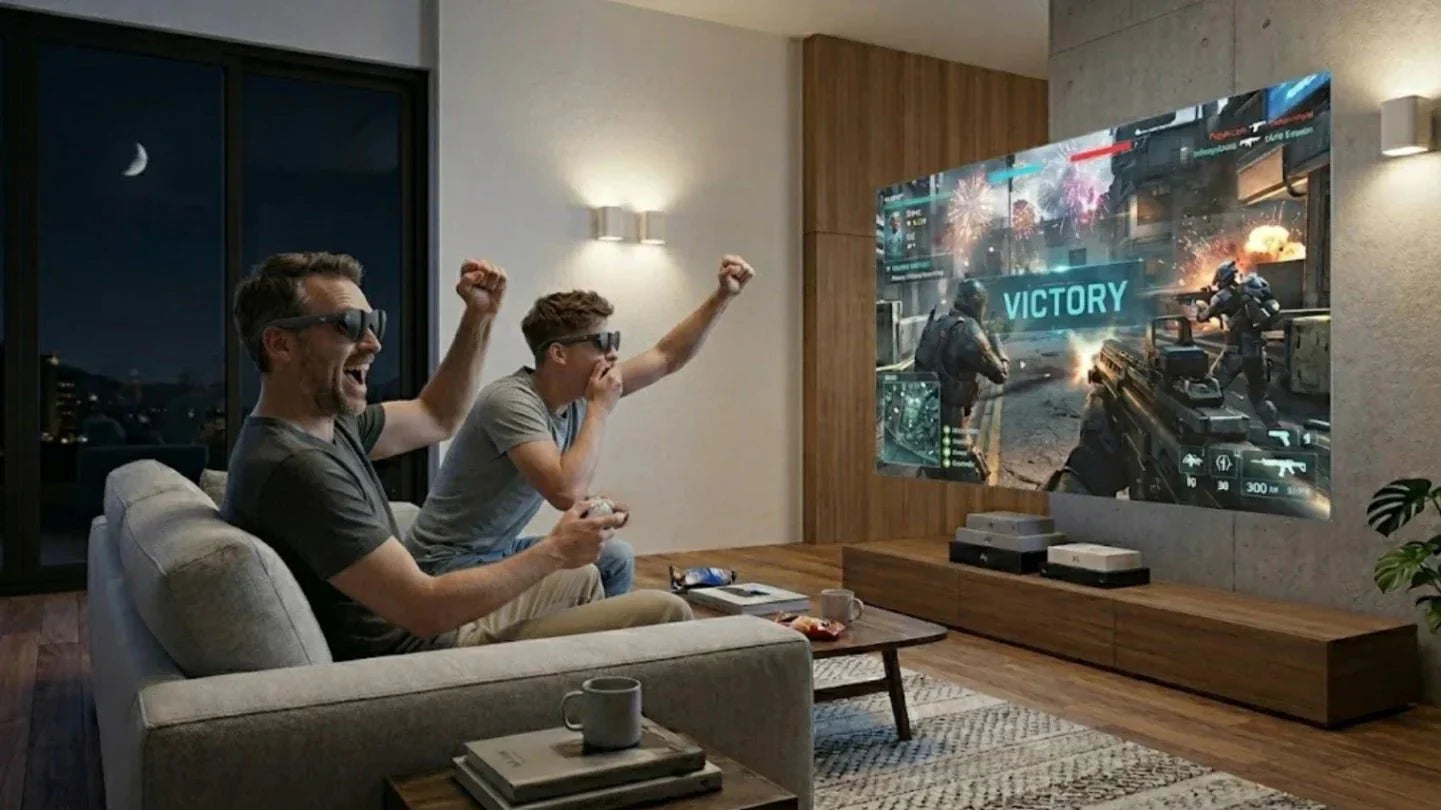
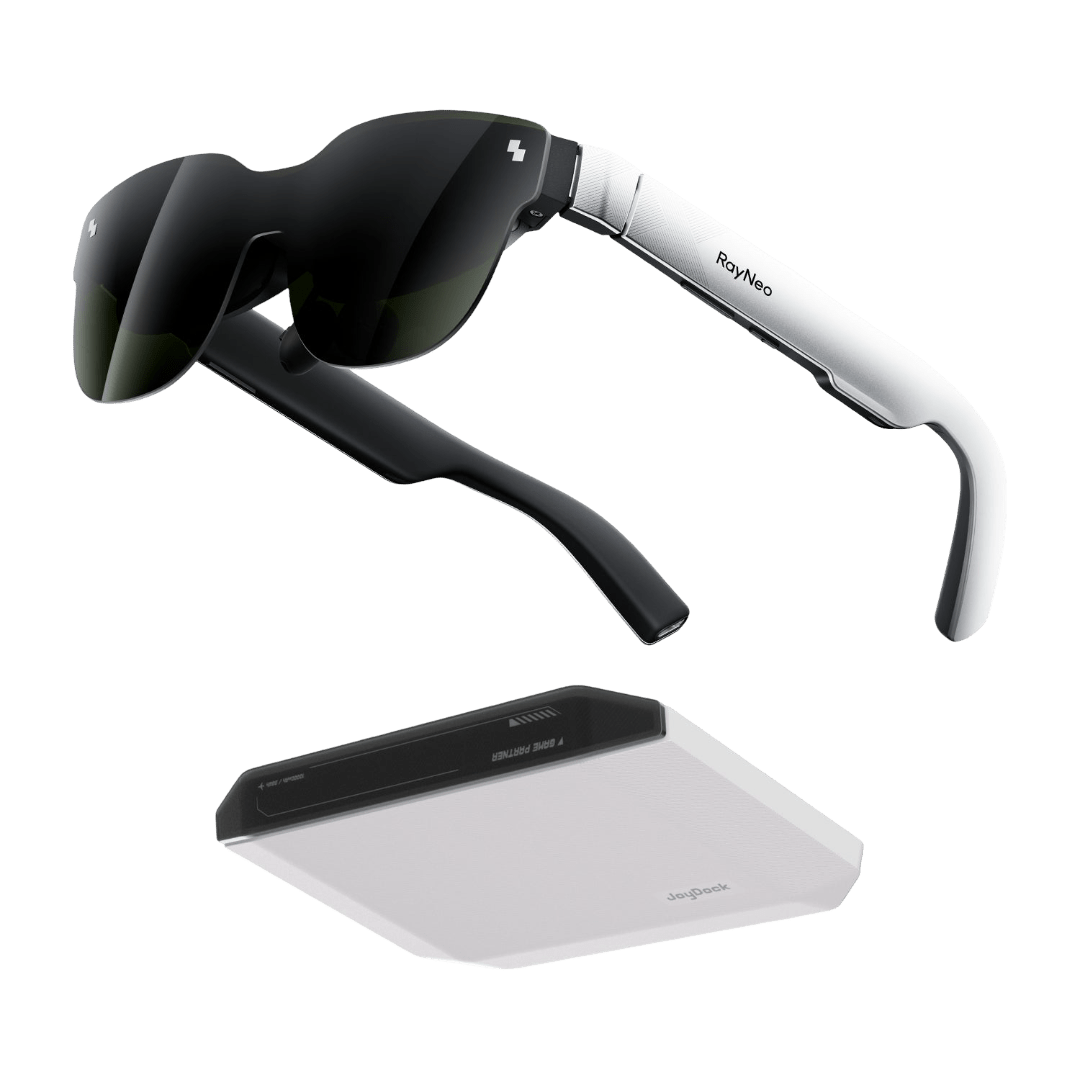
The logic behind an adaptive refresh rate is to adjust dynamically based on content type and head movement speed. For example, the rate might drop to 60Hz for static reading and jump to 90Hz or 120Hz for video playback or cloud gaming. This allows the device to balance power consumption with smoothness. In our engineering tests, adaptive mode typically extends continuous usage by about 15 to 25 minutes compared to locking the device at 120Hz. The exact results depend on the chip platform and optical engine architecture. The RayNeo Air 4 Pro AR Glasses use high-performance Micro OLED panels for smooth 120Hz output. This allows the glasses to match the frame rates of high-end handhelds and PCs perfectly. Through adaptive scaling, the system keeps visuals smooth while extending battery life for long gaming sessions.
To understand why refresh rate is important, keep one thing in mind: HUD info and AI text overlays are not just a video. They are dynamic layers that must stay in sync with the real world. As long as you are walking, cycling, or turning your head, the system needs a high refresh rate to pin digital info to its correct physical location.
If the refresh rate of AR glasses drops below 60Hz, HUD stability fails in high-motion environments. You will run into issues where bright HUD text jitters or streaks when you turn your head. AI captions may fail to keep up with speech. When lag meets a low refresh rate, long-term wear can lead to eye strain or even mild dizziness.
HUD clarity is not just about resolution and brightness. It is also heavily affected by the refresh rate and how fast you move your head. At 60Hz, static HUD text looks clear. However, when you quickly scan street signs or traffic, the HUD may show ghosting at the edges. For navigation and sports data that require split-second checks, this ghosting lowers the overall information density. In our road navigation and cycling tests, HUDs at 90Hz or higher significantly reduced jitter. Text edges stayed sharp, which is especially noticeable against high-contrast backgrounds at night.
When the refresh rate hits 90Hz or 120Hz, continuous head movements are divided into more time slices. This makes the movement of HUD arrows, speed indicators, and prompts feel much smoother in space. As a result, your brain does less work to align the real world with the virtual layers. Subjectively, the info feels like it is stuck to the road or building. This improves both reading speed and reaction time.
AI text overlays include real-time translated captions, smart notification bubbles, and code review notes. The core experience depends on whether you can accurately read the text before a sentence ends. When the refresh rate is too low, two problems are common. First, the text might flicker or jump during updates. Second, fast-scrolling or word-by-word rendering can cause ghosting, particularly with white text on dark backgrounds.
In our A/B tests for AI captioning, we observed that increasing the refresh rate from 60Hz to 90Hz improved user scores for text stability by nearly a full grade. In side-by-side video comparisons, captions at 90Hz or above move more smoothly at the same speaking speed. The animations for appearing text look more natural. For users who frequently read foreign language captions or code comments, this stability directly impacts reading rhythm and comprehension.
Eye fatigue is usually the result of several factors, including brightness, contrast, color temperature, focal distance, and refresh rate. A low refresh rate causes two obvious issues: perceived flickering and mild dizziness from jerky motion. Your brain has to work harder to correct the timing gap between reality and the virtual image.
In the real world, 60Hz, 90Hz, and 120Hz represent completely different levels of visual comfort. For a traditional monitor, 60Hz is the standard for usability. However, for AR and AI glasses, 60Hz is often just the bare minimum. Based on our extensive testing and user feedback, the range where HUDs and AI text overlays start to feel natural and believable begins at 90Hz.
High refresh rates act as a buffer in AR applications with head tracking. When you turn your head quickly, the denser image updates stitch together what would otherwise be torn or jittery HUDs and captions into a continuous path. The difference between 90Hz and 120Hz is much more obvious in high-motion activities like outdoor navigation, cycling, or fitness coaching than in a static office setting.
Low Refresh Rate (50–60Hz): Systems struggle with high-speed movement. You may notice image lag, where HUD markers take a split second to stabilize in their new position after you turn your head. AI text may also jitter while scrolling. Users often report feeling dizzy after long sessions, which is usually caused by the time gap between their physical movement and the slow display update.
High Refresh Rate (90–120Hz): This setup provides two immediate benefits. First, motion paths are more continuous. Second, visual feedback feels instant. The main difference in the 90Hz to 120Hz range is better ghosting control and sharper text edges during fast movements. While 60Hz works for basic notifications, the benefits of higher rates become much clearer after two or three hours of use.
We often use a simple lab test to evaluate stability: walk outdoors while staring at a HUD text block floating 2 meters away and turn your head from side to side. At 60Hz, the text block seems to vibrate or drift slightly with every refresh. At 90Hz and 120Hz, this drift disappears. The text looks like it is pinned to a fixed coordinate in the real world.
The smoothness of AI text overlays is also directly linked to refresh rate. Every update to a caption is a new render. If the refresh rate is too low, captions will jump or stutter as they update at the end of a sentence. High refresh rates spread these updates across more frames, making the text flow like water. This reduces distractions for users who need to read meeting summaries or live translations while walking.
Different AR devices handle refresh rates in various ways. AR glasses using MicroLED or MicroOLED panels generally find it easier to reach 90Hz to 120Hz. Combined with high brightness and contrast, these panels keep HUDs and text layers clear both indoors and outdoors.
Some mainstream AR glasses advertise a 120Hz refresh rate but drop to 60–90Hz in high-brightness modes or during wireless casting. Our cross-testing of various retail devices shows that products capable of maintaining a high refresh rate during typical use receive much higher scores for smoothness, clarity, and comfort. This proves that real-world optimization is just as important as the numbers on a spec sheet.
Refresh rate is a core parameter that must be considered alongside resolution, brightness, weight, cooling, and battery life. For users with high demands for smart glasses HUDs and AI Text Overlays—such as foreign language subtitles, road navigation, fitness coaching, and code review—a high refresh rate is more than just a bonus; it is the baseline for a good experience.
When shopping, we recommend breaking down your usage into three categories: long commutes and office work, outdoor sports and navigation, and high-frame-rate content consumption like cloud gaming and high-speed video. Different scenarios have different refresh rate requirements. However, as long as it involves reading information while moving, configurations above 60 Hz provide visible benefits.

For daily commuting navigation and static information prompts, 60–72 Hz is the basic functional range. Users who frequently look up, turn their heads, or read subtitles while walking should choose 90 Hz or higher. If you have professional-grade requirements for visual continuity, such as real-time subtitle proofing or sports training guidance, 120 Hz provides a sense of continuity closer to a professional monitor.
It is important to emphasize that the perception threshold for refresh rates varies by person. Some feel a significant improvement when upgrading from 60 Hz to 90 Hz, but the difference between 90 Hz and 120 Hz is mostly visible in extreme scenarios, like high-speed movement or complex 3D content. In our internal blind tests, a significant portion of office and light entertainment users struggled to distinguish between 90 Hz and 120 Hz in static text scenarios. However, in rapid turning and head-shaking tests, most people could sense the slight difference.
A higher refresh rate leads to higher power consumption, which is especially noticeable in lightweight AR glasses. The panel, driver IC, and SoC rendering chain must complete more frames of calculation and transmission every second. This increases heat and battery drain. On the same hardware platform, switching from 60 Hz to 120 Hz can shorten battery life by about 15–30%, depending on the content type and optical engine design.
Users who read many documents and emails can choose to lock the refresh rate at a mid-to-high level, such as 72–90 Hz. This provides a stable enough HUD and text while controlling power consumption. In video and gaming scenarios, letting the device jump to 120 Hz allows for extreme smoothness in moving images and subtitles. This dynamic strategy usually achieves a better balance of power and experience throughout a full day of use.
The table below summarizes typical refresh rate tiers and their impact on visual experience, helping you quickly understand which configuration fits your needs.
|
Refresh Rate Tier |
Typical Scenarios |
HUD Clarity and Stability |
AI Text Overlay Experience |
Power Consumption Trend |
|
Around 60 Hz |
Basic notifications, static info |
Clear when static; slight ghosting during fast head turns |
Occasional subtitle jitter; suitable for short use |
Lowest power consumption |
|
72–90 Hz |
Commuting navigation, real-time subtitles |
Significant improvement in dynamic stability |
Smooth scrolling text; suitable for long reading sessions |
Medium power consumption; requires good scheduling |
|
120 Hz and above |
Gaming, sports, high-speed scenarios |
HUD stays locked even during fast movement |
Extremely smooth subtitles; suitable for high-intensity use |
Highest power consumption; requires adaptive strategies |
Choosing the right refresh rate is only the first step. To fully unlock the clarity potential of HUDs and AI text overlays, you need fine-tuned adjustments involving device settings, system firmware, and app quality. After talking with many AR users, we found that the reason many feel eye strain is often because default settings were not tweaked to match their specific habits.
In daily use, we encourage users to spend ten minutes on an initial tuning session. This includes refresh rate modes, brightness curves, color temperature, and font size. This one-time adjustment can significantly shorten the adaptation period, helping you reach that wear-it-and-forget-it state faster. For heavy users, these ten minutes of effort result in hundreds of hours of comfortable experience later.
In most AR glasses systems, the refresh rate is usually tied to picture modes, such as Standard, Power Saving, and High Performance. Our experience during testing shows that Standard mode is best for commutes and office use, letting the system adapt between 60 and 90 Hz. Manually switch to High Performance mode to access 90–120 Hz only when you expect to watch long videos or play games.
At the same time, brightness and refresh rate should be considered together. High brightness helps improve HUD clarity, but forcing a locked maximum refresh rate under extreme brightness will cause device heat and power consumption to rise sharply. This also impacts long-term wearing comfort. We recommend lowering brightness slightly indoors while keeping a higher refresh rate. Outdoors, allow the system to move flexibly between 60 and 90 Hz, using brightness and contrast to compensate for refresh rate fluctuations.
From an engineering perspective, the refresh rate experience is not just about hardware. Every iteration of firmware algorithms and system scheduling can bring real improvements. Over the past few years, we have seen several AR glasses solve HUD jitter and subtitle lag through system updates. These improvements are essentially optimizations in head tracking, time synchronization, and adaptive refresh rate logic.
Because of this, we advise all heavy users to keep their firmware and system versions on the latest stable branch, especially for updates related to display, tracking, and power management. Often, even if the hardware specs remain identical, algorithm upgrades and refresh rate curve optimizations can make AI subtitles more stable and HUD icons more responsive during head turns. These improvements are frequently listed as just a short line in a changelog.
An app's own rendering strategy and text layout quality can also amplify or weaken the advantages of hardware refresh rates. When reviewing third-party AR apps, we often encounter issues like poor text spacing, insufficient anti-aliasing, or excessive animations. These problems become even more obvious at high refresh rates. Good applications will choose smoother animation curves and more logical text update rhythms based on the refresh rate capabilities provided by the system.
A higher refresh rate almost always improves clarity and stability in dynamic scenarios. You will notice much sharper edges on HUD text and smoother caption paths, especially when turning your head quickly. However, in completely static reading scenes, such as reading a document at home or checking a fixed dashboard, the difference between 60–72 Hz and 90 Hz is relatively limited. Additionally, at very high refresh rates, if the rendering quality of the app itself is poor, it may actually expose more font aliasing and layout issues.
The impact of refresh rate on AI text overlays is concentrated in three areas: the smoothness of text as it appears, stability during scrolling or line breaks, and the sense of timing between speech and captions. In our tests, moving from 60 Hz to 90 Hz significantly reduced user complaints about caption jitter and flickering. This is especially true when viewing translated captions while walking, as the jumping sensation at the beginning and end of sentences is minimized.
In real-time translation and meeting recording scenarios, a high refresh rate makes word-by-word updates much more fluid. This allows the brain to align what you hear and see with less effort, which is vital for long cross-language meetings or rapid information intake. Conversely, if the refresh rate is low, users often feel the captions cannot keep up with the speaker, even if the AI model itself has very low latency.

Not all AR devices can stably support high refresh rates. This depends on the physical limits of the display panel, the driver circuits, the thermal design of the optical engine, and the processor pipeline. Some entry-level products are limited by display and SoC performance. In high-brightness or wireless casting modes, they may automatically drop the refresh rate to around 60 Hz to prevent overheating and severe battery drain. This is a very common occurrence in our real-world testing.
Furthermore, just because a device lists a maximum of 120 Hz on its spec sheet does not mean it runs at 120 Hz in all modes. Many brands use a medium-to-low refresh rate by default and only jump to the maximum level when a user manually enables high-performance or gaming modes. Therefore, when shopping, understanding the actual working modes is more important than just looking at the numbers on paper.
A higher refresh rate will inevitably increase battery consumption. This is true for all display devices and is especially noticeable in AR glasses where battery space is extremely limited. Rendering more frames per second consumes more power in the display components and increases the load on the GPU and video pipeline. In our lab tests, switching from 60 Hz to 120 Hz at the same brightness level typically shortens battery life by 15–30% and leads to a more noticeable temperature rise.






Share:
Complete Guide to Virtual Reality Game Systems
Mobile Gaming on a 200-Inch Screen: The Rise of AR Gaming Glasses