

$449.00

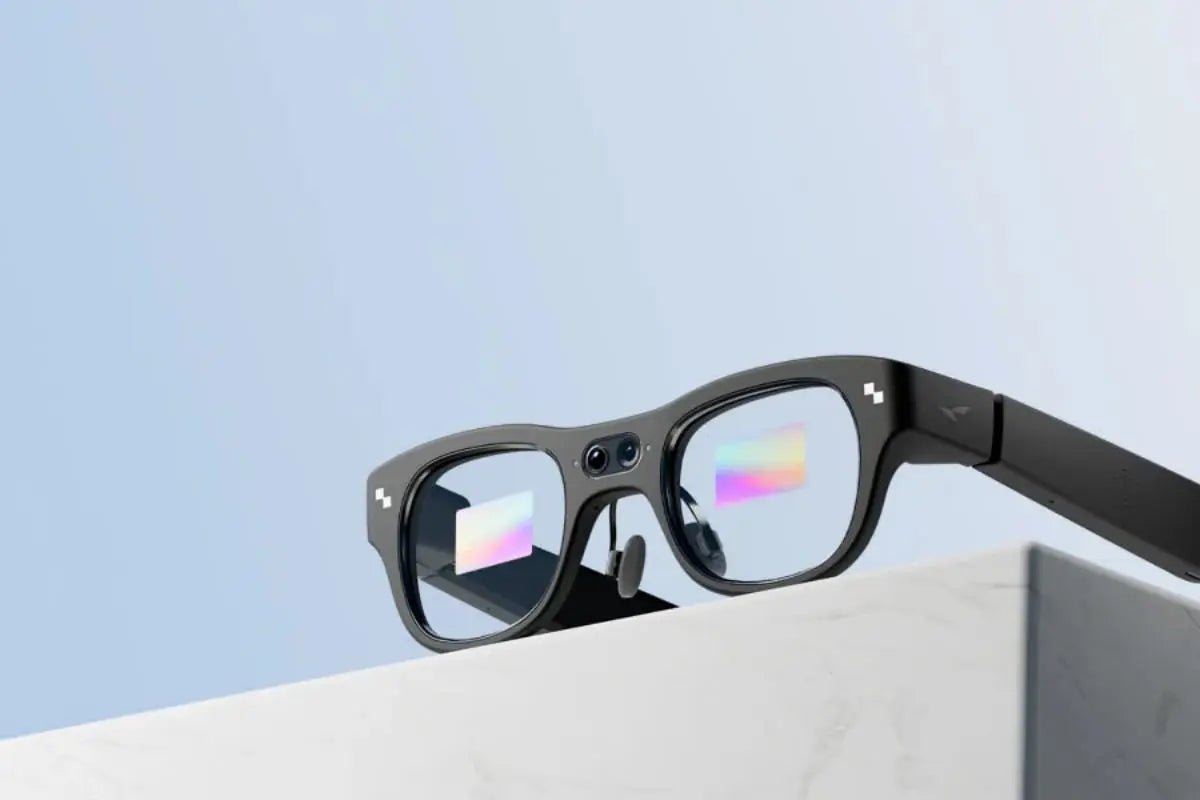
Smart glasses can put useful information where you can glance at it without reaching for your phone. For iPhone users, that may mean seeing a caller’s name, checking a message preview, or noticing a calendar reminder while walking, working, or carrying groceries. However, iPhone notification smart glasses do not all handle alerts in the same way. Some use a small visual display, while others rely mainly on audio feedback or companion apps for setup and notification management.
The right pair depends on which notifications you need, how often you want to check or respond to them, and whether the glasses support your iPhone and preferred apps. This guide explains what these devices can show, how synchronization works, and what to examine before buying. It also looks at how RayNeo iO turns phone information into a more glanceable, hands-free experience.

In short, iPhone notification smart glasses can suit you if you want to check selected calls, messages, reminders, emails, or app notifications without repeatedly opening your iPhone. Their usefulness depends on iOS compatibility, the companion app, display design, permitted notification access, battery life, and whether they support the specific alerts and actions you value.
They complement an iPhone rather than replace it, so you may still need the phone to write longer replies, manage private information, approve certain actions, or use apps the glasses cannot display.
So, where do smart glasses make a practical difference? Their main benefit is reducing brief, repetitive phone checks while keeping important information within easy reach.
Think about how often you unlock your iPhone simply to learn that an alert is not urgent. A discreet heads-up display can help you decide whether to respond now or later, provided the alert does not distract you from safety or the people around you.
Well-designed iPhone smart glasses may help you:
The practical answer is “selected notifications,” not every item in Notification Center. What appears depends on the glasses, their iOS app, your permissions, and each app’s integration. Some devices mirror notification previews, while others offer dedicated widgets for email, calendars, weather, or navigation.
| Notification type | What you may see | What to verify |
|---|---|---|
| Calls and messages | Caller or sender name, short preview | Support for answering calls and replying to messages |
| Calendar and tasks | Event time, title, reminder | Calendar source and sync speed |
| Email and apps | Sender, subject, selected alert | Supported accounts and apps |
| Navigation and updates | Next turn, weather, travel status | Map integration and data connection |
For everyday communication, compatible glasses may show the sender’s name, a short text preview, or caller identification. That is often enough to judge urgency without pulling out your iPhone. Message reply and call controls vary more widely. Check support for Messages and any third-party chat apps you use, because access can differ by service.
When your schedule is packed, a meeting title, start time, or task prompt can be more useful than a general notification badge. Some glasses retrieve information from a connected calendar or to-do service rather than mirroring the iPhone alert itself. Review which calendar accounts are supported, including iCloud, work, or school accounts. Also check whether calendar changes sync promptly.
Beyond messages, smart glasses may present an email sender, subject line, unread count, or important alert from a compatible app. This can help when you are waiting for a client reply, delivery update, or travel change. Still, more alerts do not automatically create a better experience. Choose devices that let you control app permissions, hide sensitive previews, and mute unnecessary alerts.
On the move, supported glasses may show a turn cue, distance, weather update, time-zone information, or transit reminder. Navigation requires compatible map software and usually an active phone connection, so do not assume any iPhone map app will work. Displayed information can still distract a driver. U.S. driver-distraction guidance emphasizes limiting visual-manual secondary tasks, so disable nonessential alerts and follow state traffic laws behind the wheel.
Behind the display, synchronization usually combines Bluetooth, an iOS companion app, and permissions for specific data. The exact setup varies, but most products follow a similar path.
Keep Bluetooth on and check whether the app requires background permissions or periodic access. If alerts stop, confirm permissions, reconnect the glasses, and review Focus settings on both devices.
Before paying for iPhone notification smart glasses, compare what they do with your normal phone habits. A long feature list matters less than dependable support for the few alerts you actually need.
Start with the minimum iOS version, compatible iPhone models, companion-app availability in the U.S. App Store, and supported notification sources. MFi certification may indicate Apple-approved accessory compatibility, but it does not guarantee support for every app or feature. It does not mean every iOS app, alert type, or future software update will work, so review the current compatibility list before purchase.
Then, examine the details behind “notification support.” Can you select individual apps, read previews outdoors, and dismiss an alert using the glasses’ controls? Check whether the glasses respect iPhone Focus settings and test how quickly alerts arrive. A short delay may be unimportant for email but frustrating for navigation. Also distinguish simple mirroring from widgets, which may show richer information from a connected account and require additional permissions.
After compatibility, consider whether you can comfortably wear the glasses long enough to benefit. Fit, weight distribution, prescription support, and controls all affect long-term comfort. Try the frame if possible. Compare typical battery life with your schedule, because a bright display, frequent alerts, translation, microphones, and AI processing can increase power use. Check whether the charging method fits your travel routine.
Finally, review what data the app may store, upload, or share, and hide sensitive message previews or adjust permissions where appropriate. If the glasses include recording features, recording is a separate legal issue: the federal statute permits one-party consent in certain situations, while state requirements vary. A recording light does not replace consent.
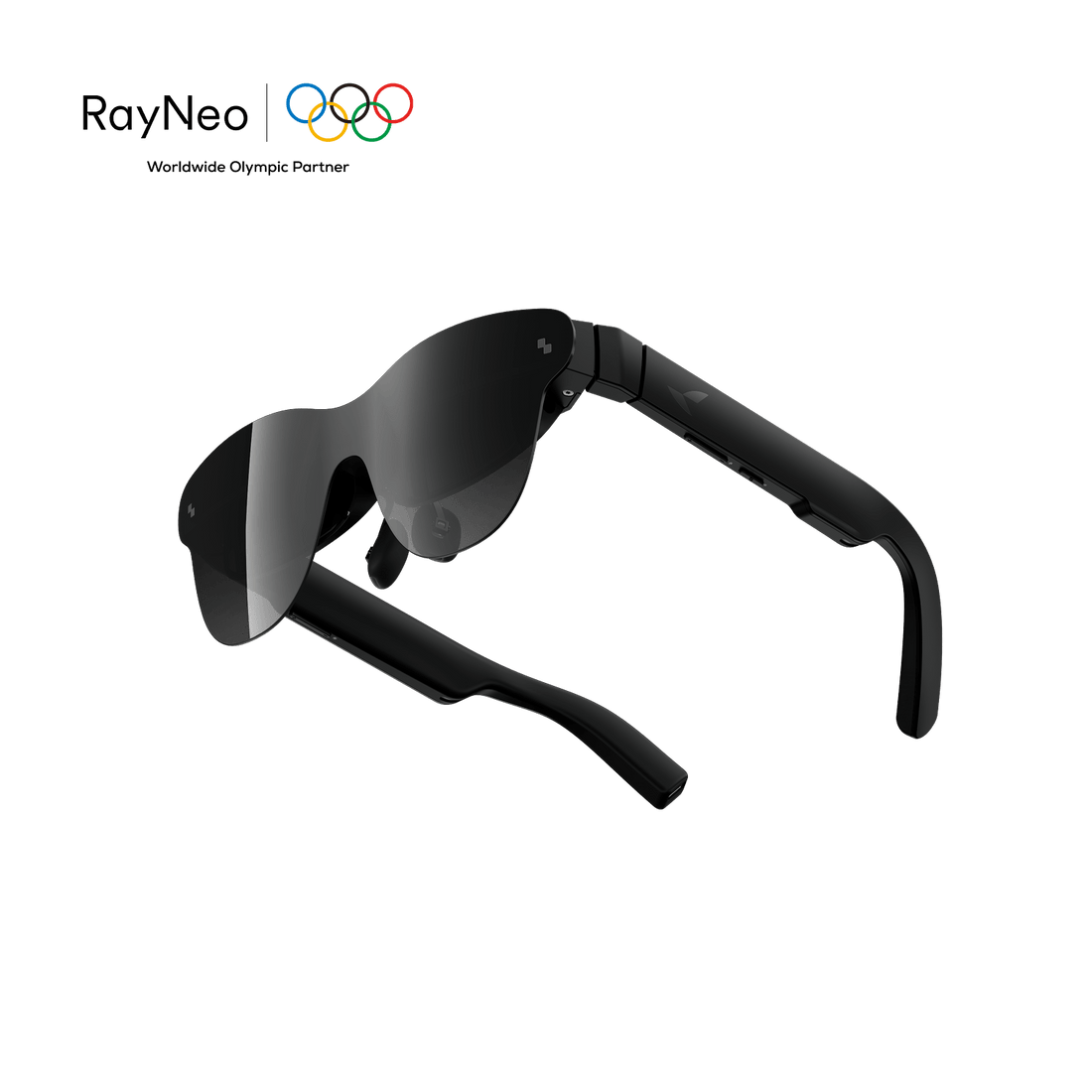
For people who want visible information without a bulky headset, the RayNeo iO AI Glasses provide a compact Dashboard experience through everyday-style eyewear.
Ultimately, iPhone notification smart glasses work best when they solve a clear problem: too many quick phone checks, missed reminders, or awkward moments when your hands are occupied. Start by naming the three alerts you would genuinely want near your line of sight. Then judge each pair on those alerts, not on the length of its specifications page.
Treat privacy, comfort, and attention as everyday features rather than afterthoughts. A useful pair should help you filter information and stay engaged with your surroundings, not move every interruption from your pocket to your face. If the glasses match your iPhone, preferred apps, prescription needs, and charging routine, they can become a practical second screen. If not, adjusting iPhone notification settings may deliver more value at no extra cost.
Yes, most consumer smart glasses can connect to an iPhone through Bluetooth, although available features depend on the model and its iOS companion app. After installing the required app, you can usually manage setup, firmware updates, notifications, calls, media, or AI tools. Check the compatible iPhone models and minimum iOS version before buying, since basic Bluetooth pairing does not guarantee access to every feature.
Most consumer smart glasses cannot run FaceTime independently or use their built-in camera as the FaceTime video source. Your iPhone still handles the call and video. However, compatible glasses with speakers and microphones may work as a Bluetooth audio device, letting you hear and speak through them. Support varies, so check the iPhone and FaceTime compatibility information for your specific smart glasses.
Yes, many smart glasses let you make and answer phone calls when paired with a smartphone through Bluetooth. Models with microphones and open-ear speakers can handle call audio while the phone provides the network connection. Calling options vary: some glasses support voice commands and frame controls, while glasses without built-in audio hardware may show caller information without carrying the conversation audio.





Share:
How to Take Meeting Notes Hands-Free With AI Glasses
Is It Legal to Record With Camera Glasses? What to Know Before You Hit Record