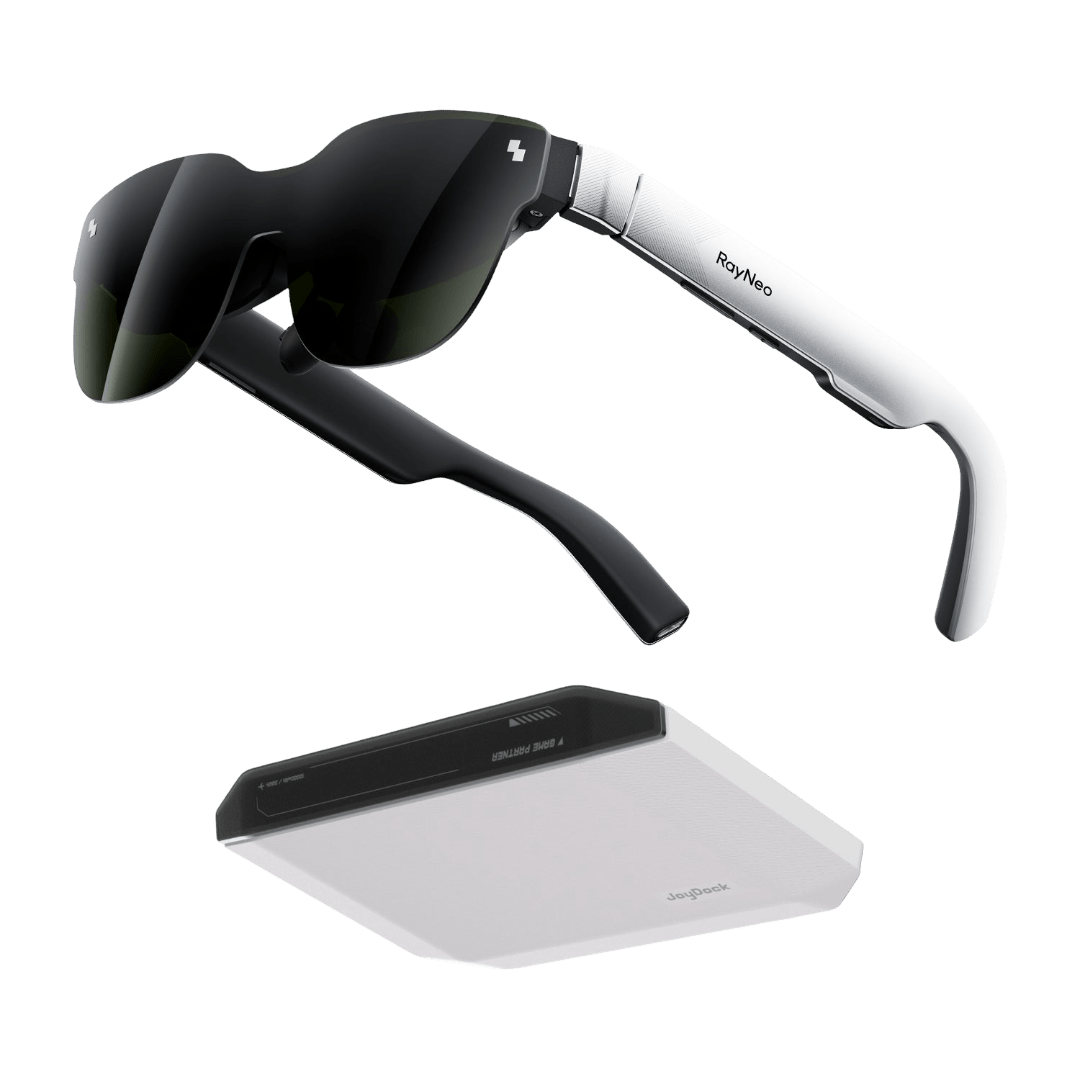
A spatial video in a phone's photo library and a side-by-side 3D film on a laptop's drive are both 3D content, yet they take different paths before they appear on a pair of display glasses. On a phone, the 3D work happens in an app; on a laptop, a video player sends the side-by-side picture to the glasses, and the glasses show each half to the matching eye. RayNeo GT Max and RayNeo GT handle both ends: the RayNeo XR App plays SBS 3D video, converts 2D to 3D and opens iPhone spatial video on compatible phones, and the glasses' own 3D mode plays SBS files from a laptop.
RayNeo Air 4 Pro also supports native 3D and AI 2D-to-3D conversion through its companion app, the RayNeo Air Series App. For one pair set up for 3D on a phone and a laptop alike, GT Max is the pick, since it pairs the app's phone features with a built-in 3D mode for laptop files and a 59° view, and GT is the lighter option with the same 3D features.
Phones and laptops switch on 3D in different places
On a phone connected to GT Max or GT, 3D is handled inside the RayNeo XR App. The app is optional for ordinary viewing, since the glasses work as an external display without it, but installing it adds SBS 3D playback, AI 2D-to-3D, spatial photo and video viewing and media import.
On a laptop, the glasses do the 3D work themselves. The laptop plays an SBS file full screen, the picture travels to the glasses as a normal video signal, and turning on the glasses' 3D mode turns that side-by-side file into a 3D picture.
iPhone 15 and later with the RayNeo XR App
The RayNeo XR App runs on iPhone 15 series or later models with USB-C and iOS 17.2 or later, and iPhones whose USB-C port outputs DisplayPort video connect directly to GT Max and GT with the USB-C cable in the box. From there, three kinds of 3D are available.
SBS 3D video plays inside the app's XR Space. After tapping Enter XR Space and choosing a video from the library, the display-mode selector in the playback bar is set to SBS, and switching to full-screen playback shows the film in 3D on the glasses. The app supports more than one stereo layout, including side-by-side and top-bottom, and adds extra depth to the stereoscopic effect for videos played through XR Space.
AI 2D-to-3D adds depth to standard photos and videos. Photos convert automatically once opened in XR Space, and videos use the AI 3D button in the playback controls. For video, the feature runs on iPhone 15, iPhone 16 and iPhone 17 series models with USB-C DisplayPort output, and it accepts common file types such as .mp4, .mkv, .mov and .webm.
Spatial video is the third kind. Spatial videos and stereoscopic photos captured on a compatible iPhone 15, 16 or 17 series model already carry depth information, so they need no conversion. With the glasses connected and "Glasses connected" showing on the app's home screen, the Spatial Video or Stereoscopic Photo option in XR Space opens them straight onto the glasses.
Android phones with DisplayPort Alt Mode
On Android, the RayNeo XR App runs on Android 8.0 or later, on phones whose USB-C port supports DisplayPort Alt Mode. Those phones connect to GT Max and GT directly, and SBS 3D playback in XR Space works the same way as on iPhone: choose the video, pick SBS in the display-mode selector, and watch it full screen through the glasses.
AI 2D-to-3D for video is designed for recent Android flagships. It runs on phones released in 2022 or later that use a Snapdragon 8 Gen 2, Snapdragon 8 Gen 3, Snapdragon 8 Elite, Snapdragon 8 Elite Gen 5 or a newer supported Snapdragon flagship processor, with the glasses connected directly over USB-C.
Those processor requirements belong to AI 2D-to-3D video. SBS 3D playback of files that are already in 3D runs on the app's base requirements above, Android 8.0 or later and a USB-C port with DisplayPort Alt Mode, so a wider range of Android phones can play an existing 3D library.
Laptops: an SBS file and the glasses' own 3D mode
A laptop needs no RayNeo software to show 3D on GT Max or GT. A MacBook from 2015 or later with USB-C, or any Windows laptop whose USB-C port carries video, plugs straight into the glasses with the included cable, and laptops with HDMI output connect through the RayNeo HDMI Adapter, sold separately.
The sequence is short:
- Connect the laptop and confirm the glasses show its screen.
- Open the SBS 3D file in a video player and switch it to full screen, so both halves of the frame fill the screen.
- Switch the glasses into 3D, either through the menu that the Menu Button opens or by pressing the Volume and Spatial Mode Buttons at once.
When the laptop treats the glasses as a second screen rather than a copy of its own, the video player window needs to be on the glasses' screen before it goes full screen, so that the full frame lands on the glasses.
The source file is what makes this work. The glasses' own 3D mode is built for videos already encoded in SBS 3D format, so the laptop's library of 3D films, 3D trailers and stereo camera footage is the content that fits this route.
For films that should also travel on the phone, the RayNeo XR App can import media from a Mac or PC, as well as through AirDrop and cloud storage. For more on how 3D and spatial formats differ, the guide to glasses for 3D and spatial video covers them in depth.
Where each part of a 3D library plays best
Most 3D libraries mix several kinds of content, and each one has a natural home.
- iPhone spatial videos and stereoscopic photos stay on the phone and open in XR Space, since they were captured there and already contain depth.
- Ordinary 2D videos and photos that should gain depth go through AI 2D-to-3D on a compatible phone.
- SBS 3D films stored on a laptop can play straight from the laptop in the glasses' 3D mode, or be imported into the app for phone playback with its additional 3D layouts.
Sorting a library this way avoids converting files that are already 3D and keeps each type on the device that handles it best.
Air 4 Pro and the RayNeo Air Series App
Air 4 Pro supports native 3D and AI 2D-to-3D conversion, with side-by-side 3D and spatial video playback among its features. Its companion is the RayNeo Air Series App, which adds one-click 3D conversion, ultrawide display optimization and immersive 3D content on compatible platforms.
Like GT Max, Air 4 Pro works as a plain external display without the app, so the app is something to add when 3D is on the agenda.
Air 4 Pro suits viewers who want 3D through its companion app on a compatible device in a straightforward pair. GT Max suits viewers whose glasses will move between a phone and a laptop for 3D, since its built-in 3D mode plays SBS files from compatible video sources and the XR App adds the phone-side features, with a 59° field of view for both.
Phone-and-laptop 3D FAQ
Does one cable serve both the phone and the laptop?
The USB-C to USB-C cable that comes with GT Max and GT is DisplayPort compatible, so the same cable connects the glasses to a compatible phone and to a USB-C laptop with video output. Moving between them is a matter of unplugging from one device and plugging into the other. A laptop that outputs video over HDMI connects through the HDMI Adapter in between.
Where can the RayNeo XR App and the RayNeo Air Series App be downloaded?
The RayNeo XR App for GT Max and GT is available from Google Play and the App Store, and as a direct Android APK download for phones that install apps outside the store. The RayNeo Air Series App for Air 4 Pro is offered through the same three channels.
Do the glasses need pairing again when moving from phone to laptop?
GT Max and GT connect by cable, so there is nothing to pair. Moving the cable from the phone to the laptop simply starts a new session there, with the glasses showing the laptop's screen once it is connected.




A spatial video in a phone's photo library and a side-by-side 3D film on a laptop's drive are both 3D content, yet they take different paths before they appear on a pair of display glasses. On a phone, the 3D work happens in an app; on a laptop, a video player sends the side-by-side picture to the glasses, and the glasses show each half to the matching eye. RayNeo GT Max and RayNeo GT handle both ends: the RayNeo XR App plays SBS 3D video, converts 2D to 3D and opens iPhone spatial video on compatible phones, and the glasses' own 3D mode plays SBS files from a laptop.
RayNeo Air 4 Pro also supports native 3D and AI 2D-to-3D conversion through its companion app, the RayNeo Air Series App. For one pair set up for 3D on a phone and a laptop alike, GT Max is the pick, since it pairs the app's phone features with a built-in 3D mode for laptop files and a 59° view, and GT is the lighter option with the same 3D features.
Phones and laptops switch on 3D in different places
On a phone connected to GT Max or GT, 3D is handled inside the RayNeo XR App. The app is optional for ordinary viewing, since the glasses work as an external display without it, but installing it adds SBS 3D playback, AI 2D-to-3D, spatial photo and video viewing and media import.
On a laptop, the glasses do the 3D work themselves. The laptop plays an SBS file full screen, the picture travels to the glasses as a normal video signal, and turning on the glasses' 3D mode turns that side-by-side file into a 3D picture.
iPhone 15 and later with the RayNeo XR App
The RayNeo XR App runs on iPhone 15 series or later models with USB-C and iOS 17.2 or later, and iPhones whose USB-C port outputs DisplayPort video connect directly to GT Max and GT with the USB-C cable in the box. From there, three kinds of 3D are available.
SBS 3D video plays inside the app's XR Space. After tapping Enter XR Space and choosing a video from the library, the display-mode selector in the playback bar is set to SBS, and switching to full-screen playback shows the film in 3D on the glasses. The app supports more than one stereo layout, including side-by-side and top-bottom, and adds extra depth to the stereoscopic effect for videos played through XR Space.
AI 2D-to-3D adds depth to standard photos and videos. Photos convert automatically once opened in XR Space, and videos use the AI 3D button in the playback controls. For video, the feature runs on iPhone 15, iPhone 16 and iPhone 17 series models with USB-C DisplayPort output, and it accepts common file types such as .mp4, .mkv, .mov and .webm.
Spatial video is the third kind. Spatial videos and stereoscopic photos captured on a compatible iPhone 15, 16 or 17 series model already carry depth information, so they need no conversion. With the glasses connected and "Glasses connected" showing on the app's home screen, the Spatial Video or Stereoscopic Photo option in XR Space opens them straight onto the glasses.
Android phones with DisplayPort Alt Mode
On Android, the RayNeo XR App runs on Android 8.0 or later, on phones whose USB-C port supports DisplayPort Alt Mode. Those phones connect to GT Max and GT directly, and SBS 3D playback in XR Space works the same way as on iPhone: choose the video, pick SBS in the display-mode selector, and watch it full screen through the glasses.
AI 2D-to-3D for video is designed for recent Android flagships. It runs on phones released in 2022 or later that use a Snapdragon 8 Gen 2, Snapdragon 8 Gen 3, Snapdragon 8 Elite, Snapdragon 8 Elite Gen 5 or a newer supported Snapdragon flagship processor, with the glasses connected directly over USB-C.
Those processor requirements belong to AI 2D-to-3D video. SBS 3D playback of files that are already in 3D runs on the app's base requirements above, Android 8.0 or later and a USB-C port with DisplayPort Alt Mode, so a wider range of Android phones can play an existing 3D library.
Laptops: an SBS file and the glasses' own 3D mode
A laptop needs no RayNeo software to show 3D on GT Max or GT. A MacBook from 2015 or later with USB-C, or any Windows laptop whose USB-C port carries video, plugs straight into the glasses with the included cable, and laptops with HDMI output connect through the RayNeo HDMI Adapter, sold separately.
The sequence is short:
When the laptop treats the glasses as a second screen rather than a copy of its own, the video player window needs to be on the glasses' screen before it goes full screen, so that the full frame lands on the glasses.
The source file is what makes this work. The glasses' own 3D mode is built for videos already encoded in SBS 3D format, so the laptop's library of 3D films, 3D trailers and stereo camera footage is the content that fits this route.
For films that should also travel on the phone, the RayNeo XR App can import media from a Mac or PC, as well as through AirDrop and cloud storage. For more on how 3D and spatial formats differ, the guide to glasses for 3D and spatial video covers them in depth.
Where each part of a 3D library plays best
Most 3D libraries mix several kinds of content, and each one has a natural home.
Sorting a library this way avoids converting files that are already 3D and keeps each type on the device that handles it best.
Air 4 Pro and the RayNeo Air Series App
Air 4 Pro supports native 3D and AI 2D-to-3D conversion, with side-by-side 3D and spatial video playback among its features. Its companion is the RayNeo Air Series App, which adds one-click 3D conversion, ultrawide display optimization and immersive 3D content on compatible platforms.
Like GT Max, Air 4 Pro works as a plain external display without the app, so the app is something to add when 3D is on the agenda.
Air 4 Pro suits viewers who want 3D through its companion app on a compatible device in a straightforward pair. GT Max suits viewers whose glasses will move between a phone and a laptop for 3D, since its built-in 3D mode plays SBS files from compatible video sources and the XR App adds the phone-side features, with a 59° field of view for both.
Phone-and-laptop 3D FAQ
Does one cable serve both the phone and the laptop?
Where can the RayNeo XR App and the RayNeo Air Series App be downloaded?
Do the glasses need pairing again when moving from phone to laptop?
Share:
Leave a Comment
We'd love to hear your thoughts. Comments are reviewed before publication.