

$429.00

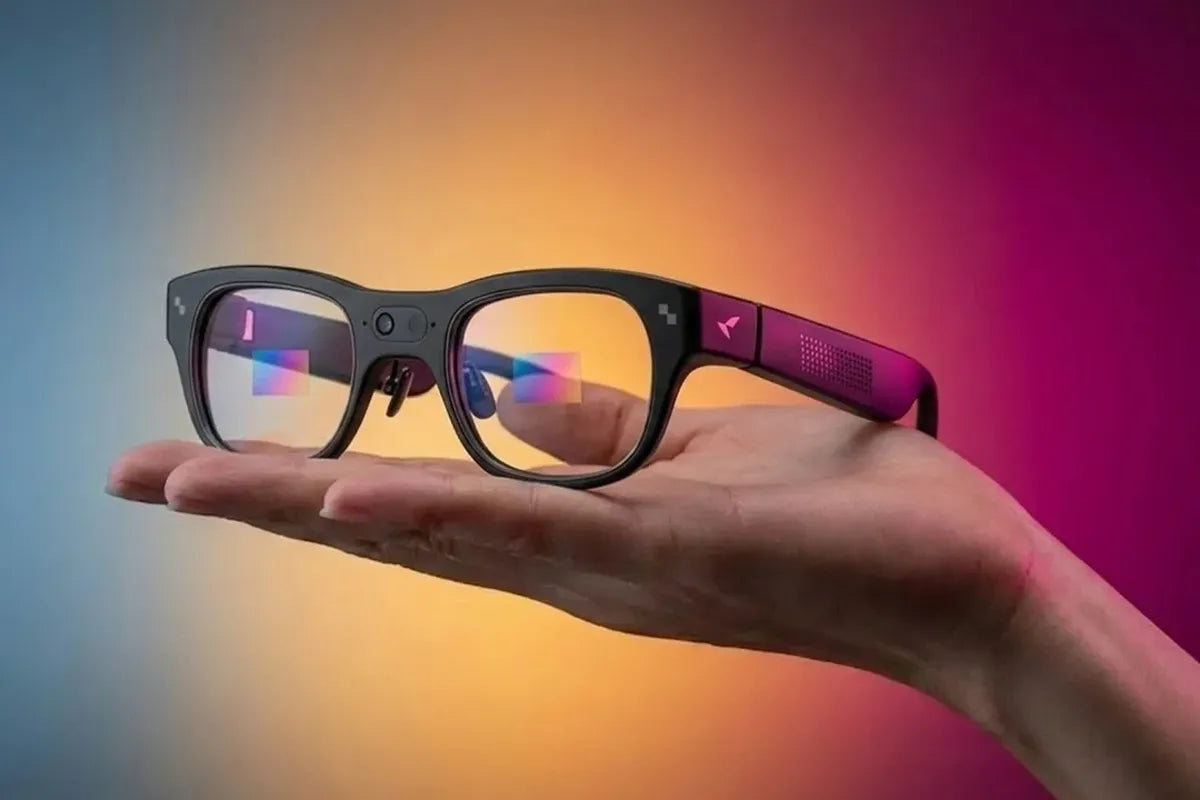
RayNeo’s AR glasses connect to a Windows laptop or desktop as an external screen, either directly over a single USB-C cable or through RayNeo’s HDMI Adapter. The current display models, GT, GT Max, and the Air series (Air 2s, Air 3s, Air 3s Pro, Air 4 Pro), use USB-C video output. (RayNeo’s product pages describe this as “USB-C video output” or “DisplayPort-compatible” rather than always using the term “DisplayPort Alt Mode”; functionally it corresponds to DisplayPort Alt Mode, the term used here for clarity.)
What decides whether your setup works without extra hardware is your Windows machine: whether its USB-C port carries a video signal, and how Windows is set to treat the glasses, as a mirrored copy of your main screen or a separate extended desktop. Both depend on your PC and Windows, not on which RayNeo model you buy.
Not every USB-C port does the same job. Many USB-C ports on Windows laptops handle charging and data only. Others also carry a video signal over the same cable using DisplayPort Alt Mode, which is what lets one USB-C cable supply picture and power to an external display.
Windows hardware varies port by port, and laptops from the same brand and year can differ depending on the chipset and port configuration. The same applies to Macs: check that the specific model has a USB-C port with DisplayPort video output rather than relying on the model year.
A few ways to check your own laptop before you buy anything:
| Model | Price (at time of writing) | Weight | Direct USB-C connection to a Windows PC | HDMI Adapter option |
|---|---|---|---|---|
| RayNeo GT | $299 (list $329; launch discount applied at checkout) | 68g | Yes, if the PC’s USB-C port supports DisplayPort video output | Yes, $64 |
| RayNeo GT Max | $399 (list $429; launch discount applied at checkout) | 78g | Yes, same requirement as GT | Yes, $64 |
| RayNeo Air 4 Pro | $299 | 76g | Yes; product page names Windows among supported platforms | Yes, $64 |
| RayNeo Air 3s Pro | $279* | 76g | Yes; product page names specific Windows laptop models (see below) | Yes, $64 |
| RayNeo Air 3s | $269 | 76g | Yes; product page names specific laptop brands (Dell, HP, Lenovo, alongside MacBook) and requires a USB-C port that supports DisplayPort output | Yes, $64 |
| RayNeo Air 2s | $159 | 76g | Same mechanism, but RayNeo’s compatibility list names MacBook, iPad, phones, and consoles without naming Windows PCs | Yes, $64 |
Prices reflect pricing at the time of writing; RayNeo adjusts promotions regularly, so confirm the current figure on the product page.
*The Air 3s Pro’s product page lists $279, marked down from $299. Check the final total at checkout, since promotions can change it.
Two RayNeo products don’t belong on this list. The RayNeo iO has a monochrome MicroLED display, but it pairs over Bluetooth for notifications, live captions, and AI features and doesn’t accept a video input, so it can’t serve as an external monitor. The RayNeo X3 Pro is a standalone smart-glasses platform that renders its own interface; it isn’t built to display a signal from a laptop.
The Air 3s Pro’s product page is the most specific about Windows laptops. The named list breaks down by manufacturer like this:
If your exact laptop isn’t on the list, that doesn’t mean it won’t work; the Thunderbolt/USB4 check and the plug-in test above are the faster way to confirm your model.
GT and GT Max don’t publish a comparably detailed list of Windows laptops. The connection mechanism is the same (DisplayPort Alt Mode over USB-C), so the same checks apply.
This is the simpler path. Plug the included USB-C cable into your laptop and into the glasses, and the display comes up with no app, driver, or adapter required. The glasses have no battery of their own and depend on the connected laptop for video and power over that one cable.
That has a practical consequence. RayNeo’s GT/GT Max FAQ notes that “the connected device powers the glasses and processes video, so slight warmth and increased battery consumption are normal.” Mirroring your laptop’s screen to the glasses for a few hours will draw down the laptop’s battery faster than running the laptop screen alone.
For any Windows device whose video output is HDMI rather than USB-C DisplayPort Alt Mode, RayNeo sells a dedicated HDMI Adapter ($64 at the time of writing). It merges an HDMI video signal with external USB-C power, producing a single USB-C connection the glasses can read. It’s the same accessory RayNeo uses for PS4, PS5, Xbox, and other HDMI sources.
This covers two common situations:
For a desktop or HDMI-only laptop, connect video through HDMI and a separate USB-C PD power source to the adapter. Follow the adapter’s included power instructions. The glasses have no battery, so an HDMI cable alone is not the complete setup.
If your desktop’s only video outputs are DisplayPort or VGA, RayNeo doesn’t document a direct path. You’d need a separate DisplayPort-to-HDMI or VGA-to-HDMI adapter first, the kind used for any HDMI-only monitor.
Whether the glasses show an exact copy of your laptop screen or act as a separate second display comes down to Windows display settings, not the glasses.
How a given laptop or adapter setup presents the glasses can vary by PC and graphics driver. If a separate extended desktop is the reason you want this setup, test it on your own hardware before committing to accessories.
Yes, in the sense that matters for office use: GT, GT Max, and the Air models are AR glasses with transparent optics, not VR headsets with opaque enclosed screens. Light from your desk, keyboard, and room keeps reaching your eyes, alongside the projected virtual screen rather than instead of it.
What RayNeo doesn’t publish is a figure for how much of your side and peripheral vision stays clear versus how much of your field of view the virtual screen occupies. None of the product pages for GT, GT Max, or the Air series list a light-transmission percentage or a peripheral-vision measurement.
RayNeo’s display models are Full HD for 2D output:
On GT Max, the virtual screen comes in three preset sizes, with 267 inches as the default:
That resolution is spread across a much larger apparent image than a 1080p signal on a 24-inch physical monitor. Text and spreadsheet cells can read at a comfortable size, though the pixel density won’t match a 1440p or 4K monitor on your desk. Dense, multi-column spreadsheets or fine print at a small zoom level may look softer on the glasses than on a sharp physical display.
The advantages over a separate physical screen are weight and privacy. By weight:
The glasses are portable, although you should check the dimensions of your chosen case rather than assume they fit any pocket. The image faces the wearer instead of appearing on an outward-facing monitor, which makes casual viewing by someone nearby less straightforward. This is not a guarantee of confidentiality: protect sensitive work with appropriate device security and situational awareness.
The trade-off is that a single-wearer display can’t be shared with a colleague glancing over your shoulder.

RayNeo GT Max and RayNeo GT are built around a large virtual screen with three preset sizes (up to 307 inches on GT Max and 231 inches on GT), 120Hz 2D refresh, and three spatial viewing modes (Steady, Pinned, and Follow) that control how the image responds to head rotation. GT Max comes in three IPD sizes (S/M/L) selected at purchase to match different eye spacing, which may matter over a long work session. For a Windows user who wants one pair for screen mirroring and evening video or gaming, GT and GT Max are the models built around those uses.
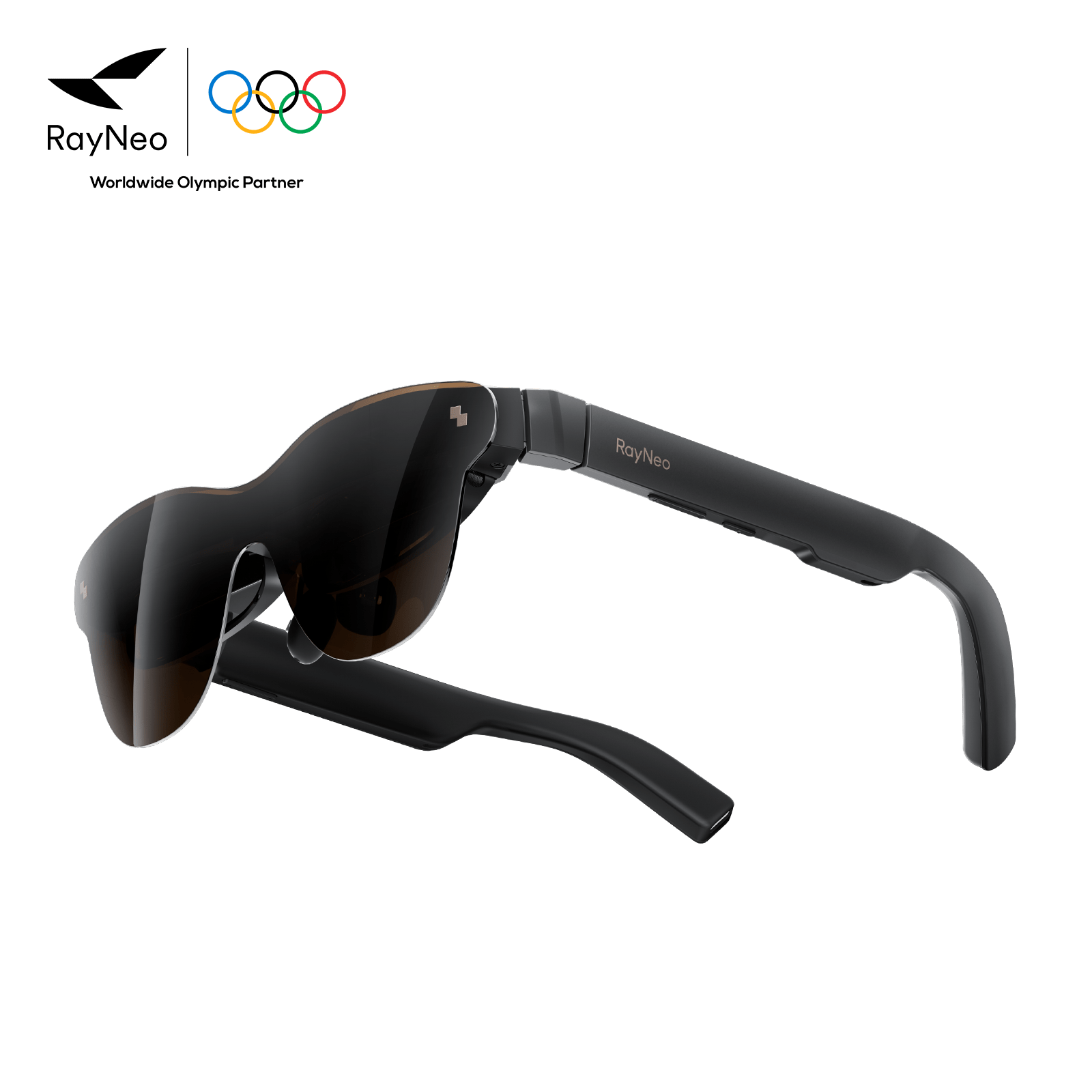
The RayNeo Air 3s Pro (see the pricing note above) is the budget-conscious alternative, and it’s the one model with a named list of Windows laptops to check your hardware against. It’s rated at 1,200 nits. The RayNeo Air 4 Pro is worth a look if HDR10 movie playback matters as much as the workday display.
Do I need to install any software or driver on Windows for RayNeo glasses to work as a display? No RayNeo app or driver is needed for the display function. The glasses connect as an external display over the USB-C video signal (or through the HDMI Adapter), and Windows’ display settings control mirroring versus extending.
Can I run two external RayNeo displays off one Windows laptop at once? RayNeo doesn’t publish guidance for a two-glasses setup, and none of its current models are documented for that configuration. The setup covered here is one glasses display alongside the laptop’s own screen.
Will my Windows laptop recognize the glasses the first time I plug them in, or do I need to restart? RayNeo doesn’t publish a specific answer. Windows normally detects a newly connected display within a few seconds. If it doesn’t appear, try the Win+P menu or Settings > System > Display > Detect, and restart if needed.
Does using RayNeo glasses as an external display drain my Windows laptop’s battery faster? It can. GT, GT Max, and the Air series have no battery of their own and draw power through the same cable carrying the video signal, so your laptop supplies both. A monitor with its own power supply doesn’t draw power from the laptop that way, so the effect depends on what you compare against; compared with using only the laptop screen, expect more battery use over a few hours.
For a Windows laptop with a USB-C port that supports video output (a Thunderbolt 3/4 or USB4 port, or one that explicitly lists DisplayPort support), any current RayNeo display model plugs in with the cable already in the box. For a desktop tower or an older laptop limited to HDMI, RayNeo’s HDMI Adapter closes that gap. Mirroring versus extending is a Windows setting; press Win+P to switch.





Share:
RayNeo Wired vs. Wireless Glasses: What the Cable Actually Means
RayNeo Air 3s Pro Display Resolution Explained: 1920x1080 (2D) and 3840x1080 (3D)