

$429.00

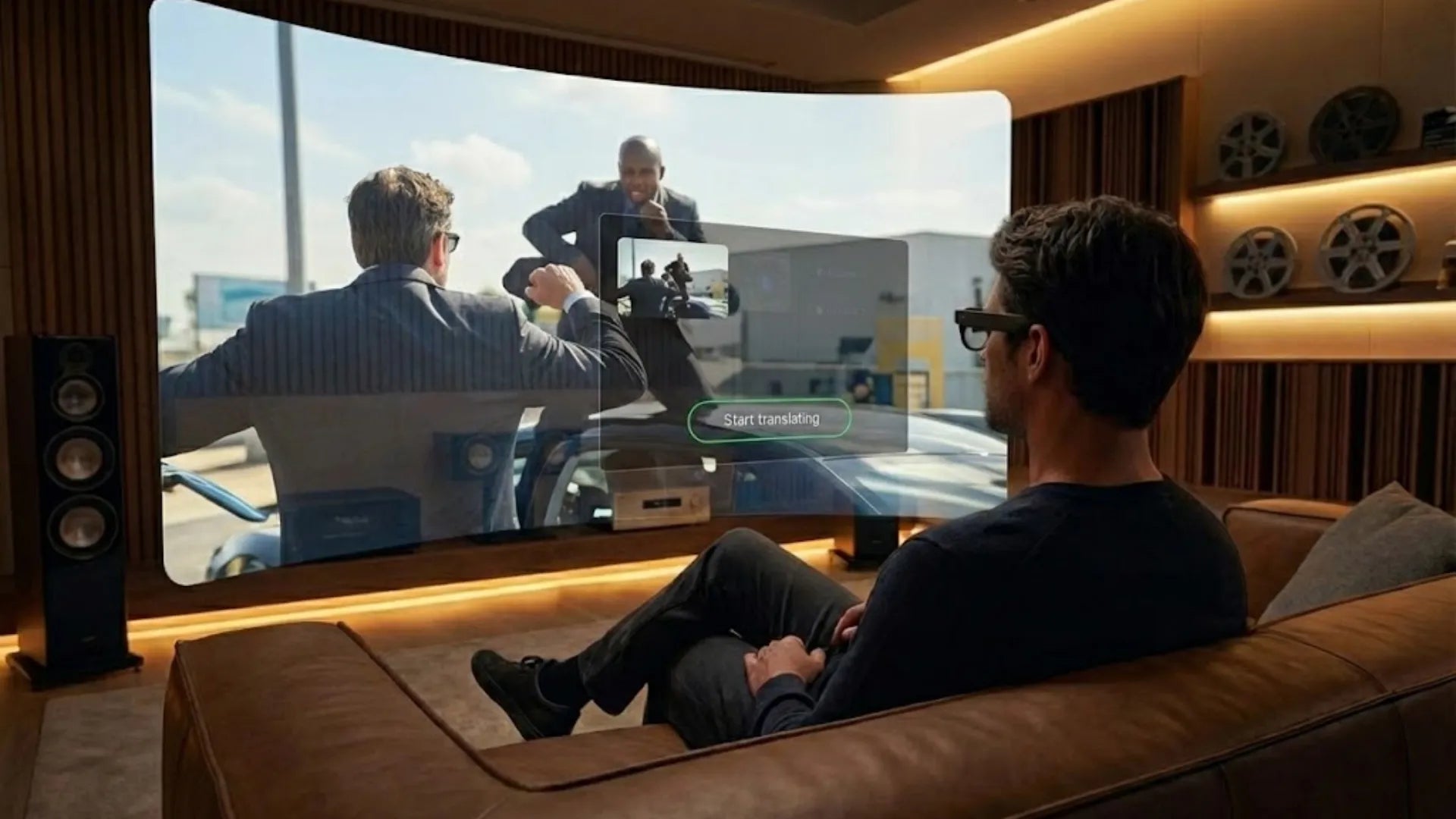
A 4K TV looks incredibly sharp when placed ten feet away in your living room. However, if you place that same panel less than an inch from your eyes, you might see a shocking grid of pixels. The display logic of AR glasses differs entirely from everything you know. In this space, resolution is a whole new science. This article will deeply analyze the true meaning of resolution in AR glasses and gaming displays. We will help you understand the core logic behind the specs that actually affects visual quality.
At its core, display resolution is the number of individual pixels that make up an image in both horizontal and vertical directions. For example, 1920×1080 means there are 1920 columns of pixels horizontally and 1080 rows vertically. In our lab, we compared 640×480, 1080p, and 4K virtual screens. Even with the same Field of View (FOV), increasing the resolution significantly improves text sharpness, reduces jagged edges, and enhances detail recovery and the visual limit when zooming in.
In AR glasses and gaming display scenarios, you cannot look at resolution as a single value. You must combine it with FOV, virtual screen size, and viewing distance to form a comprehensive metric called Pixels Per Degree (PPD). With the same resolution, the perceived clarity changes completely based on different FOVs and viewing distances. PPD is the core metric we prioritize. We consider 30 PPD the threshold for being just able to read documents and system UI. Most users in review videos only report that their eyes do not feel tired after long sessions when the display hits 40 PPD or higher. This explains why different devices can offer vastly different experiences even if they both use 1080p resolution.
On AR glasses, resolution is not just about pursuing the highest numbers. Instead, it is about finding a balance between a lightweight body, optical module brightness, contrast, and power consumption.
For AR HUDs and information overlays, resolution directly determines whether virtual elements feel out of focus or have blurry edges against the real world. When we were tuning binocular MicroLED displays at the 640×480 level, we designed UI controls with thicker lines and larger icons. This prevents thin lines from being swallowed by the real-world background during see-through overlay.
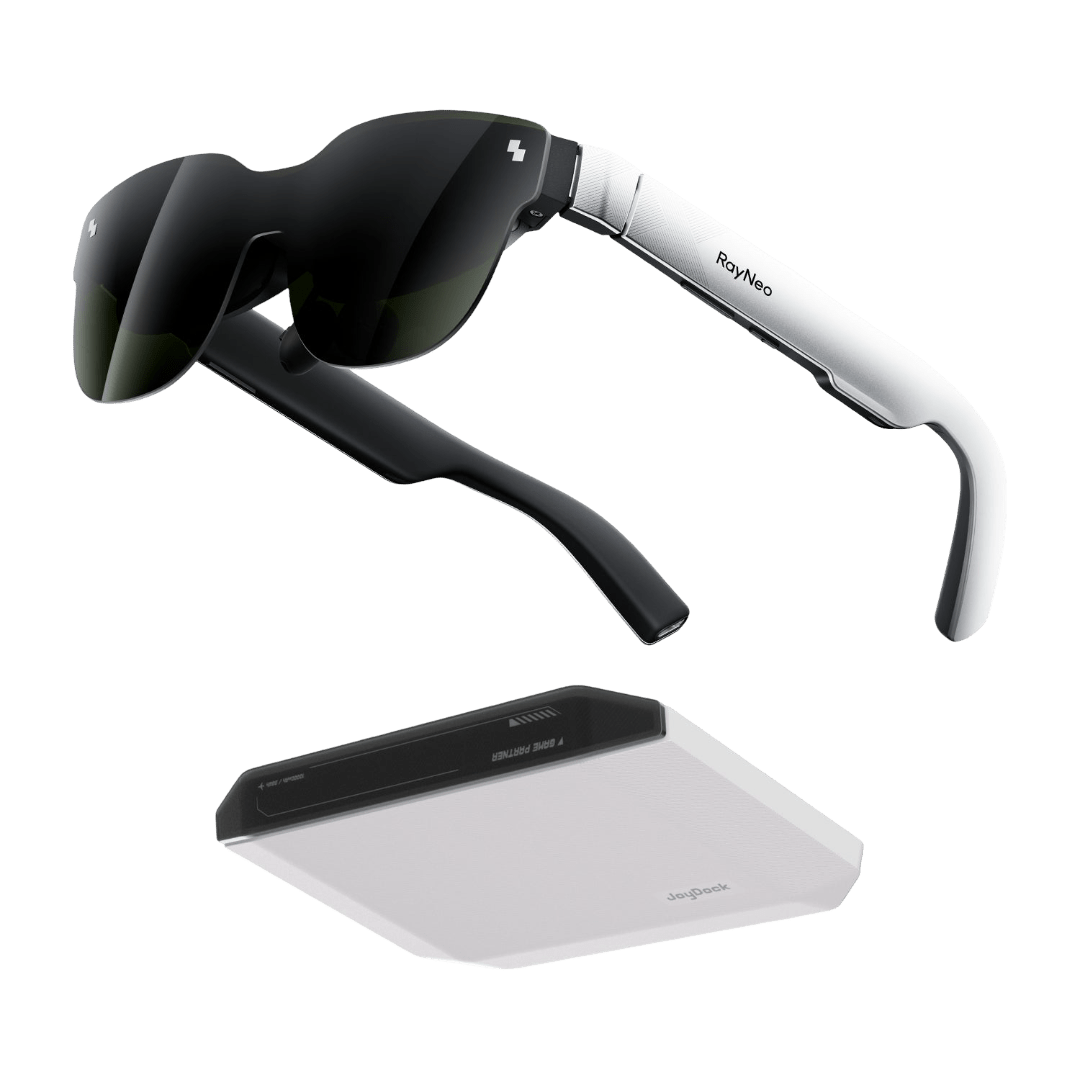
When resolution increases to the 1920×1080 per eye level, combined with a field of view over 40 degrees and high-contrast OLED panels, HUD sharpness can closely approach that of traditional monitors. For example, by using 1080p per eye resolution and a high-contrast HDR10 panel, the RayNeo Air 4 Pro preserves the true visual potential of what-are-smart-glasses-with-display by keeping thin-line UI legible even on a virtual screen over 100 inches. In video reviews, users often mention that it feels like watching a floating TV.
We also conducted comparisons in high-light environments. When HUD elements use a line width of 2 to 3 pixels, they remains visible under a 6000-nit light engine outdoors at 640×480 resolution. However, if reduced to 1 pixel, flickering and broken lines appear. This result led us to set a minimum text height and line width in our HUD design standards, using software design to compensate for physical hardware limits.
Poor text readability leads to blurry subtitles, unclear system notifications, and small-font menus that require leaning in to see. While testing subtitles and code editing scenarios, we found that when PPD drops below 25, English font details begin to merge. The gaps between letters almost disappear for users with weaker vision. This makes scenarios like remote collaboration, translated subtitles, and IDE coding very difficult.
On high-resolution OLED glasses, we expanded a 1080p per eye virtual screen to 120 inches and had several engineers work for 2 hours editing code in terminals and IDEs. Subjective feedback regarding sharp character edges and clear line spacing was significantly higher than on low-PPD devices. Taking the RayNeo Air 4 Pro as an example, the 1920×1080 per eye resolution combined with a 47-degree FOV can stably display over 24 lines of monospaced code on a 135-inch equivalent virtual screen at 4 meters. It maintains the ability to distinguish similar characters, such as l and 1 or O and 0.
When wearing AR glasses for work or entertainment over long periods, eye fatigue comes from several overlapping factors. Resolution is often the most overlooked part. Low resolution causes users to instinctively search for more detail. The eyes unconsciously fine-tune and stare at the virtual image, leading to persistent tension in the eye muscles over time. This discomfort compounds with fatigue caused by low refresh rates or uneven brightness. High resolution significantly reduces the need to squint or move closer to the screen.
For gaming display equipment, resolution forms a triangular balance with refresh rate, graphics performance, and latency. During our tuning of high-end PC monitors and AR projection screens, we often need to choose between 1080p, 1440p, or 4K output based on target frame rates and rendering loads. This is especially true between fast-paced FPS and open-world games, where players have completely different preferences for clarity versus smoothness.
Higher resolution brings texture details, distant architecture, and character features closer to real-world visual experiences. While testing open-world RPGs, we noticed a qualitative change in distant city window frames, road textures, and vegetation density when switching the same scene from 1080p to 4K. This directly boosts immersion. Especially when projecting massive virtual screens via AR, high resolution makes it easier for players to forget they are looking at a screen.
When resolution is insufficient, issues like blurriness, an oil-painting effect, or distant objects looking like smeared blocks of color appear. In fast-paced shooters, the speed of identifying enemy outlines at medium to long distances drops significantly. In our internal match experiments, we found that long-distance kill rates for some players decreased slightly when switching from 1440p to 1080p, particularly on large maps. While reducing anti-aliasing or increasing sharpening can compensate for some of this, it remains fundamentally limited by physical resolution.
High-resolution visuals exponentially increase demands on the GPU and graphics pipeline. This is a shared challenge for both AR glasses and traditional monitors. 4K resolution has four times the pixels of 1080p, vastly increasing rendering complexity. For AAA games released after 2024, maintaining a stable 120 frames per second at 4K high settings is extremely difficult.
In esports and high-response gaming, players often prefer to sacrifice resolution for a higher refresh rate. This trend is particularly obvious in our user interviews and competitive gaming communities. The perceived difference between 120Hz and 60Hz is far greater than the static clarity difference between 1080p and 1440p. In AR virtual large-screen mode, high frame rates better suppress motion blur and ghosting during fast movement.
During our testing of the RayNeo Air 4 Pro, we found that the 1080p 120Hz mode provides a very stable experience for console and PC gaming. Players in shooting and racing games generally reported that their vision could keep up with their controls. Conversely, on glasses like the RayNeo X3 Pro, which focus more on daily information overlays, the 640×480 and 60Hz combination is optimized for HUDs, notifications, and navigation. It does not chase extreme gaming performance. This represents the fundamental difference in product positioning regarding the balance of resolution and refresh rate.

True gaming display devices prioritize a high enough refresh rate and stable frame counts, then gradually increase resolution as performance allows.
Choosing the right resolution depends on usage scenarios, hardware performance, and your vision. Do not just chase high numbers on a spec sheet. Long-term comfort is usually more important than absolute clarity. The best strategy is to define your main purpose first. Then you can decide on the right resolution tier.
For AR glasses focused on HUD, navigation, real-time translation, and daily reminders, a resolution around 640x480 is enough for most information display tasks when paired with a high-brightness light engine and good UI. For instance, the RayNeo X3 Pro uses a binocular 640x480 MicroLED display. With a 30-degree field of view and peak brightness of 6000 nits, notification cards and subtitles remain readable even on bright streets at midday. These devices are ideal for those who want lightweight wear and all-day visibility.
If you want to use AR glasses for long document sessions, remote desktop access, coding, or immersive movies, then 1080p per eye is a better starting point. The RayNeo Air 4 Pro provides 1920x1080 per eye with a 47-degree field of view. This is equivalent to a virtual screen of over 201 inches. It offers text clarity similar to a traditional monitor at standard working distances. For users who need a mobile monitor in a cafe or on a plane, this resolution is far more useful than a standard HUD device.
Choosing a gaming monitor resolution depends on GPU performance and game type. Based on current hardware, we suggest that 1080p at 144Hz or higher is the best value for high-frame-rate FPS and competitive games. Many pro players lower their resolution to get a steady 240 fps.
For cinematic titles, racing, and open-world games, 1440p is the sweet spot. It balances detail and performance. 4K is for high-end players and next-gen consoles. It needs strong GPU power, or you will have to lower settings for frame rate. If you use AR glasses in virtual screen mode, match your input resolution to the native panel resolution to avoid scaling loss.
Resolution choice must fit the optical and computing power of the device. The RayNeo X3 Pro has a 640x480 resolution with a MicroLED engine and 60Hz adaptive refresh. It works best as an info overlay companion. It does not encourage long sessions of high-action gaming. In contrast, the RayNeo Air 4 Pro offers 1080p per eye and 120Hz. With HDR10 and high contrast, it is an ideal portable big screen for movies and gaming via consoles or handhelds.
On PC and consoles, pick a primary resolution based on your target refresh rate and GPU. Avoid switching it often. Moving between 4K and 1080p frequently changes UI size, mouse sensitivity, and rendering logic. This ruins the consistency of your experience.
Once you own high-resolution AR glasses or a gaming monitor, the key to unlocking their full potential is fine-tuning. Many people possess excellent hardware but have an experience that falls short of expectations. The main issues usually stem from system settings, application compatibility, and firmware versions.
On AR glasses, comfort takes priority over absolute clarity. We suggest users follow this specific order for fine-tuning during their first use:
Adjust Virtual Screen Size: Ensure the primary content sits within the central two-thirds of your field of view. This prevents your eyes from constantly scanning the edges.
Calibrate IPD and Focal Planes: Correcting these reduces ghosting and slight dizziness caused by inconsistent focus between your left and right eyes.
Adjust Scaling and UI Density: In system settings or companion apps, set text scaling so that primary words are large enough to read easily without squinting. Even if this reduces information density, it is more efficient for long-term use.
For gaming monitors, we recommend creating fixed configuration presets based on game genres. Use 1080p with low-latency mode for competitive games, and higher resolution with quality presets for story-driven titles. Use GPU drivers or consoles to toggle these settings with one click. This is especially vital when connecting handhelds like the Steam Deck to AR glasses. The hassle of re-adjusting resolution every time you plug in the glasses can be solved through preset profiles.

The evolution of firmware and system software has a growing impact on the resolution experience. In several OTA updates, we added new scaling algorithms, smarter sharpness enhancement, and HDR mapping strategies. Users often notice that the same resolution looks more detailed after an update. For the RayNeo X3 Pro, a firmware update added clarity optimizations for subtitles and small UI fonts. This improved the sharpness of character edges without changing the physical resolution.
The image processing chip in the RayNeo Air 4 Pro allows for continuous optimization of HDR10 mapping and SDR-to-HDR algorithms via software. This makes 1080p input sources look visually closer to a higher resolution tier. For gaming monitors, GPU drivers and monitor firmware frequently introduce new scaling modes and anti-tearing technologies. Enabling these options reduces the blurriness of fake high resolution and makes lower resolutions look more natural on high-spec screens.
How well an app or game adapts to high-resolution devices directly affects the final experience. Our internal reviews show that many desktop applications use crude scaling algorithms in high-DPI mode. This stretches icons and fonts into blurry shapes, which turns into a noticeable oil-painting effect on a massive AR virtual screen. Choosing apps that natively support high DPI and resolution awareness ensures consistent clarity and layout across different resolutions.
In mobile and handheld gaming, selecting versions that support native 1080p output or higher is critical. Some ported games simply stretch a 720p render to 1080p, which immediately exposes jagged edges and blurriness on an AR screen. You should prioritize versions labeled with native resolution support. Additionally, turn off multiple scaling chains on the device side to avoid the phone scaling the image once before outputting it to the glasses.
|
Dimension |
Low-Resolution AR Glasses (e.g., 640x480) |
High-Resolution AR Glasses (e.g., 1920x1080 per eye) |
Gaming Display (1080p) |
Gaming Display (4K) |
|
HUD Clarity |
Icons require larger designs; small text tends to blur |
Thin-line UI is readable; similar to traditional monitors |
Clear system UI; suitable for most players |
Extremely clear UI; ideal for close-range desktop use |
|
Text Reading |
Good for brief notifications and subtitles; long documents are difficult |
Supports document editing and coding |
Suitable for both work and gaming |
Best detail; high GPU requirements |
|
Refresh Rate |
Mostly 60Hz |
Up to 120Hz |
Mainstream 120Hz to 240Hz |
High refresh rates require high-end GPU support |
|
Battery and Power Consumption |
More energy-efficient; suitable for all-day wear |
Higher power consumption; requires optimized modes |
Depends on graphics card and brightness |
Stricter requirements for power and cooling |
|
Immersion |
Strong information overlay feel; limited depth |
Strong immersion for movies and gaming |
Suitable for competitive and console gaming |
Best image quality; highest performance demands |
The generational gap in display technology is quietly widening the experience divide between gamers. While others are already enjoying seamless immersion on Micro OLED screens with 49 PPD, you might still be struggling with eye strain and blurry visuals. This is not about being picky. This is about the experience you deserve. Now that you know which specs to look for, only one thing remains: choosing the right pair of glasses.






Share:
Glasses and Camera: Best Smart Glasses for Filming and Hands-Free Photos
A Full Guide to AR Smart Glasses for Beginners