
Table of Contents
You spend a lot of money on a pair of smart glasses. You open the box with high hopes. Then the frustration begins. Bluetooth cannot find the device. The app fails to connect. The indicator light blinks, but you have no idea what it means. You struggle for half an hour without using a single feature. It is just a normal pair of glasses sitting on your face. This is not your fault. It is a problem with the process.
To fix this, we will use plain language in this article to explain how to connect your smart glasses to your phone stably. We will provide actionable steps and advanced tips based on real user pain points. This will help you get the most out of your device for commuting, working, or gaming.
Preparation: What You Need Before Connecting
Before you start the connection, we highly recommend getting the prep work right the first time. This step often decides if your experience is smooth or laggy. In many support cases, we see that over half of connection issues come from three basic things. These are compatibility, charging, and app versions.
Check Device Compatibility
In our long term user research, compatibility issues are the easiest hidden pitfalls to miss. System version and protocol differences get magnified when you combine different phone brands with different generations of smart glasses. We suggest checking a few key points before unboxing to avoid trouble. First, check your phone OS version. Companion apps for mainstream AI smart glasses and AR glasses usually require Android 10 or iOS 15 and above. Below this version, the Bluetooth protocol stack and permission settings might cause unstable connections or prevent app installation. Second, check Bluetooth specs. Most current AI smart glasses use Bluetooth 5.2 or 5.3. Older devices that only support 4.2 might be technically compatible, but they often suffer from interference and latency.

For AR display glasses that output video via USB-C, you must check if your phone supports DisplayPort over USB C or MHL. We see feedback in Reddit and YouTube reviews where users assume any Type C port will show an image. They plug it in and it only charges without any display output. A simple way to check is to look for DP Alt Mode or DisplayPort output in your phone spec sheet. Note that some brands remove this feature on entry level models and only keep it for their flagship series. If you use an iPhone, wired display output usually needs an extra official or MFi certified adapter. You might need a USB C to HDMI adapter connected to a wireless receiver. Make sure your entire setup is compatible before buying smart glasses.
Charge Your Devices Fully
Battery level has a highly underestimated impact on connection success and stability. This is especially true for AI smart glasses that rely on Bluetooth, Wi Fi, and local computing all at once. Many users report constant Bluetooth pairing failures, sudden black screens, or massive drops in video quality. Background logs often show the root cause is the phone or glasses automatically limiting performance in low battery mode. They might even shut down wireless modules. For high performance glasses with active cooling or multiple speakers, the system will lower brightness or refresh rates when the battery drops. Users just see a blurry image or worse ghosting.
Therefore, we recommend charging both devices to at least 60 percent before the first connection and before any long session. Also, turn off battery saver or ultra power saving modes in your phone settings. If your glasses and battery case support fast charging, filling them up via cable beforehand greatly reduces the chance of disconnecting later. Our support data shows that simply keeping the phone and glasses properly powered cuts Bluetooth and Wi Fi connection issues by over a third. This is far more effective than most troubleshooting tricks.
Download The Required Companion App
Almost all AI smart glasses and AR smart glasses need their companion app to work properly. You need the app for initial setup, firmware updates, and feature management to unlock their full potential. Some users try pairing only through the system Bluetooth menu. They end up using the glasses just as regular audio devices. They miss core features like the AR UI, spatial markers, and the AI assistant. This is a very common issue in community feedback. Our advice is to download the latest companion app right away from official channels. Use Google Play, the App Store, or official brand website links. Do not download modified or old versions from third-party app stores.
Pay close attention to how companion apps request permissions on different operating systems. Take Android for example. If you want the glasses to show real time AR navigation, you must grant precise location permissions. You also need to allow the app to run in the background. This stops the system from killing the app when your screen turns off or you switch to another app. On iOS, notification permissions control whether calls and messages mirror reliably to your glasses. If you decline the first pop up, your phone will ring but your glasses will stay silent. You will have to go into settings to fix this manually. In our product updates, we try to guide users step by step to turn on key permissions and save them from future headaches.
For RayNeo X3 Pro, the RayNeo AR APP is the main setup hub for first-time use, firmware updates, and feature activation. After pairing the glasses, open the RayNeo APP to finish AIOS setup, adjust permissions, and enable features such as real-time translation, navigation, and smart assistant tools. This keeps the glasses synced with your phone and helps the system deliver a smoother everyday experience.
Method 1: Connecting Wireless AI Smart Glasses
Wireless AI smart glasses have independent chips, cameras, and an AR operating system. The relationship with your phone is more like a deep partnership between two separate terminals. It is not just an external screen for your phone. We focus on identity binding, encrypted data channels, and multi-device switching. These steps happen within the first few minutes of connection.
Activate Pairing Mode On Glasses
In our tests, users struggle most with the first step. The root cause is failing to enter full pairing mode. Many users only turn on the power. To prevent accidental touches and protect privacy, pairing is often hidden in a sequence. For example, holding the button for three seconds might turn the power on, while holding it for seven seconds enters pairing mode. You should see a pairing prompt on the HUD or an indicator light that pulses like a breath. This means the device is now discoverable.
We added voice and touch prompts to our new products to reduce mistakes. When you enter pairing mode, the speakers play a simple tone. A countdown also appears on the HUD. This helps users who are not familiar with LED patterns. If your phone does not see the device, try turning it off completely. Then, long press to enter pairing mode again. This avoids getting stuck in a partial power-on state.
Connect Through Bluetooth On Your Phone
Connecting via the phone is straightforward, but small details impact the experience. Follow this order. First, search for new devices in your system Bluetooth list. Select the glasses to complete the initial pairing and encryption. This allows the system to see the glasses as a composite device. It includes audio output, input capabilities, and wearable markers. This provides the foundation for the companion app to take over.
We found an issue on some custom Android systems. If users skip the system Bluetooth menu and search only inside the companion app, the connection often fails. The app lacks the system-level authorization to bind the device. We suggest a two-layer pairing method. Pair in the system settings first, then move to the app for feature pairing. This method ensures a higher reconnection rate after power cycles or moving to new locations.
Complete Setup In The Companion App
The setup process in the companion app decides the quality of your experience. Most users rush through this part. We suggest following the full guide. This includes firmware updates, voice engine downloads, spatial calibration, and notification settings. AI smart glasses often download hundreds of megabytes of voice models and local data during the first connection. If you stop this process, the voice assistant will suffer from lag or errors.
One small setting can greatly improve your experience. You should limit notifications to specific apps. Allow calendar, messaging, and navigation alerts to show up on the glasses. Block game popups and marketing ads. This ensures you get important info during commutes or meetings without being overwhelmed. Our latest app version allows you to set vibration and popup rules for each app. This helps you maintain a better pace in daily life.
Method 2: Connecting AR Display Glasses Via USB-C
For AR display glasses, the phone acts as the video source and controller. The glasses render content with high PPI and brightness. This setup is perfect for movies, cloud gaming, and mobile work. Wired connections are usually more stable than wireless ones if your cables are high quality.
|
Connectivity Aspect |
Recommended Specification |
|
Cable Standard |
USB 3.1 Gen 1 or higher |
|
Protocol Support |
DisplayPort Alt Mode (DP Alt Mode) |
|
Cable Length |
1.0 to 1.5 meters |
|
Connection Order |
Plug in while glasses are powered off |
Make A Direct USB-C Wired Connection
Over half of black-screen issues are caused by the wrong cable, not faulty glasses. Many USB-C cables only support USB 2.0 charging and slow data. These cables cannot carry the DisplayPort signal. This makes users think their device is broken. Use the original cable or a third-party cable labeled for DP Alt Mode or USB 3.1 Gen 1. Keep the length under 1.5 meters to balance signal quality with comfort.
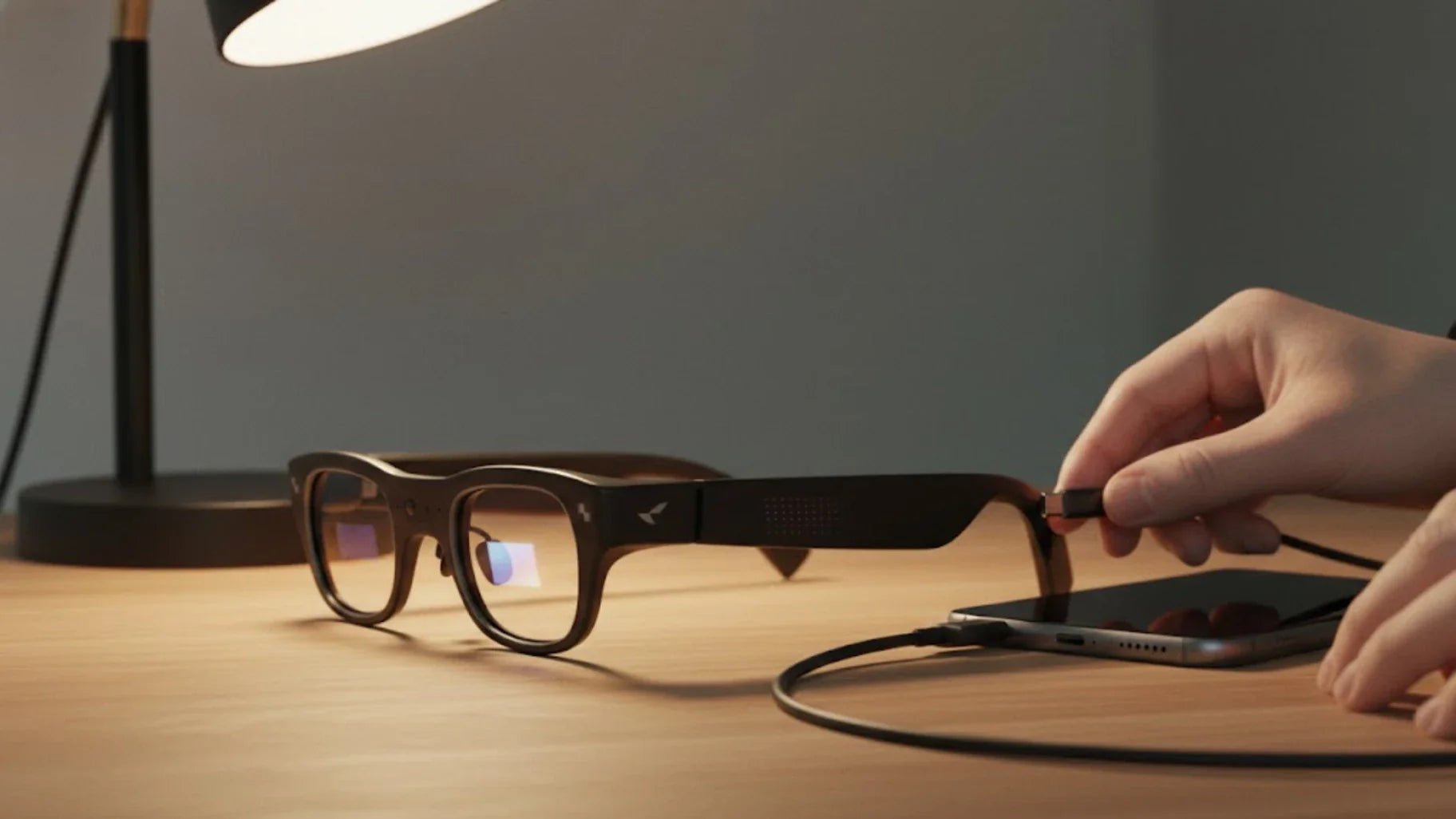
For the best results, turn the glasses off first. Connect the cable to the phone and glasses and ensure a tight fit. Then, turn the glasses on. This reduces handshake failures on Android phones with slow drivers. If your phone supports desktop or screen mirror modes, a popup should appear in five to ten seconds.

Choose Between Mirroring And AR Mode
Once your phone detects the glasses, you will see different display options. Screen mirroring is the most common. It shows exactly what is on your phone screen. It has the best compatibility for video apps and remote desktops. However, it does not use the spatial sensors or multi-window features of the glasses. Extended AR mode creates a separate virtual space. Some brands let you place multiple windows in your view for a multi-screen office setup.
Frequent users often use mirroring for movies during commutes. When they get to an office, they plug in a foldable keyboard and switch to AR mode. They use the main virtual screen for code and docs while keeping chat apps on a side panel. This setup improves productivity in small spaces and reduces neck strain. We suggest starting with mirroring to get used to the clarity. Then, try the multi-window layout in AR mode.
For RayNeo Air 4 Pro AR Glasses, the connection is designed for a direct USB-C experience, and the RayNeo APP can be used to fine-tune viewing preferences where supported. Air 4 Pro focuses on the wired display experience, including HDR10 visuals, 120Hz playback, and low-blue-light eye protection, so users can switch between entertainment and productivity with minimal setup. In practice, it works best when the phone supports DisplayPort Alt Mode and the cable is fully compatible.
Grant Permissions And Calibrate Tracking
If your glasses support head tracking, you must grant permissions in the app or system settings. This affects long-term comfort. You will need to allow access to the gyroscope, camera, and pose data. If you ignore these popups, the image might float or cause motion sickness when you turn your head. Complete a full calibration in a quiet room. Hold your head still, then slowly turn left, right, and nod. This helps the system find your natural center.
If you change positions often, like moving from a desk to a recliner, recalibrate the tracking. It only takes a few seconds. It improves image stability and reading comfort. We optimized this process so you can trigger it with a simple gesture or voice command. You do not have to dig through menus.
Method 3: Connecting Via Wireless Adapters Or Hubs
Wireless adapters and hubs are great for switching between TVs, consoles, and phones. This is a good choice for devices that lack native USB-C video output. This setup is more complex than a direct cable, but it offers more flexibility.
Use A Compatible Wireless Casting Device
Users often misunderstand wireless protocol support. Some glasses only work with Miracast or proprietary protocols. Some adapters only support AirPlay or Chromecast. They will never connect. Before buying an adapter, check three things. Make sure it matches your phone protocol. Ensure the video-output port fits your glasses. Check if it works in encrypted networks like corporate Wi-Fi.
Do not stack too many adapters in the chain. For example, going from phone to wireless adapter, then to an HDMI box, and finally to the glasses adds lag. This can push latency over 120 milliseconds, making games and remote work feel sluggish. We recommend using a receiver that outputs directly to USB-C or HDMI. Use a short cable and secure the adapter to your seat or monitor to prevent signal drops.
Connect To The Same Wi-Fi Network
Most wireless casting needs the phone and adapter on the same network. This sounds simple, but it is a common point of failure. Many home routers provide 2.4 GHz and 5 GHz bands. If your phone is on 5 GHz and the adapter is on 2.4 GHz, the router might block them from seeing each other. Manually switching both to the same SSID usually fixes discovery problems immediately.
In corporate environments, IT teams often block device discovery for security. This stops wireless casting protocols from working. If you plan to use this at work, talk to your network admin first. You could also bring a small travel router. This creates an independent network for your phone and glasses. This ensures stability and stays within security rules.
How To Connect Smart Glasses To Different Operating Systems
Operating systems differ in how they handle Bluetooth, permissions, and multitasking. This directly impacts your smart glasses experience. We have summarized two sets of optimization tips for Android and iOS. This will help you configure your devices for a better connection.
Setup Guide For Android Users
Fragmentation is the biggest challenge in the Android ecosystem. It also offers the most room for customization. We suggest Android users follow this order for the first setup. First, update your system to the latest stable version. Check for any Bluetooth or Wi-Fi patches. Many makers fix connection issues in these small updates. Second, after installing the companion app, enable allow background activity and ignore battery optimization. This prevents the system from closing the glasses service to save power.
Permissions vary widely across different brands. Some users report that glasses fail to show call info. This often happens because the app is blocked from showing popups on the lock screen. Our recent app versions include a one tap check. It detects missing permissions and guides you to enable them. For flagship Android phones with desktop mode, you can use AR display glasses like an external monitor. You can place spreadsheets, code editors, and browsers on different virtual screens. This creates an experience similar to using a laptop with an external display.
Connection Tips for iPhone Users
The connection experience on iPhone is generally stable. However, the system has strict rules for background tasks and permissions. Smart glasses must follow these policies to work reliably. We suggest iPhone users ensure Bluetooth and local network access are always on in settings. These two settings allow the app to reconnect in the background. In notification settings, enable lock screen and banner alerts for the companion app. Without these, the system might block messages from reaching your glasses even if they are paired.
For AR display glasses, check the video output path. iOS handles DisplayPort and HDMI differently. You often need an official or MFi certified adapter to connect to the glasses. High quality adapters save time on troubleshooting. For long flights, use RayNeo Air 4 AR Glasses with HDR10 and 120Hz refresh rates. This improves clarity and dynamic range while reducing eye strain.
Troubleshooting Common Connection Issues
Even with a perfect setup, wireless environments and system updates can cause issues. We have identified three typical scenarios. Here are the steps to fix them in minutes.
How To Fix Device Not Found Errors
If your phone cannot find the glasses, first ensure they are in pairing mode. Do not just turn them on. Power the glasses off, wait 10 seconds, then hold the pairing button until the light flashes. Manually scan for new devices in the phone Bluetooth menu. If the glasses still do not appear, they might be connected to another device. This is common if you also own a tablet. Disconnect or forget the glasses on the other device and try again.
In areas with many Wi-Fi signals, some phones slow down Bluetooth scanning to save power. Try turning off Wi-Fi and using airplane mode with only Bluetooth on. This reduces interference and helps the system find the device. If the problem persists, clear your Bluetooth cache or reset your network settings. This is very effective for clearing old pairing conflicts.
How To Resolve Black Screen On Wired Connection
A black screen during a wired connection usually points to a cable or protocol issue. First, try using the original or a high spec USB C cable. If the glasses get power but no signal, the cable or phone might not support DP Alt Mode. You can test this by connecting your phone to a TV or monitor. If the TV also shows no signal, the issue is with the phone.
Sometimes the glasses are just in sleep mode or set to a very low brightness. Check for a faint image or icon in a dark room. Use the companion app to boost the brightness. If the glasses show their own menus but go black when connected to the phone, check for system updates. Some OS updates cause temporary issues with video output that require a manufacturer patch.
How To Stop App Crash On Launch
If the companion app crashes, you cannot maintain a connection. This often happens after a major OS update. Check the app store for a new version right away. If you just moved data to a new phone, reinstalling the app is better than clearing the cache. This ensures all permissions and files are fresh.
Privacy settings can also cause crashes. If you deny storage or location permissions, some older app versions might fail to handle the error. Try enabling all requested permissions in your system settings. We have improved error handling in our recent versions. However, if crashes continue, send a system log to tech support to identify the specific compatibility issue.
Conclusion
Based on the three connection methods covered in this article, it is clear that most issues are not hardware failures. They usually stem from poor preparation, missing permissions, or following the steps in the wrong order. These methods include Bluetooth pairing for wireless AI glasses, USB-C wired connections for AR display glasses, and flexible wireless adapter solutions. If you still have trouble during setup, our troubleshooting section provides specific fixes for the most common issues. These include device not found, wired black screen, and app crashes. There is no need to guess when you run into problems. Just follow the steps and you can often fix the issue in minutes.
FAQ
Can I connect my smart glasses to two phones at once?
Most consumer smart glasses only support one main device for full features at a time. This prevents conflicts with notifications and AI settings. Some models allow multipoint Bluetooth for audio, but the app only recognizes one primary controller. If you use two phones, use the device switch feature in the app instead of re-pairing. This is faster and preserves your settings.
Why does my phone get warm when connected to AR glasses?
It is normal for your phone to get warm. The CPU and GPU work hard to output high bitrate video and handle AI tasks. If your phone gets too hot during gaming or 4K playback, try lowering the brightness or resolution. You should also remove thick protective cases to help heat escape more effectively.
Do I need Wi-Fi to keep the glasses connected to my phone?
You do not need Wi-Fi for basic functions. Calls, local videos, and offline AI work fine over Bluetooth or wired connections. However, online services like cloud gaming and streaming require a stable Wi-Fi or cellular network. We recommend using Wi-Fi 6 hardware for the best performance and less interference.
Will connecting smart glasses drain my phone battery quickly?
Connecting glasses does increase power consumption. Simple Bluetooth use adds about 3 to 5 percent per hour. High resolution video or gaming can use 15 to 25 percent per hour. Heavy users should use a power bank. You can also turn on power saving modes in the companion app to lower the refresh rate and save energy.
Share:
Gaming Glasses: Which Type Is Right for You?
How Monitor Glasses Change Your Workday Forever